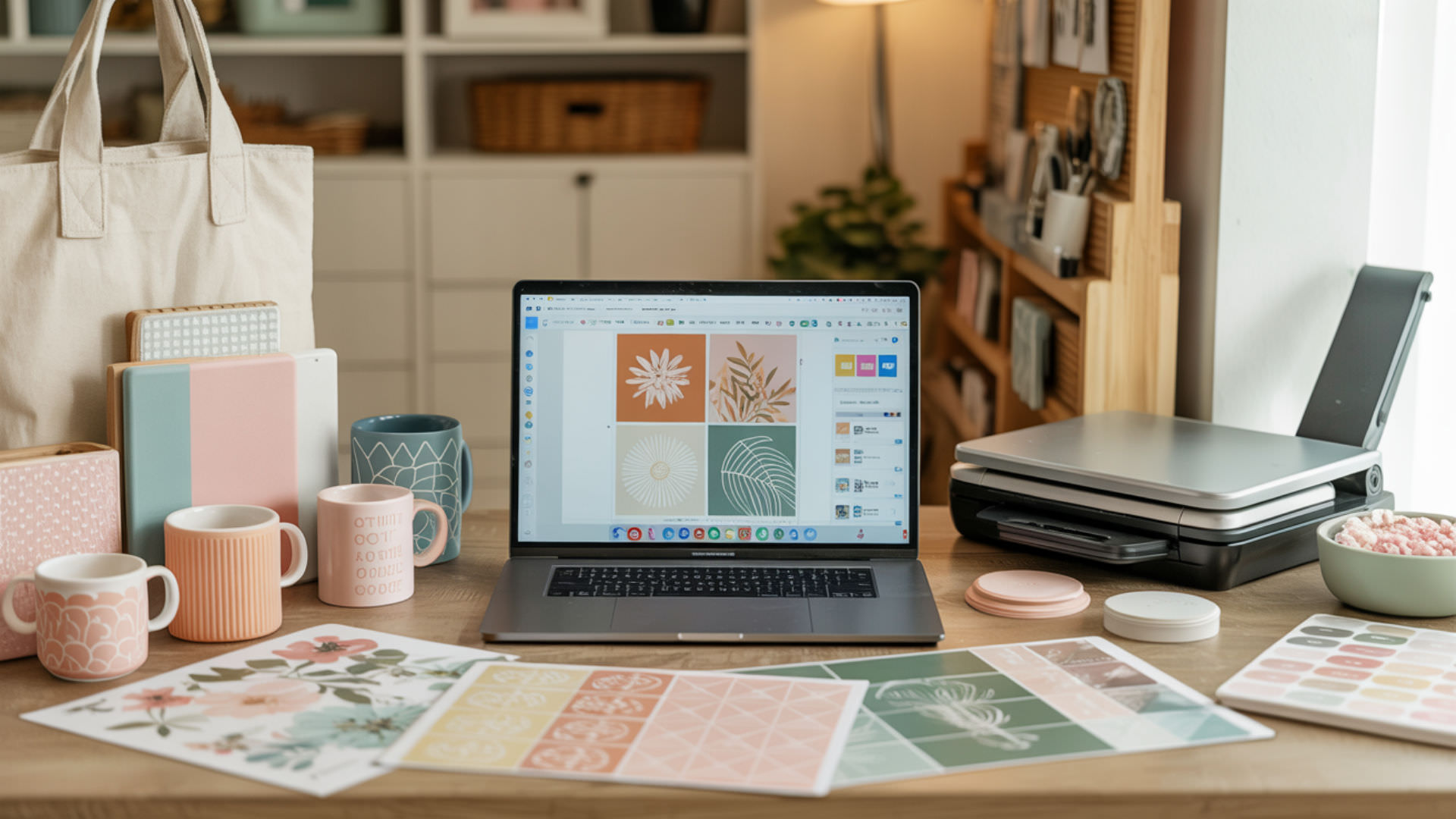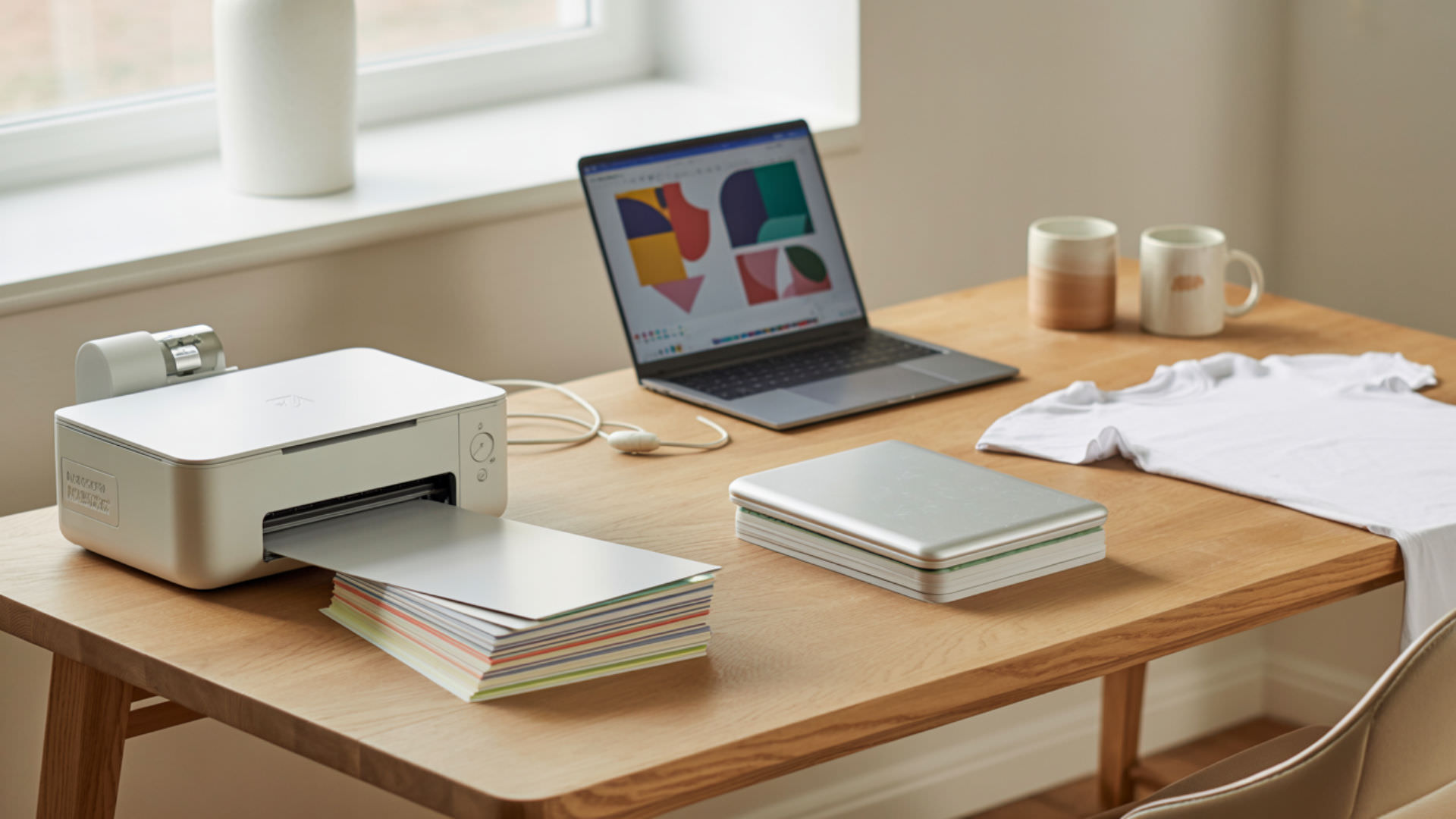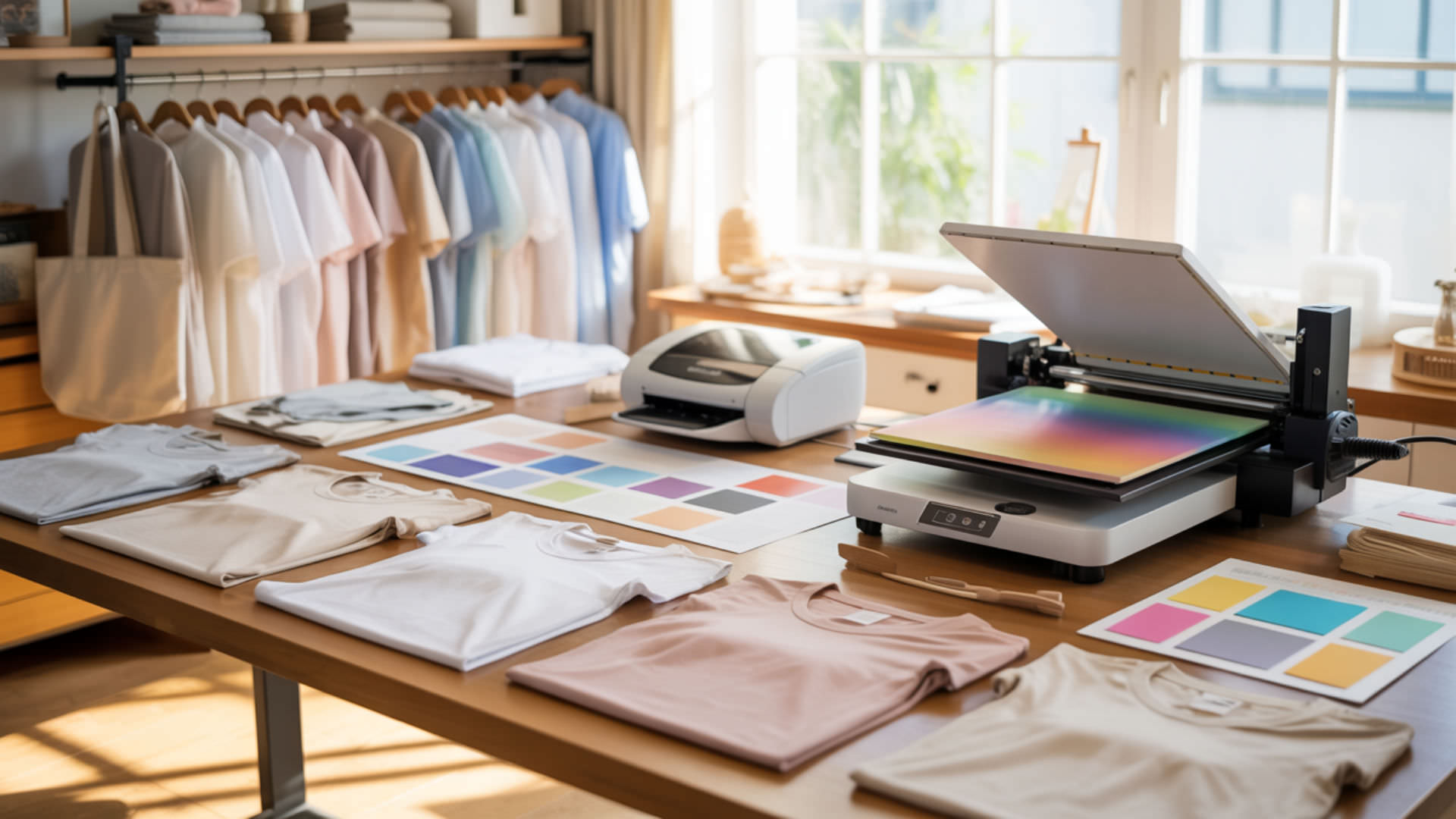
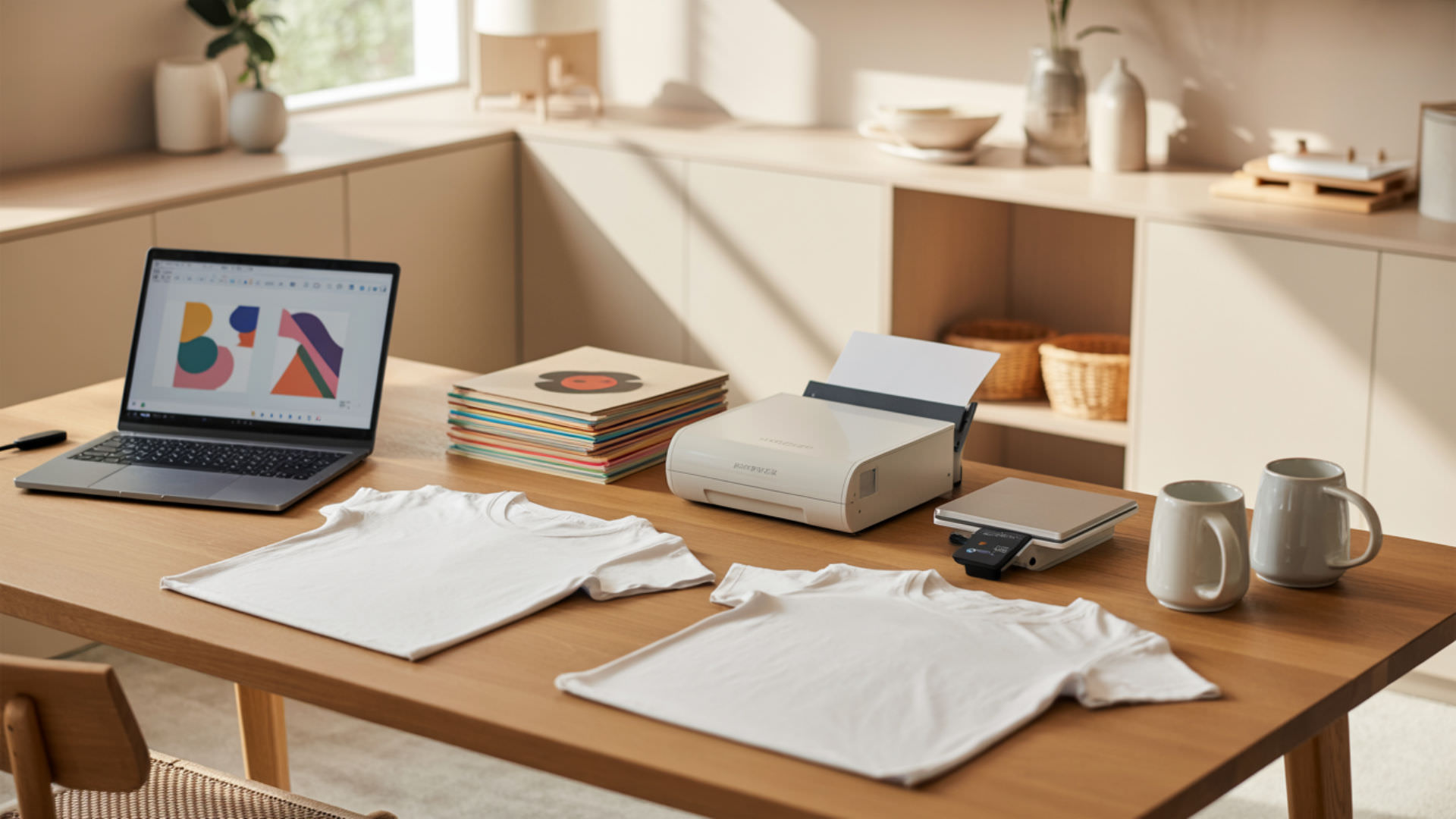
SVG files are a vector-based format, which leads many crafters to question their compatibility with sublimation printing workflows. Because vector graphics are resolution-independent, they scale cleanly at any size without losing quality. For a complete overview of how SVG fits into sublimation software and settings, see our sublimation software and setting guide. SVG files are a vector-based format, which leads many users to question whether they can be used directly for sublimation printing.[1]
Key Takeaways
- SVG files must undergo rasterization before sublimation printers can process them.
- Convert SVG to PNG at 300 DPI for optimal print clarity and detail.
- Rasterization transforms scalable vector paths into pixel-based printable formats.
Is SVG the Same as Sublimation and Can It Be Used for Sublimation?
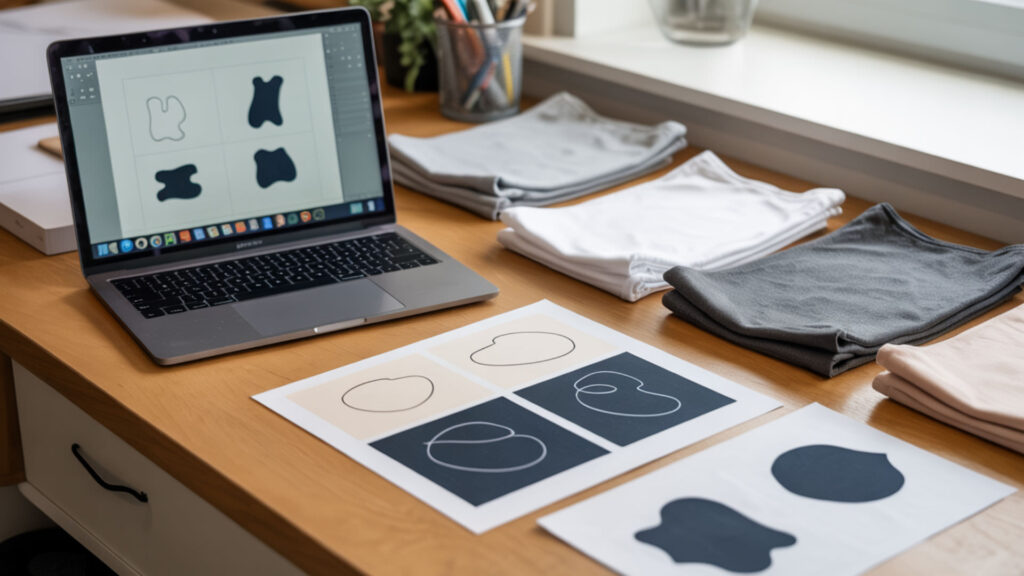
SVG is a file format while sublimation is a printing process—they serve different purposes in your workflow. Resolution independence makes SVG seem ideal for crisp prints since designs scale infinitely without pixelation. However, sublimation printers require pixel-based data, so rasterization is required to convert vector paths into printable output before the transfer process begins. Sublimation printers require raster image data, which is why SVG files must be exported to formats like PNG before printing.[2]
Is SVG for Sublimation?
SVG works for sublimation when properly prepared, but it cannot be sent directly to a sublimation printer. Rasterization converts your SVG into a printable PNG format by transforming mathematical vector paths into fixed pixels. Export at 300 DPI to maintain sharpness, and always mirror the final image before printing to ensure correct orientation after heat transfer.
What Files Can Be Used for Sublimation?
PNG is the preferred raster output for sublimation due to its clarity and transparency support—backgrounds remain invisible on the final substrate. JPEG, TIFF, and PDF also work but lack transparency. When designing in SVG, convert text as vectors (outlines) before export to prevent font substitution errors that cause missing or incorrect characters in your printed design.
What Type of File Do I Actually Use for Sublimation?
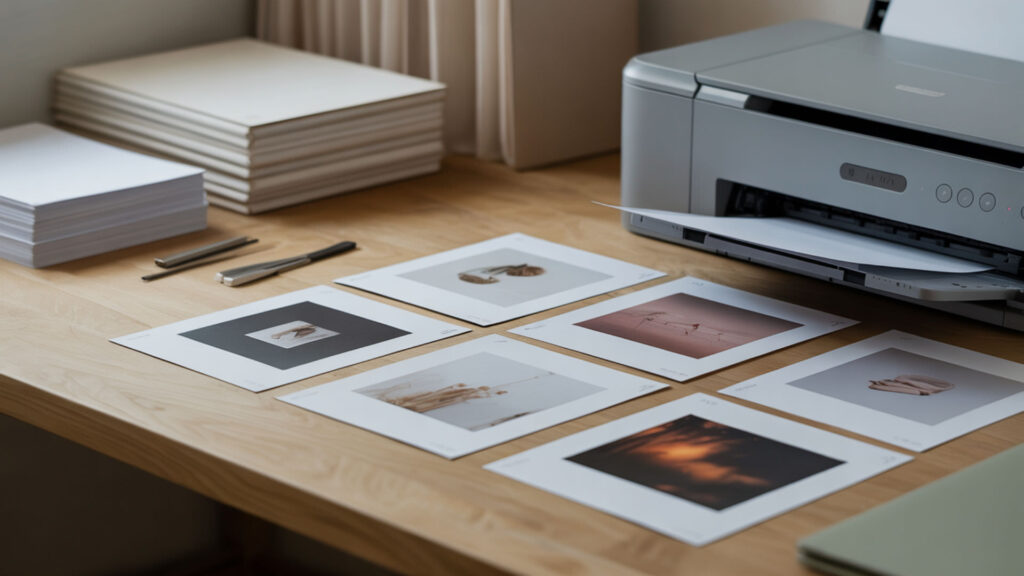
PNG files are the standard format for sublimation printing after rasterization from vector sources. During the conversion process, anti-aliasing smooths edges by blending pixel colors along curves and diagonal lines, preventing jagged stair-step artifacts. Export at 300 DPI with a transparent background for clean transfers. Our guide on using Canva for sublimation explains how to export PNG files with correct settings.
What Files Can You Use for Sublimation?
PNG, JPEG, and TIFF files work directly with sublimation printers since they contain pixel-based data. Resolution independence only applies before rasterization—once you export to a fixed-pixel format, the image cannot scale without quality loss. Sublimation printers need raster output at minimum 300 DPI, so always verify dimensions match your substrate size before converting.
⫸ Click Here For Best Selling Sublimation Printers And Products ⫷What Type of Image Do You Need for Sublimation?
PNG images at 300 DPI with transparent backgrounds produce optimal sublimation results. The RGB color model defines color behavior before the printer converts values to ink output—design in RGB rather than CMYK for accurate color reproduction. sRGB is the recommended color profile, and images should remain high-resolution to avoid pixelation on the final pressed product.
Can You Use a Cricut for Sublimation Printing?
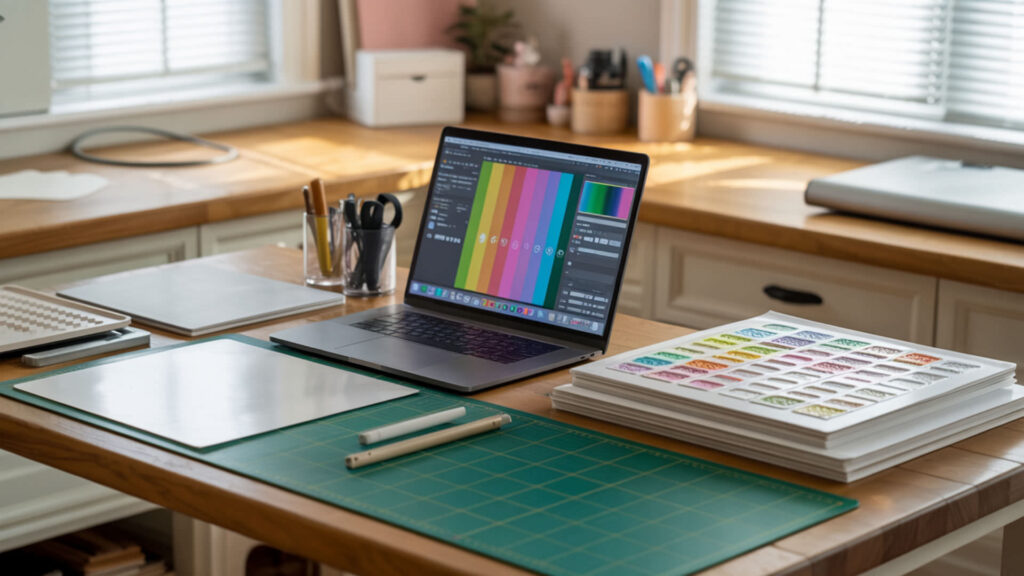
Cricut machines cut designs but do not print sublimation transfers—you need a separate sublimation printer for that step. SVG files work well with Cricut for cutting printed transfers to precise shapes. Layers determine how SVG components are arranged before Cricut processing, letting you separate elements for individual cutting or flatten everything for a single print-then-cut operation. For more detail on working with layers in design tools like Canva, Photoshop, CorelDRAW, Illustrator, and Cricut Design Space, see Best Software for Sublimation Printing.
Can You Use Cricut Design Space with a Sublimation Printer?
Cricut Design Space works with sublimation printers for designing and sizing artwork before printing. Groups (g elements in SVG code) influence how Cricut handles complex SVG structure, bundling related objects for easier manipulation. Use the Flatten tool to merge all layers into a single printable image, then send to your sublimation printer with mirroring enabled before cutting.
Where Can I Get Sublimation Files?
Etsy, Creative Market, Design Bundles, and So Fontsy offer downloadable sublimation designs in PNG and SVG formats. When purchasing SVG files, verify the seller includes proper file embedding for all assets. Font embedding prevents missing-text problems when downloading SVG files—without embedded fonts, your system substitutes available typefaces, altering the original design appearance.
What Material Can You Use for Sublimation?

Sublimation works on polymer-coated substrates including polyester fabrics, ceramic mugs, aluminum panels, and coated wood. For fabrics, 100% polyester yields the brightest colors while blends above 65% polyester produce a faded vintage look. Design files should use the RGB color model, and color management is essential for consistent color output across different materials and substrates.
Can I Put Vinyl on a Sublimation Blank?
Vinyl can be layered on sublimation blanks after the sublimation transfer is complete, adding dimensional elements or text. Complete rasterization and sublimation printing first, then apply heat transfer vinyl on top. PNG files work with vinyl overlays after raster export—design your sublimation background and vinyl cut lines in the same project for perfect alignment.
Is Heat Transfer Vinyl the Same as Sublimation Paper?
Heat transfer vinyl and sublimation paper serve different purposes and produce different results. PNG files are used for sublimation transfers, printed onto special paper and heat-pressed to infuse ink into the substrate. HTV is pre-colored vinyl cut into shapes and pressed on top of fabric—it creates a raised layer rather than ink absorbed into fibers.
Can I Use Any Image for Sublimation Printing?
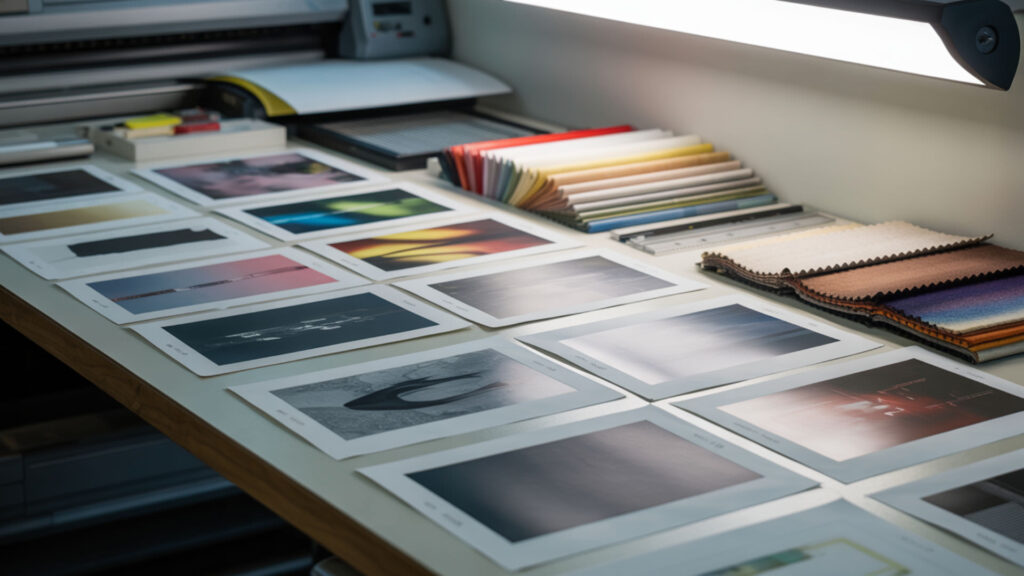
Any image can be sublimated if it meets resolution requirements—300 DPI at final print size prevents pixelation. Anti-aliasing avoids jagged edges when any image is enlarged before printing by smoothing color transitions along curves. Resolution independence only applies to vector source files; once rasterization occurs, the pixel count is fixed. Our Epson printer settings guide explains how rasterization affects DPI, ICC profiles, and print clarity.
What Is T-Shirt Sublimation Printing?
T-shirt sublimation printing transfers raster graphics onto polyester fabric using heat and pressure. The process converts solid ink to gas, which penetrates fabric fibers and becomes permanent. PNG is the standard format for sublimation transfers due to transparency support and lossless quality. Designs become part of the fabric rather than sitting on top, resulting in soft, crack-resistant prints.
Can You Use a Regular Color Printer for Sublimation?
Regular inkjet printers cannot perform sublimation because they use standard dye or pigment inks incompatible with the heat transfer process. Color management determines why this matters—sublimation requires special inks designed to convert to gas at specific temperatures. Only printers with piezoelectric printheads (like certain Epson models) can be converted by replacing ink systems.
How Do You Print a Sublimation Step-by-Step?
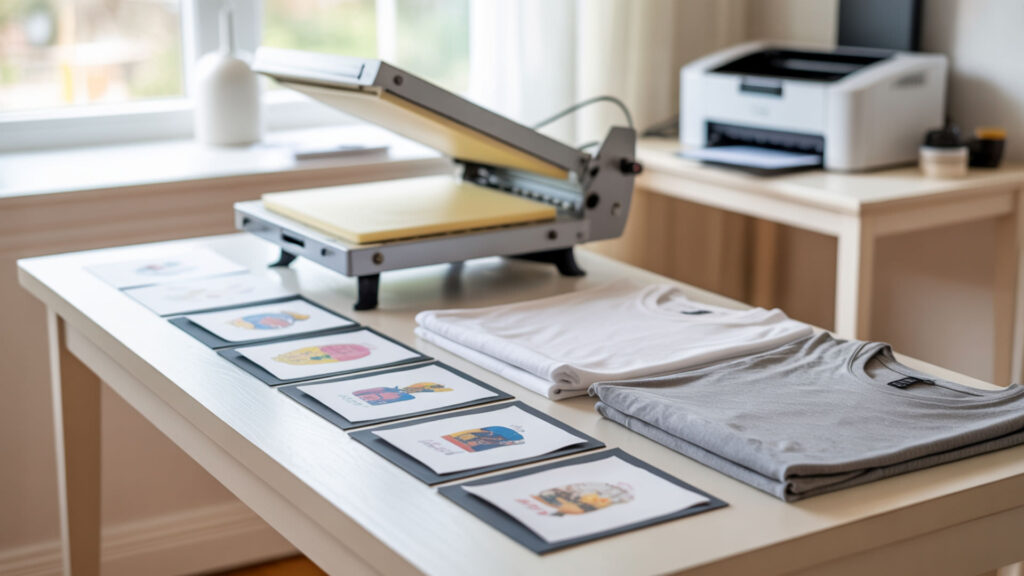
- Complete rasterization of your SVG file to PNG format at 300 DPI. Rasterization is always the first stage of using SVG for sublimation printing, converting vector paths to pixels.
- Verify anti-aliasing is enabled during export. This smooths edges and prevents jagged stair-step artifacts along curves and diagonal lines.
- Mirror the PNG image horizontally before printing. The design transfers face-down, so mirroring ensures correct orientation on the final product.
- Print onto sublimation paper using high-quality settings. Colors appear dull on paper but activate during heat pressing.
- Heat press at 375-400°F for 45-60 seconds depending on substrate. Temperature and time vary by material—always follow manufacturer recommendations.
- Remove paper promptly and allow the substrate to cool. Peeling while hot prevents ghosting; cooling locks the ink permanently into the polymer coating.
Ready to Start Using Files for Sublimation?
SVG files offer unlimited scalability for designing sublimation projects at any size without quality loss. Convert your SVG to PNG as the required final export for successful sublimation transfer—300 DPI with transparency enabled delivers professional results. Start with high-quality vector sources, and your sublimation prints will match your creative vision.
Frequently Asked Questions
Is SVG better than JPEG?
SVG offers advantages over JPEG for designs requiring scalability—vectors resize infinitely without pixelation while JPEG quality degrades when enlarged. Rasterization explains quality differences between formats: SVG maintains mathematical precision until converted, while JPEG uses lossy compression that discards data. For sublimation, convert SVG to PNG rather than JPEG to preserve transparency and avoid compression artifacts.
Can SVG be used for t-shirt printing?
SVG works excellently for t-shirt sublimation printing when properly converted to raster format before output. The vector source allows resizing for any shirt size without quality loss. Complete rasterization to PNG at 300 DPI, mirror the image, and print on sublimation paper. Press onto polyester or poly-blend shirts at 385°F for approximately 60 seconds.
Are SVG files good for printing?
SVG files are excellent for printing because they maintain crisp edges at any size through rasterization to the exact dimensions needed. Export to PNG at 300 DPI for sublimation printers. The main limitation is color mode—SVG typically uses RGB, which works for sublimation but may require adjustment for commercial CMYK printing. Always convert text to outlines before export.
Does Cricut use PNG or SVG?
Cricut uses both PNG and SVG for different purposes. SVG is preferred for cutting because vector paths define precise cut lines with separate layers for each element. PNG works better for Print Then Cut projects where rasterization has already occurred. For sublimation with Cricut, design in SVG, flatten to PNG for printing, then use Cricut to cut around the printed design.
Is SVG or PNG better for shirts?
SVG is better for creating shirt designs because it allows scaling to any size—from youth small to adult 3XL—without quality loss. PNG is better as the final print file after rasterization since sublimation printers require pixel-based data. Start with SVG for design flexibility, export to PNG at 300 DPI for printing, and your shirts will have sharp, vibrant results.
References
- SVG: Scalable vector graphics. (n.d.). MDN Web Docs. https://developer.mozilla.org/en-US/docs/Web/SVG
- Portable network graphics (PNG) specification (Third edition). (n.d.). W3C. https://www.w3.org/TR/png/