Blurry sublimation prints occur when moisture disrupts dye diffusion or uneven heat distribution causes inconsistent ink penetration across the substrate surface. These defects produce soft, fuzzy edges instead of the crisp detail your designs should display. Because dye diffusion problems cause multiple sublimation defects including blurriness and soft edges, our guide on fixing sublimation mistakes explains the science behind controlled ink transfer.
Key Takeaways
- Incorrect sublimation temperature and pressure are the primary causes of blurry transfers—verify settings for each substrate type.
- Pre-pressing blanks for 5–10 seconds removes moisture that causes steam blur and feathered edges.
- Using 300 DPI source images prevents pixelation that appears as blurriness in the final pressed product.
Why Does Sublimation Printing Turn Out Blurry?
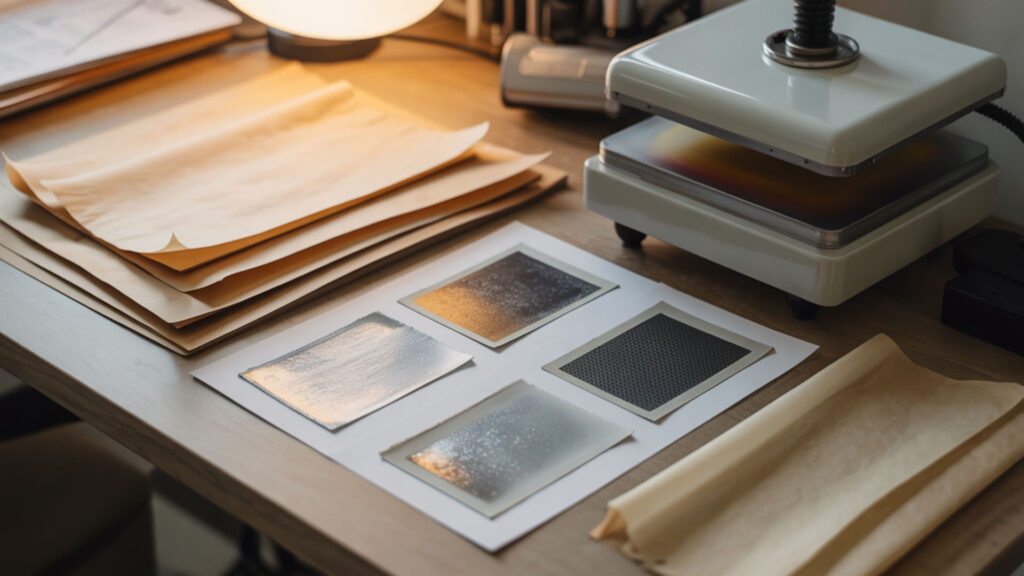
Blurry sublimation results from disrupted dye diffusion during the heat transfer process. Overheating causes excessive diffusion where ink expands beyond design boundaries, creating halo blur around edges. Paper curl from humidity lifts transfer paper during pressing, producing soft or smeared edges where ink gases escape between paper and substrate instead of penetrating directly.
Why Is My Sublimation Image Blurry?
Moisture trapped in sublimation paper or substrate causes blurry images by creating steam that disperses ink unevenly during transfer. Moist cellulose fibers in paper expand when heated, lifting edges and allowing dye gas to spread beyond intended boundaries. Pre-pressing blanks for 5–10 seconds and storing paper in sealed containers with desiccant eliminates moisture-related blur.
Can Poor-Quality Images Trigger Blurriness in Sublimation Printing?
Low resolution (DPI) source files produce fuzzy or pixelated edges that appear blurry even before pressing occurs. Images below 150 DPI lack sufficient detail density for crisp sublimation output, while 300 DPI provides optimal sharpness for most applications. Compressed image formats like low-quality JPEGs introduce artifacts that become visible blur after heat transfer.
Can Heat, Pressure, or Moisture Make Sublimation Lose Sharpness?
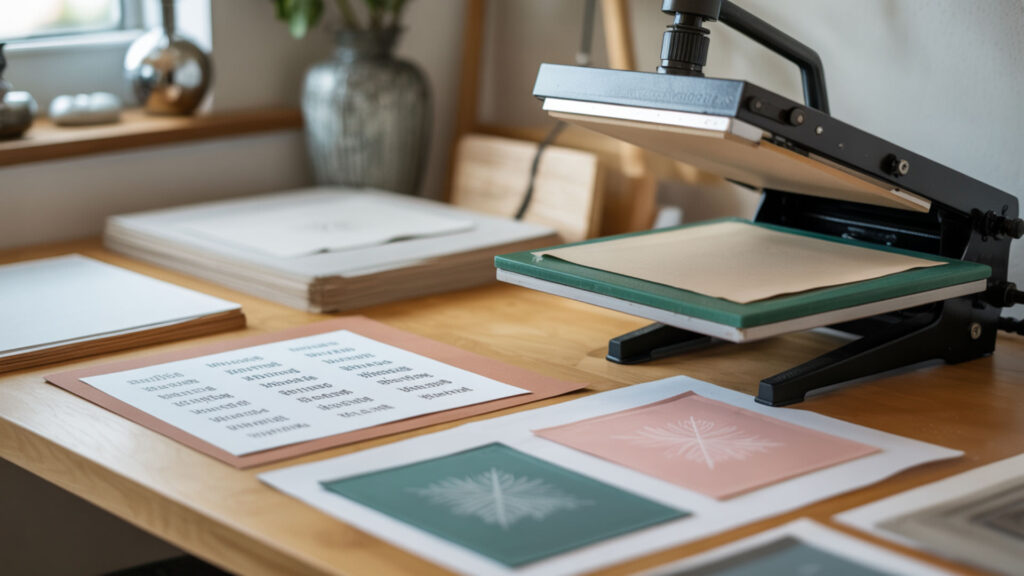
All three factors directly affect sublimation sharpness through different mechanisms. Pressure inconsistencies cause uneven dye penetration that produces soft edges in areas with weak contact. Water vapor trapped in materials turns to steam under heat, creating feathering and blur patterns. Underheating prevents complete dye activation, leaving fuzzy underdeveloped edges throughout the transfer. Organic solvents can pose inhalation exposure risks during evaporation and drying, which have been evaluated in depth by NIOSH.Sublimation sharpness depends on even heat flow across the substrate surface during pressing. The U.S. Department of Energy explains that heat transfer governs how thermal energy moves through materials, helping explain why uneven heat causes blur and soft edges.[1]
Does Moisture Affect Sublimation Clarity or Sharpness?
High humidity causes sublimation paper and fabric substrates to absorb atmospheric moisture, producing hazy prints when pressed. Sudden evaporation during heating disrupts controlled dye diffusion by pushing ink away from intended placement. Store supplies in dry conditions below 60% relative humidity, and allow printed paper to dry completely—if ink looks shiny, it needs more drying time before pressing. Moisture in the air increases water vapor trapped in paper and substrates, which disrupts dye diffusion during pressing. [2]
⫸ Click Here For Best Selling Sublimation Printers And Products ⫷How Does Pressure Impact Image Clarity During Sublimation?
Low pressure reduces adhesion between transfer paper and substrate, allowing gaps where dye gas disperses instead of penetrating directly into the coating. These gaps produce fuzzy, soft transfers with inconsistent color density. Medium pressure (approximately 40 PSI) maintains firm contact throughout the pressing cycle, ensuring sharp edges and complete ink penetration.
What Press Settings Help Sublimation Stay Crisp and Sharp?
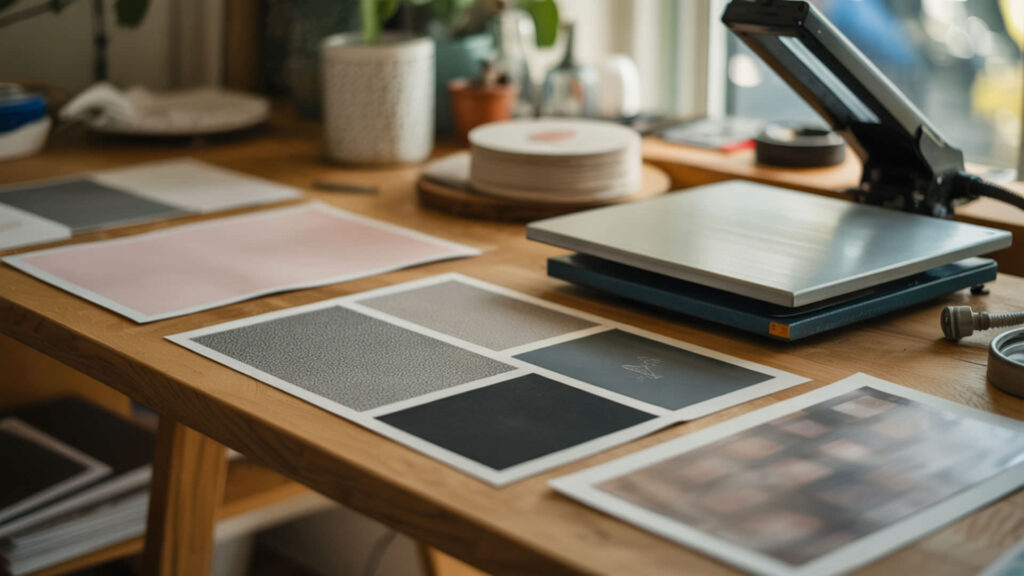
Correct sublimation temperature combined with proper dwell time produces controlled diffusion that maintains sharp edges throughout transfer. Press at 375–400°F for 45–60 seconds on most substrates to achieve complete ink activation without over-diffusion. Even heat distribution across the entire platen prevents localized hot spots that cause blur in some areas while leaving others underdeveloped. Consistent heat distribution eliminates clarity problems—our sublimation kit guide includes tools that correct heat inconsistencies causing blurriness.
How Do You Keep Text Sharp in Sublimation Printing?
Sharp text requires high-resolution artwork (300 DPI or higher) and stable droplet formation during printing. Clean printheads produce consistent droplet sizes that create crisp letter edges on sublimation paper. Disable high-speed printing in your printer settings—faster printing creates irregular droplets that appear as fuzzy text boundaries after heat transfer.
Why Do Sublimation Prints Sometimes Look Grainy or Uneven?
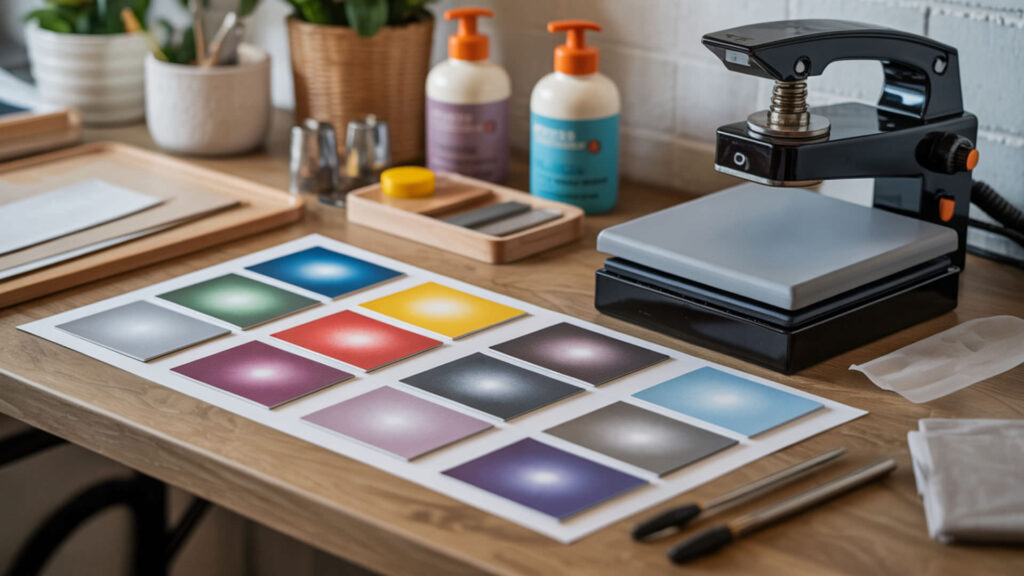
Grainy sublimation results from incorrect ink viscosity that causes feathering during printing or high-porosity surfaces that absorb dye unevenly. Ink starvation from low ink levels or clogged nozzles produces inconsistent coverage that appears grainy after pressing. Porous substrates without proper coating allow uncontrolled dye penetration that creates textured, uneven finishes. Since ink starvation causes both graininess and color shifts, our guide on green printing as blue addresses shared ink flow problems.
Why Is My Sublimation Grainy or Grain-Textured?
Weak paper coating causes irregular dye release during transfer, producing grainy texture patterns in the finished product. Contamination on the substrate surface—dust, fingerprints, or coating residue—interferes with uniform dye penetration and creates textured artifacts. Clean substrates thoroughly before pressing and use quality sublimation paper with consistent coating for smooth results.
Which Temperatures Support Sharp Sublimation Without Soft Edges?
Optimal sublimation temperature falls between 375–400°F for most substrates, providing enough heat for complete dye activation without causing over-diffusion blur. Overheating above 410°F causes dye to spread beyond design boundaries, softening edges. Underheating below 370°F leaves ink partially activated, creating fuzzy underdeveloped edges throughout the transfer. Because controlled sublimation temperature affects both sharpness and color vibrancy, our guide on keeping sublimation from fading covers shared temperature-dependent factors.
Can Too Much Heat Cause Sublimation to Blur or Soften Details?
Excessive heat causes ink to remain in the gas phase longer than intended, creating over-diffusion where dye diffusion expands beyond design boundaries. This over-expansion produces soft halos around edges and loss of fine detail throughout the transfer. Reducing temperature by 10–15°F or shortening press time by 5–10 seconds often restores edge sharpness without sacrificing color vibrancy.
How Do You Fix Blurry Sublimation Prints Step-by-Step?
Fixing blurry prints requires systematically addressing pressure, moisture, and heat distribution issues that disrupt controlled dye transfer. Follow these steps to diagnose and correct the specific cause of your blur problems.
- Verify your source image is at least 150 DPI, ideally 300 DPI. Low-resolution files produce blur regardless of press settings—fix the source before troubleshooting hardware.
- Pre-press blanks for 5–10 seconds before applying the transfer. This removes trapped moisture that causes steam blur during the actual transfer cycle.
- Ensure printed paper is completely dry—if ink looks shiny, allow more drying time. Wet ink spreads under heat, creating feathered edges and soft details.
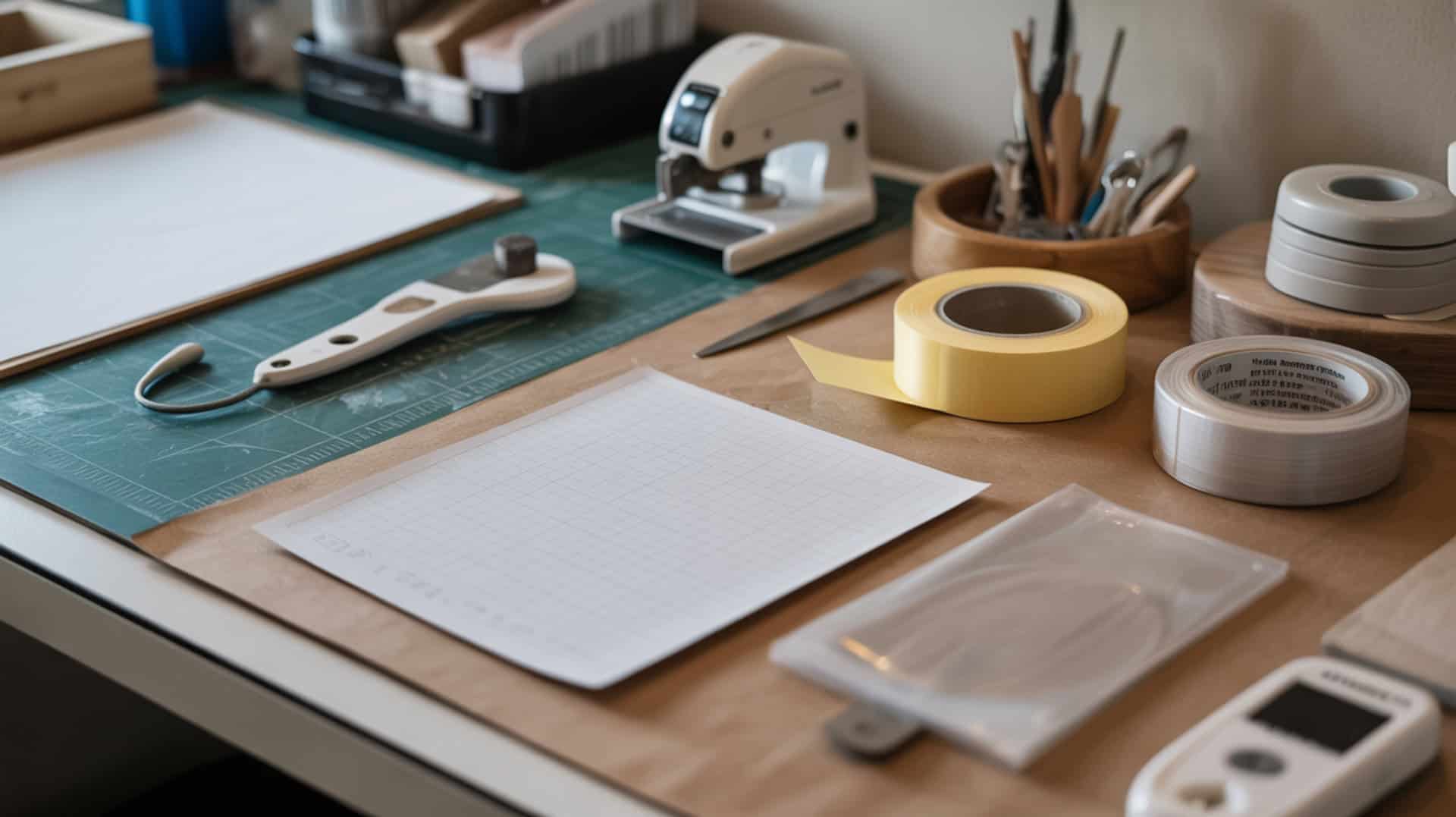
- Secure transfer paper with heat-resistant tape on all four edges. Any movement during pressing creates ghosting blur—firm contact prevents shifts.
- Set temperature to 375–400°F and verify with an infrared thermometer. Many presses read 15–25°F off, causing over or under-diffusion blur.
- Apply medium pressure (approximately 40 PSI) evenly across the platen. Use a pressing pillow for uneven substrates to ensure consistent contact.
- Press for 45–60 seconds, then remove transfer paper while still warm. Hot peeling reduces residual ink migration that softens edges after pressing.
Ready to Fix Your Blurry Sublimation Prints?
Proper polymer bonding and stable surface energy produce clean, sharp details that match your original design files. Controlling moisture, temperature, and pressure throughout the transfer process ensures consistent results across every project. Apply these techniques systematically, and blurry prints become rare exceptions rather than recurring frustrations.
Frequently Asked Questions
Can sublimation blurriness happen even when the printer output looks sharp?
Sharp printer output can still produce blurry transfers if moisture, movement, or incorrect press settings disrupt dye diffusion during heat application. The printed paper may look perfect, but humidity absorbed during storage or steam released during pressing causes blur at the transfer stage. Always pre-press substrates and secure paper firmly regardless of print quality.
Does sublimation sharpness depend more on ink absorption than surface texture?
Sharpness depends primarily on controlled ink absorption into the polymer coating rather than surface texture. High-porosity substrates absorb dye unevenly regardless of texture smoothness, creating grainy or blurred appearances. Quality sublimation blanks with consistent coating density produce sharp results even on textured surfaces like polyester fabric weaves.
Can stretching fabric after sublimation distort perceived sharpness?
Stretching sublimated fabric distorts dimensional stability and can make previously sharp images appear blurred or pixelated as the design spreads with the material. This is particularly noticeable on fitted garments where fabric stretches during wear. Designing with slightly higher resolution and avoiding fine detail on high-stretch areas minimizes perceived distortion.
Is blurriness more noticeable with text than solid graphic designs?
Blurriness shows more prominently on text and fine lines because the human eye detects edge definition more critically on familiar shapes like letters. Solid graphics can hide minor blur within color fields, while text makes every soft edge immediately visible. Use higher resolution (300+ DPI) for text-heavy designs and ensure printer high-speed mode is disabled.
Can environmental humidity affect line sharpness and fine detail transfer?
Environmental humidity directly impacts sharpness by causing sublimation paper and substrates to absorb atmospheric moisture. Absorbed water becomes steam during pressing, disrupting controlled dye diffusion and creating soft edges on fine details. Working in humidity-controlled environments (below 60% relative humidity) and pre-pressing all materials eliminates humidity-related blur problems.
References
- Principles of heating and cooling. (n.d.). Energy.gov. https://www.energy.gov/energysaver/principles-heating-and-cooling
- Discussion on humidity. (n.d.). National Weather Service. https://www.weather.gov/lmk/humidity