Green-to-blue color shifts in sublimation printing occur when sublimation dye fails to express its intended chromophore structure during transfer. Poor dye diffusion disrupts the balance between cyan and yellow channels, causing green designs to appear blue on the finished product. Since dye diffusion and heat activation directly affect color accuracy, our guide on fixing sublimation mistakes explains the core science behind these channel imbalances.
Key Takeaways
- Disperse dyes require correct sublimation temperatures (385–400°F) to express accurate hue balance between color channels.
- Clogged yellow nozzles eliminate yellow from the cyan-yellow mix, causing green to print as blue.
- Incorrect or missing ICC profiles send wrong color instructions to the printer, creating predictable channel imbalances.
Why Is Sublimation Printing Green Instead of Blue?
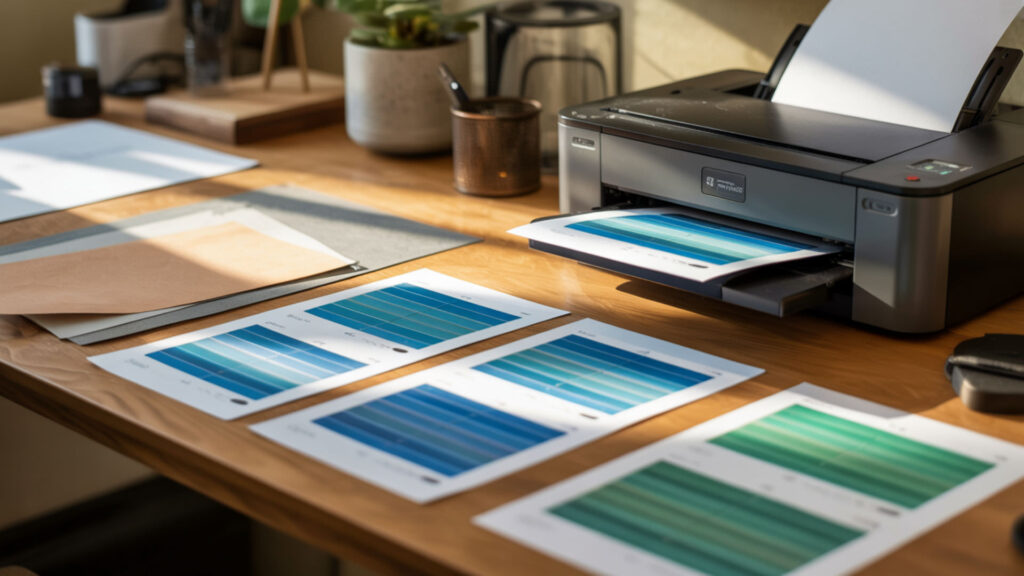
Sublimation prints green instead of blue when underheating prevents full dye activation, weakening the blue channel and allowing green to dominate. Low ink density from depleted cartridges or nozzle clogs removes yellow from the color mix—since green combines cyan and yellow, missing yellow produces blue output. Running a nozzle check pattern identifies blocked channels before wasting materials.
Why Is My Sublimation Printing Green?
Ink starvation from low ink levels or air bubbles in the lines prevents sufficient yellow ink from reaching the printhead, causing green designs to shift toward blue. Ink viscosity changes from temperature fluctuations or aged ink alter droplet size, affecting how colors mix on paper. Refilling ink tanks and running 2–3 cleaning cycles restores proper ink flow.
What Causes Color Shifts in Sublimation Printing?
Chromophore structures in sublimation dyes determine color expression—overheating above 410°F causes chromophore degradation that distorts hues into unintended green or blue tones. Temperature-damaged dye molecules produce muted, shifted colors that cannot be corrected after transfer. Pressing at 385–400°F preserves chromophore integrity and accurate color reproduction. Color shifts occur when individual color channels are imbalanced, and the University of Colorado explains in its color theory materials that changes in channel contribution directly alter perceived hue, which helps explain why missing yellow or weakened dye activation causes green designs to print as blue. [2]
Why Does Sublimation Often Show a Green Tint?
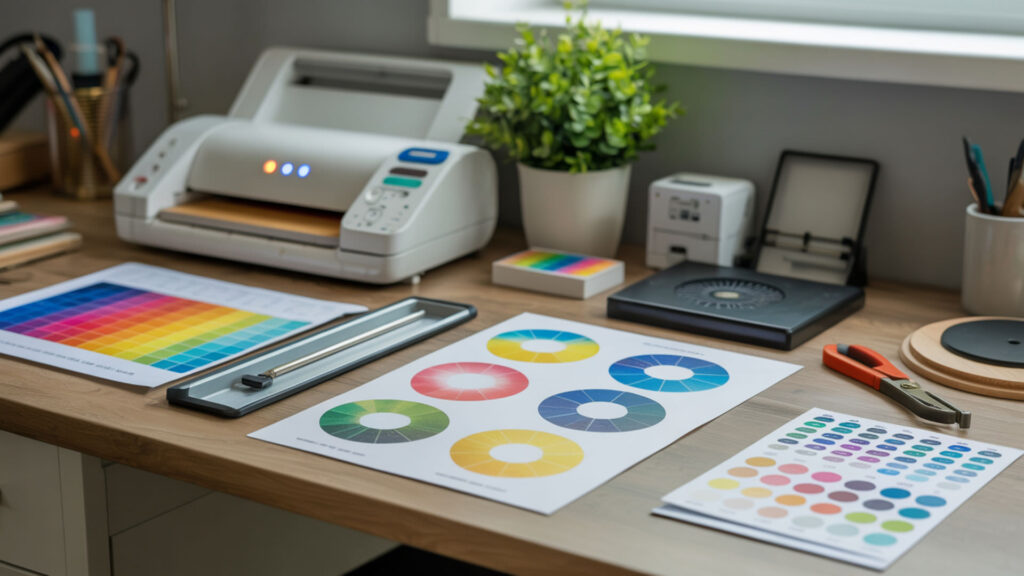
Anthraquinone dyes used in sublimation inks are sensitive to underheating and shift toward greenish tones when activation temperature falls short. Humidity interferes with dye deposition by introducing water vapor that causes uneven activation across the transfer surface. These factors create green casts even when the original design file displays accurate blues and teals.
What Is the Color Problem with Sublimation?
Sublimation color problems stem from disrupted dye diffusion between paper and substrate—when paper coating blocks proper dye release, color channels transfer unevenly. Weak coating quality causes some dyes to activate fully while others remain partially bound, shifting the overall color balance. Using high-quality sublimation paper with consistent coating eliminates diffusion-related color shifts.
⫸ Click Here For Best Selling Sublimation Printers And Products ⫷Why Is My Printer Not Producing the Right Colors After a Color Change?
Printhead misfires produce incorrect droplet formation, causing inaccurate hue reproduction after switching ink brands or refilling tanks. Air introduced during refilling disrupts ink flow consistency, creating variable droplet sizes that affect color mixing. Running multiple cleaning cycles and allowing ink to settle for 24 hours after refilling improves printhead performance.
Can Printer Profiles Trigger Green or Blue Color Errors?
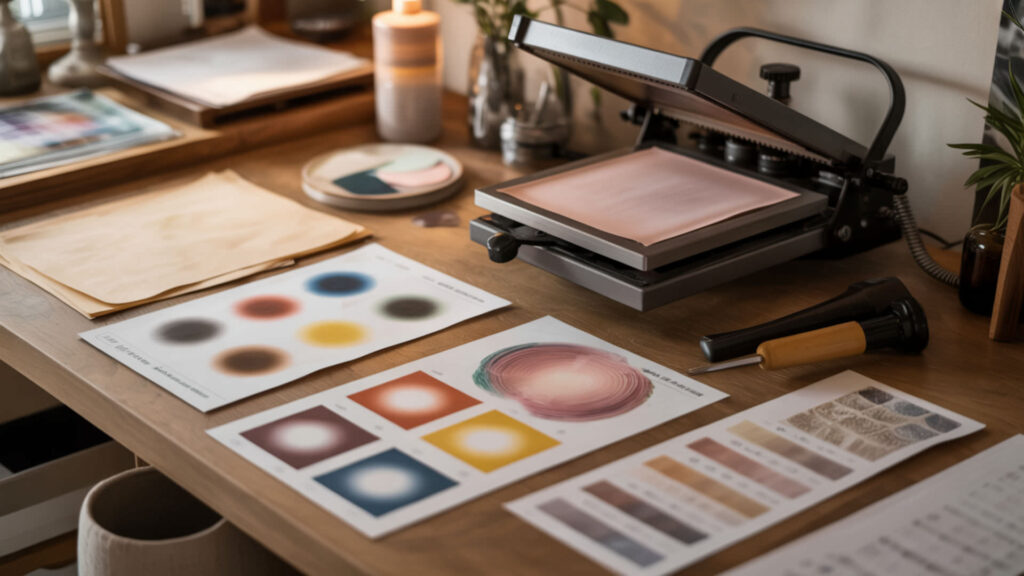
ICC profiles translate RGB screen colors to CMYK printer output—mismatched profiles send wrong instructions for dye activation, creating systematic color errors. Disperse dyes respond differently under mismatched profiles because each profile assumes specific ink formulations and paper types. Using the correct profile for your printer, ink, and paper combination eliminates profile-based green/blue shifts. Proper ICC profiles prevent color calibration problems—our sublimation kit guide includes tools and resources for correcting profile-based color errors. Color accuracy depends on how devices interpret visible light and color information, and NASA explains that different wavelengths and color representations can be interpreted differently by systems, which helps explain why incorrect ICC profiles cause predictable green or blue color shifts. [1]
Can ICC Profiles Cause Green or Blue Color Errors?
Incorrect ICC profiles cause predictable color errors by assuming wrong sublimation temperature and ink density parameters for your specific setup. The profile tells the printer how to mix colors—wrong assumptions produce wrong output. Installing the profile matched to your exact printer model, ink brand, and paper type corrects channel imbalances that shift green to blue.
Can the Wrong Settings Cause Colors to Mix Incorrectly?
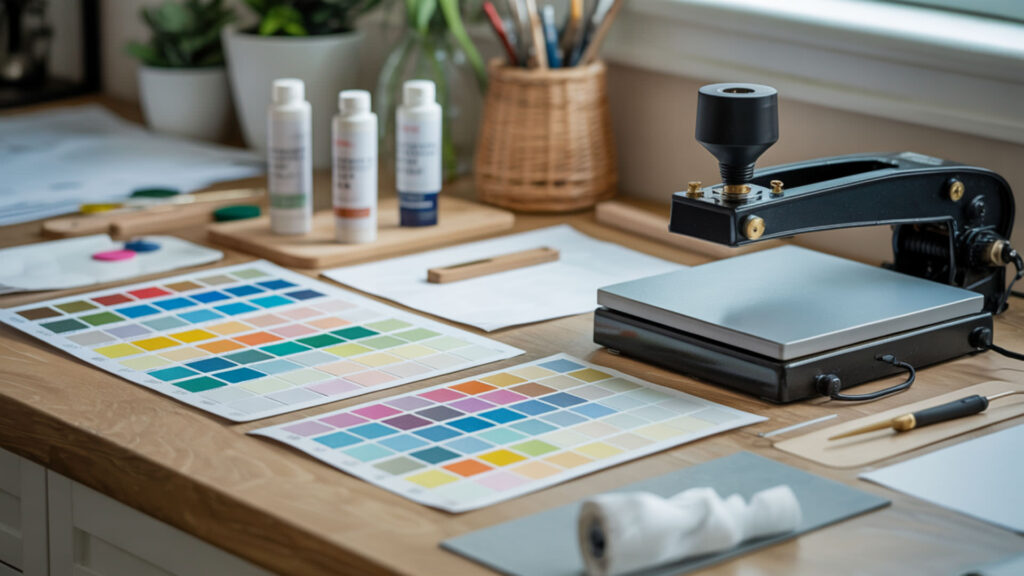
Wrong press settings disrupt color mixing through uneven droplet formation and inconsistent heat distribution across the transfer area. Cold spots activate some dyes while leaving others partially converted, creating localized color shifts. Hot spots cause overactivation that degrades chromophores before bonding completes. Because uneven heat distribution causes both color mixing errors and blurry prints, our blurry sublimation guide addresses shared heat-related defects.
What Causes Color Mixing or Incorrect Blue Reproduction?
Azo dyes in sublimation inks fail to activate fully when underheating occurs, shifting intended blues toward green because yellow components remain inactive. These dye structures require sustained heat at 385–400°F to complete their color transformation. Pressing below 370°F leaves yellow under-converted, disrupting the cyan-yellow balance that produces accurate green tones.
Why Can Green Accidentally Print Where Blue Should Appear?
Nozzle clogging combined with banding creates conditions where blue ink fails to deposit while yellow prints normally, producing green where blue should appear. Partial clogs allow some ink through while blocking full-strength color—the imbalance shifts output toward whichever channel flows freely. Running nozzle checks before each print session identifies clogs early.
How Do You Fix Sublimation Color Issues Step-by-Step?
Correcting color issues requires addressing dye diffusion problems, heat distribution inconsistencies, and ink density imbalances systematically. Since dye diffusion failures cause both fading and color shifting, our guide on keeping sublimation from fading covers shared diffusion and activation problems.
- Run a nozzle check pattern to identify clogged channels. Missing lines in any color indicate blockages that cause channel imbalances and color shifts.
- Execute 2–3 cleaning cycles if nozzle check shows gaps. Allow 10 minutes between cycles for ink to settle; recheck after each cleaning.
- Verify ink levels in all tanks—low yellow causes green-to-blue shifts. Refill tanks before they drop below 25% to prevent air from entering the lines.
- Install the correct ICC profile for your printer, ink, and paper combination. Download profiles from your ink manufacturer’s website; generic profiles often cause color errors.
- Set print quality to ‘High’ or ‘Best’ and disable high-speed printing. Higher quality settings deposit more ink and improve color accuracy.
- Press at 385–400°F for 35–60 seconds with medium pressure. Verify actual platen temperature with an infrared thermometer before pressing.
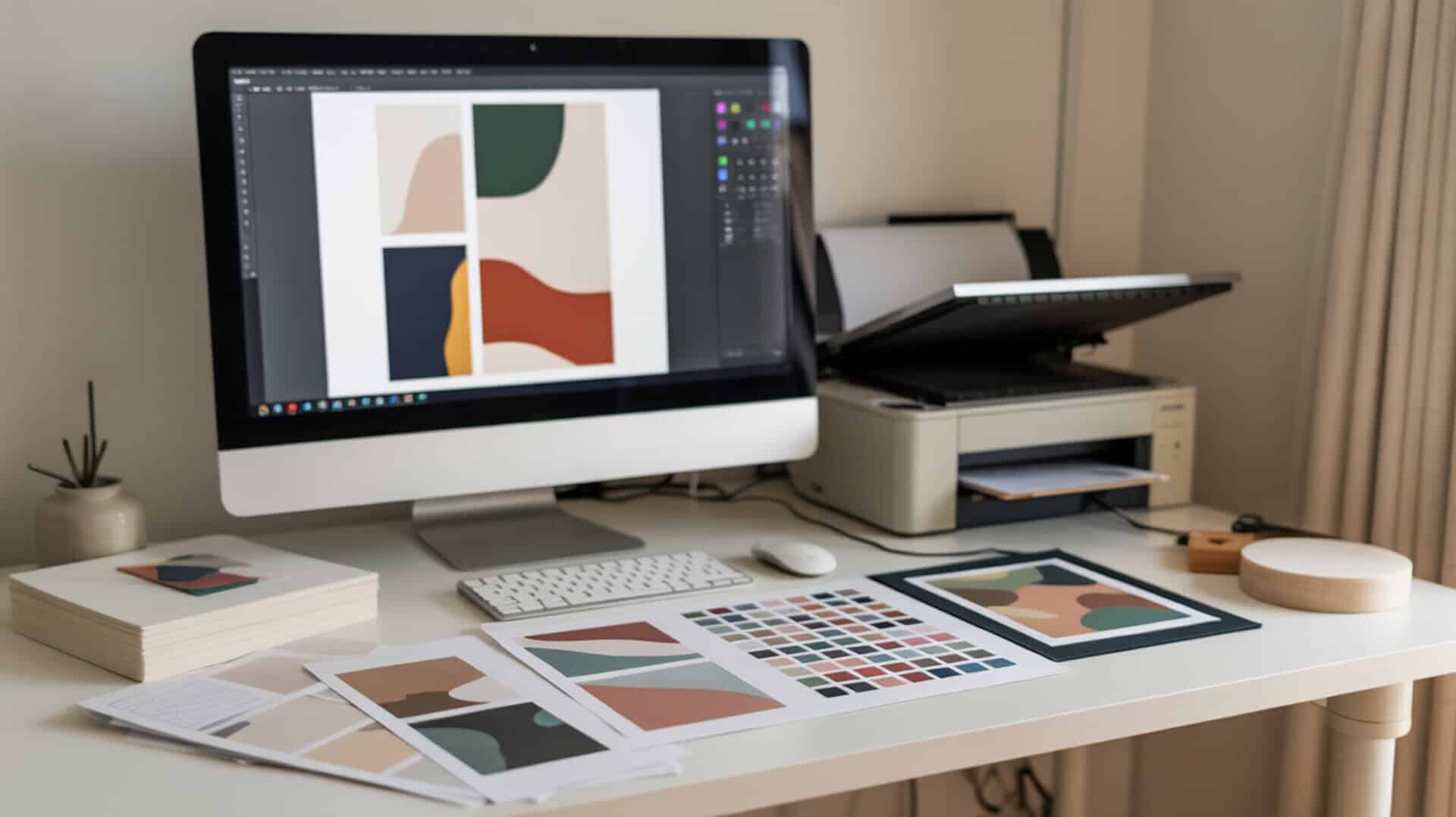
- Print a color test chart before full production runs. Compare pressed output against the screen to identify remaining channel imbalances.
Ready to Fix Sublimation Color Issues?
Accurate color reproduction depends on stable disperse dye activation and intact chromophore structures throughout the transfer process. Maintaining clean nozzles, correct ICC profiles, and consistent press temperatures ensures your greens stay green and blues stay blue. Test prints before production catch color shifts early, saving materials and frustration.
Frequently Asked Questions
Can color shifting be fixed without replacing the ink?
Color shifting from nozzle clogs or incorrect ICC profiles can be fixed without replacing ink—running cleaning cycles clears blockages, and installing the correct profile corrects channel imbalances. Shifting caused by expired or degraded ink density requires fresh ink because damaged chromophores cannot be restored. Test prints after each adjustment identify whether the fix worked.
Does sublimation ink naturally lean toward green on some prints?
Sublimation ink does not naturally lean green when properly activated—green tints indicate underheating, nozzle issues, or incorrect ICC profiles. Shorter press times leave dyes partially activated, shifting colors toward green because yellow components convert at lower energy levels than cyan. Pressing at full temperature for recommended duration eliminates unwanted green bias.
Can clogged nozzles create green instead of blue tones?
Clogged cyan nozzles can create green output where blue should appear because yellow ink deposits normally while blue is blocked. The imbalance shifts mixed colors toward whichever channel flows freely. Running nozzle checks before printing identifies partial clogs; cleaning cycles restore proper ink flow and correct color balance.
Is a green tint a sign of incorrect heat application as well?
Green tints often indicate incorrect heat application—underheating below 370°F leaves anthraquinone and azo dyes partially activated, shifting output toward green. Blacks pressed at insufficient temperature commonly show green tinges because full chromophore activation requires sustained heat at 385–400°F. Extending press time by 10–15 seconds can correct heat-related green tints.
How can you test true blue before printing a full design?
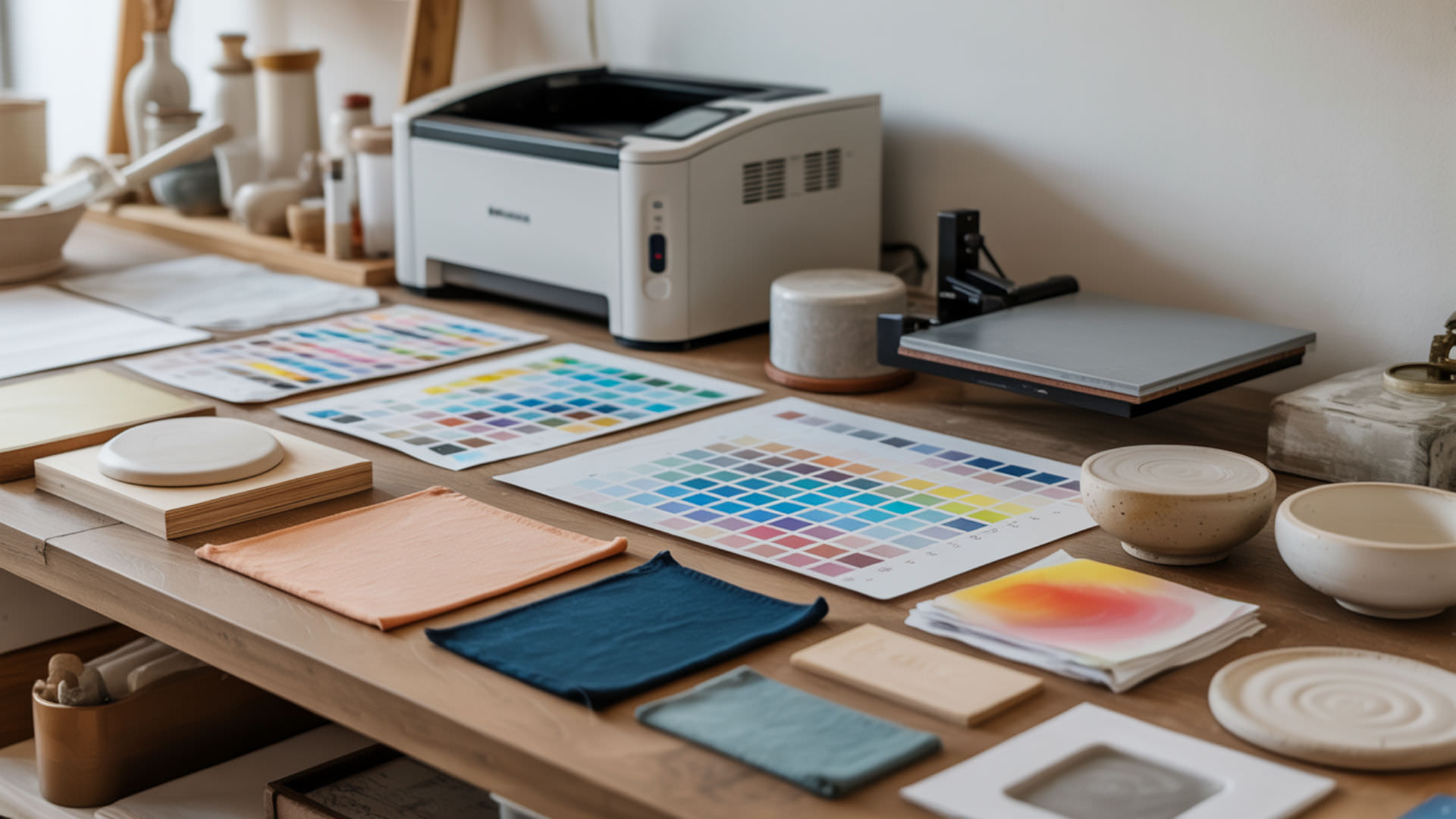
Print a color test chart containing blue, green, cyan, and yellow swatches onto sublimation paper, then press onto a small polyester swatch at your standard settings. Compare the pressed output against your screen display—any green shift in blue swatches indicates nozzle, profile, or temperature issues. Correct problems before committing to full production runs.
References
- Visible light. (2023, August 4). NASA Science. https://science.nasa.gov/ems/09_visiblelight/
- Luminance dependency of perceived color shift after color contrast adaptation caused by higher-order color channels. (n.d.). PMC Home. https://pmc.ncbi.nlm.nih.gov/articles/PMC9251816/