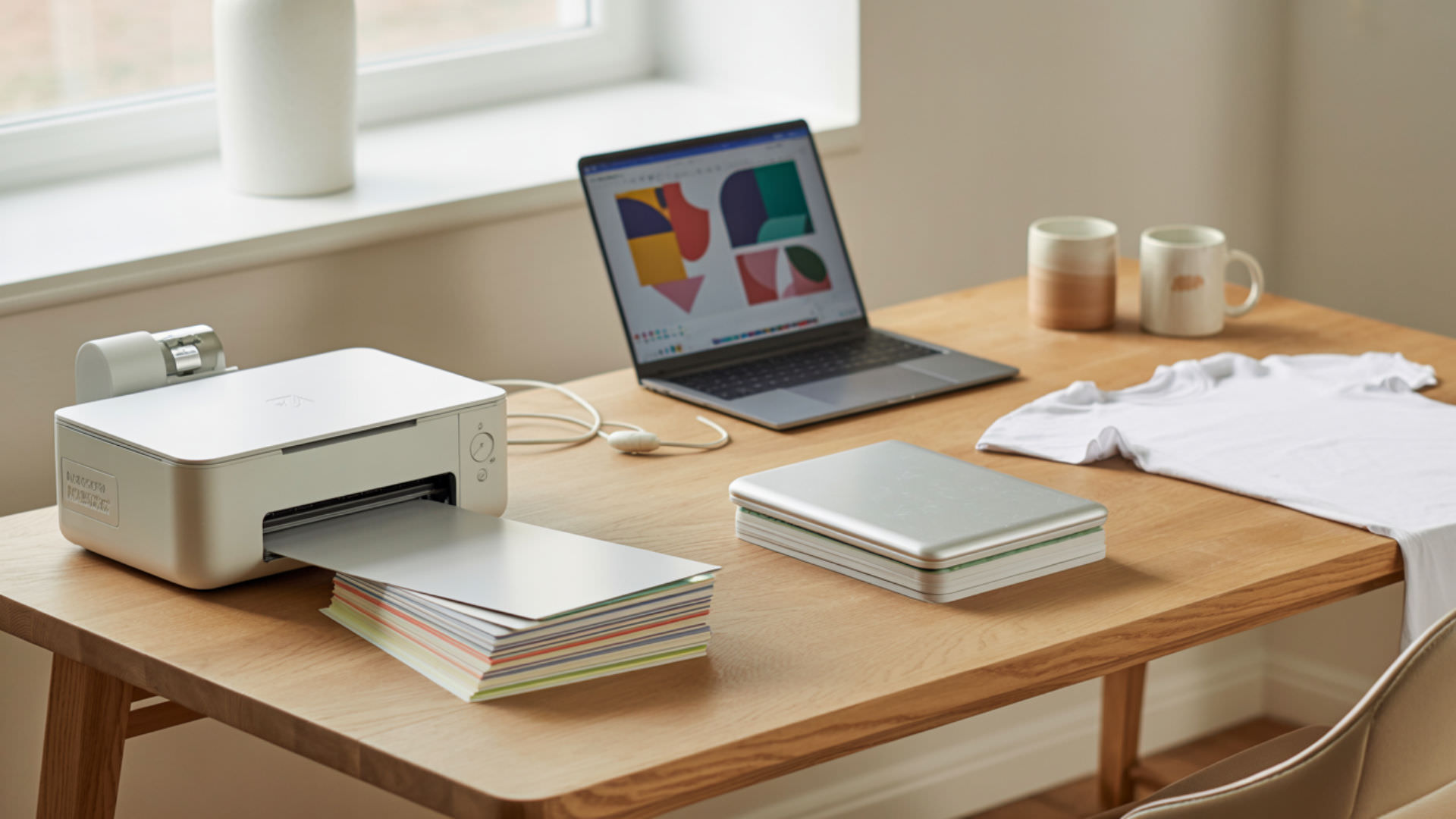

Lines in sublimation prints appear when printhead or nozzle issues disrupt consistent ink output before pressing ever occurs. Banding—visible alternating light and dark lines across your transfer—results from nozzle clogging that blocks ink flow in specific areas. Since banding and other line-based defects require printer troubleshooting, our guide on fixing sublimation mistakes covers streaking, misfires, and nozzle problems.
Key Takeaways
- Ink starvation from low ink levels causes faint or missing lines—check and refill tanks before they drop below 25%.
- Paper feed mechanism issues create repeating patterned lines at consistent intervals across prints.
- Running nozzle checks and 2–3 cleaning cycles resolves most clog-related line defects without manual intervention.
Why Do Sublimation Prints Show Lines at All?
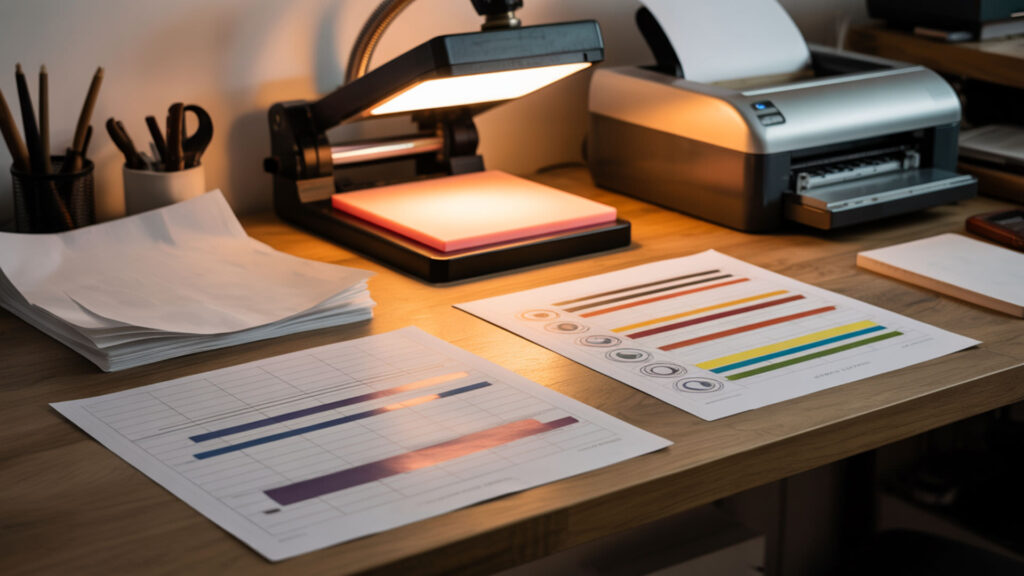
Sublimation prints show lines when banding occurs from inconsistent ink delivery during the printing stage. Nozzle misfires produce missing droplets that create white lines where ink should appear. Irregular droplet formation from viscosity problems or air bubbles causes uneven ink application that appears as visible banding patterns across gradients and solid color areas.
Why Is My Sublimation Coming Out with Lines?
Nozzle clogging from dried ink or debris blocks specific channels, creating consistent line patterns that repeat across every print. Incorrect ink viscosity—too thick from cold temperatures or too thin from heat—causes poor flow through the printhead. Run a nozzle check pattern to identify blocked channels, then execute 2–3 cleaning cycles to restore proper ink flow.
What Causes Horizontal Lines When Printing?
Horizontal lines typically result from incorrect feed rate settings that create repeated alignment gaps as paper advances through the printer. The printhead deposits ink in passes, and improper feed timing leaves visible gaps between each pass. Adjusting paper feed settings in your printer’s maintenance menu or running automatic alignment calibration corrects feed-related horizontal banding.
Why Are the Lines Often Horizontal Instead of Random?

Horizontal lines appear consistently because they relate to printhead mechanics—feed rate determines vertical spacing between passes, while resolution (DPI) and pass count control ink density per area. Low DPI combined with low pass count creates visible stepping where individual print passes don’t overlap sufficiently. Since resolution (DPI) affects both line defects and color accuracy, our guide on green printing as blue addresses shared DPI and calibration problems. Horizontal lines form because inkjet printers deposit ink in repeated passes as paper advances through the machine. [1]
Why Do I See Horizontal Lines When I Print?
Horizontal lines appear when feed rate misalignment combines with printhead positioning errors to create repeating gaps. The printhead moves horizontally while paper feeds vertically—any timing mismatch produces consistent horizontal gaps. Running printhead alignment calibration from your printer’s maintenance menu corrects positioning errors that cause predictable horizontal banding patterns.
⫸ Click Here For Best Selling Sublimation Printers And Products ⫷Can Printer Condition or Ink Levels Influence Line Defects?

Printer condition directly influences line defects through ink starvation and nozzle performance degradation. Low ink creates pressure drops that prevent consistent droplet formation, while worn or dirty printheads misfire unpredictably. Misfiring nozzles are the core cause of missing, faint, or irregular lines across sublimation transfers. Proper printhead maintenance prevents most line defects—our sublimation kit guide includes cleaning tools and supplies that fix nozzle issues causing banding.
Can Clogged Printheads Cause Lines?
Clogged printheads are the most common cause of lines in sublimation printing. Nozzle clogging from dried ink, dust, or contamination blocks specific channels while others fire normally, creating consistent white lines where ink should deposit. Running automatic cleaning cycles clears most clogs; stubborn blockages require manual cleaning with printhead cleaning solution applied to the nozzle plate. Lines often appear when individual printhead nozzles fail to eject ink properly. [2]
Can Low Ink Levels Cause Lines in Prints?
Low ink levels cause lines through ink starvation that prevents consistent pressure and flow through the printhead. When tanks run low, air enters the ink lines and creates intermittent gaps in color application. Keep ink reservoirs above the minimum line—refill when levels reach 25% to prevent air from entering the system and causing line defects.
What Settings Help Reduce Line Defects in Sublimation Printing?

Higher resolution (DPI) and increased pass count produce smooth gradients by overlapping ink passes and reducing visible stepping between print lines. Set print quality to ‘High’ or ‘Best’ mode, disable high-speed printing, and allow adequate drying time between prints to prevent ink buildup on the printhead. Because droplet formation consistency affects both banding and blur, our guide on blurry sublimation covers shared printing settings that improve output quality.
How to Prevent Lines in Printing?
Preventing lines requires regular printhead alignment calibration to ensure passes overlap correctly without visible gaps. Run alignment from your printer’s maintenance menu after installing new cartridges or if lines suddenly appear. Match paper type settings to your actual sublimation paper—incorrect settings affect how much ink the printer deposits, potentially creating banding.
How Do You Fix Lines in Sublimation Step-by-Step?
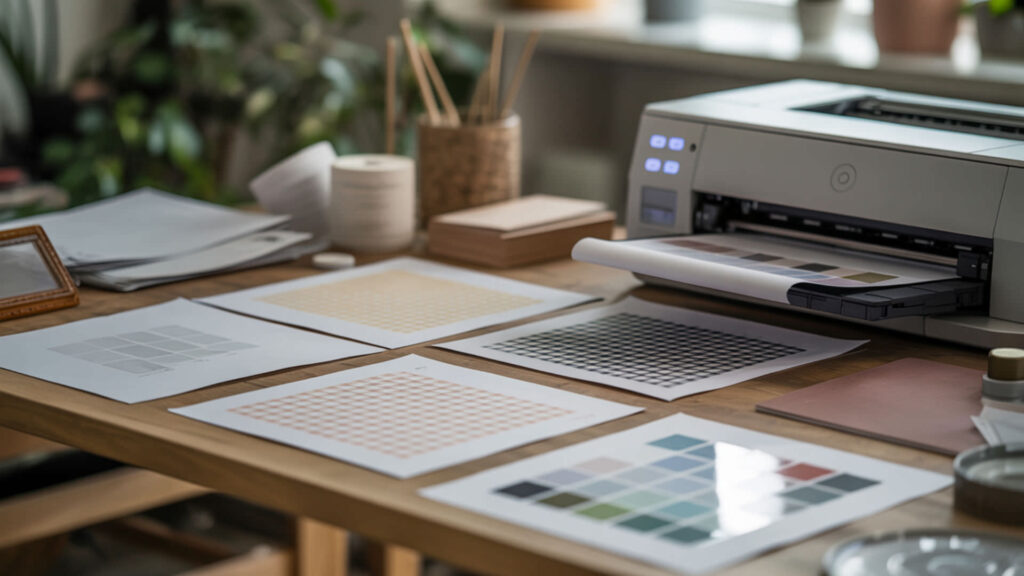
Fixing lines requires systematic troubleshooting of nozzle condition, printhead alignment, and print settings. Follow these steps to identify and correct the specific cause of your line defects.
- Print a nozzle check pattern from your printer’s maintenance menu. This diagnostic shows which color channels have clogged or misfiring nozzles.
- Run 2–3 automatic cleaning cycles if the nozzle check shows gaps. Allow 5–10 minutes between cycles for ink to settle; recheck after each cleaning.
- Check ink levels and refill any tanks below 25% capacity. Low ink causes air to enter lines, creating intermittent gaps that appear as banding.
- Run printhead alignment calibration from the maintenance menu. Alignment corrects horizontal gaps caused by feed timing and head positioning errors.
- Set print quality to ‘High’ or ‘Best’ and disable high-speed printing. Higher pass counts overlap ink layers, hiding minor inconsistencies between passes.
- Verify paper type settings match your actual sublimation paper. Mismatched settings affect ink deposition rates and can cause banding patterns.
- For persistent clogs, manually clean the printhead with cleaning solution. Apply solution to a lint-free cloth and gently wipe the nozzle plate surface.
Why Do Some Prints Show White or Light Line Gaps?
White or light line gaps indicate ink starvation where specific nozzles fail to deposit any ink at all. Static electricity can cause paper to attract or repel droplets unpredictably, creating misplaced ink patterns. Paper curl from humidity lifts edges away from the printhead, increasing the gap distance and causing droplets to land inaccurately, producing visible white gaps in affected areas.
Can Light Line Gaps Appear If Ink Flow Is Inconsistent?
Inconsistent ink flow from ink starvation produces light gaps where nozzles fire intermittently rather than failing completely. Partial clogs allow some ink through while blocking full-strength output, creating faded lines rather than complete white gaps. Running purge sheets with large color blocks forces ink through partially blocked nozzles, often clearing minor flow inconsistencies.
Ready to Eliminate Lines in Your Sublimation Prints?
Fixing nozzle misfires and maintaining proper ink flow eliminates banding and recurrent line defects from your sublimation workflow. Regular printhead maintenance—nozzle checks before each session and cleaning cycles as needed—prevents most line problems before they waste materials. Clean nozzles combined with correct print settings produce smooth, professional transfers without visible banding.
Frequently Asked Questions
Are lines in sublimation prints permanent once transferred?
Lines present on the printed paper transfer permanently to the substrate during heat pressing—what appears on the paper will appear on the finished product. Once dye bonds with the polymer coating, line defects cannot be corrected. Always inspect printed transfers before pressing and reprint any sheets showing banding to avoid wasting blanks.
Can lines appear even if the design looked clean before printing?
Lines originate in the printer, not the design file—a clean digital file can still produce banded output if nozzles are clogged or settings are incorrect. The design may look perfect on screen while the printer deposits ink unevenly due to hardware issues. Running nozzle checks before printing catches problems before they affect your transfer paper.
Do horizontal lines always mean an ink flow issue?
Horizontal lines often indicate paper feed or alignment problems rather than ink flow issues. Incorrect feed rate creates consistent gaps between print passes that appear as horizontal banding. True ink flow problems from clogged nozzles typically produce irregular patterns or affect specific colors, while feed issues create evenly-spaced horizontal lines across all colors.
Can line defects improve after multiple clean test prints?
Printing purge sheets with large color blocks can clear minor clogs by forcing ink through partially blocked nozzles—this approach sometimes works better than repeated cleaning cycles. However, humidity-damaged paper or severely clogged printheads require direct intervention. If lines persist after 3–4 cleaning cycles and purge prints, manual printhead cleaning is necessary.
Are light line gaps different from color fading issues?
Light line gaps differ from fading because gaps show complete ink absence in narrow bands while fading affects overall color intensity across larger areas. Gaps result from nozzle blockages or feed issues during printing; fading typically occurs from incorrect press settings, moisture, or substrate problems during transfer. Examining the printed paper before pressing identifies whether the defect originated in printing or pressing.
References
Inkjet printing. (2025, December 5). Wikipedia, the free encyclopedia. Retrieved January 12, 2026, from https://en.wikipedia.org/wiki/Inkjet_printing
Inkjet printhead. (n.d.). Wikipedia, the free encyclopedia. Retrieved January 12, 2026, from https://en.wikipedia.org/wiki/Inkjet_printhead
⫸ Click Here For Best Selling Sublimation Printers And Products ⫷