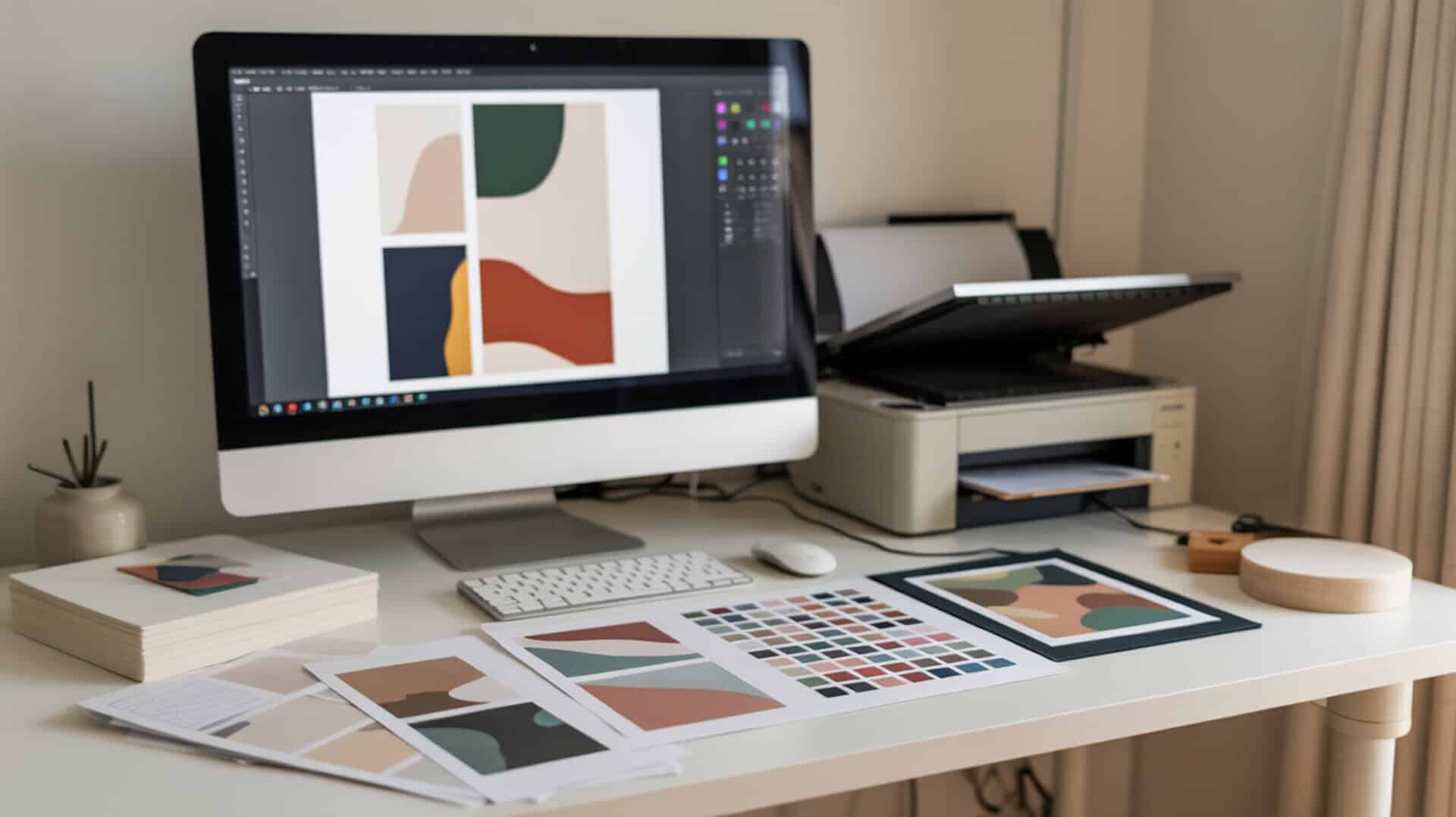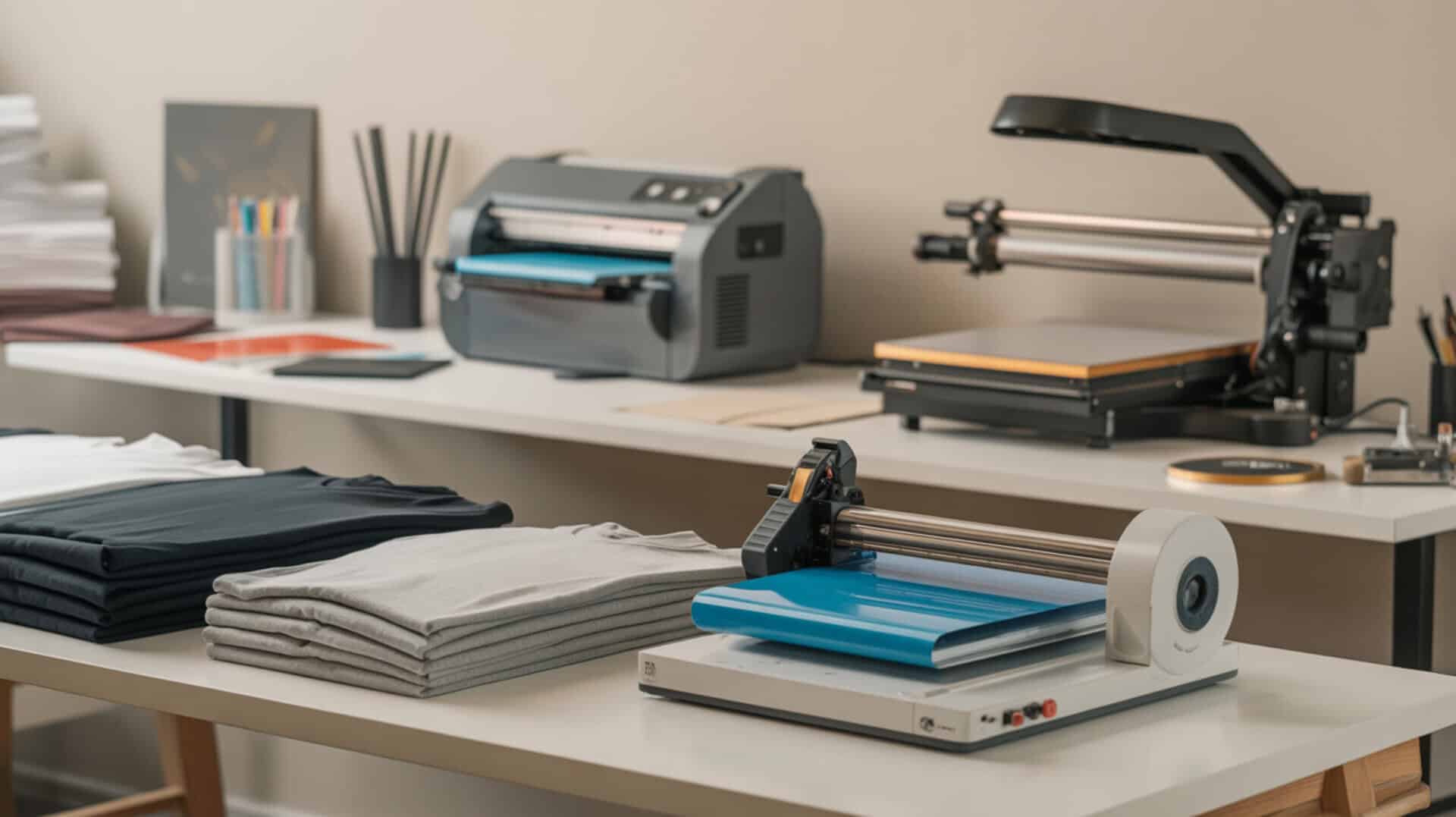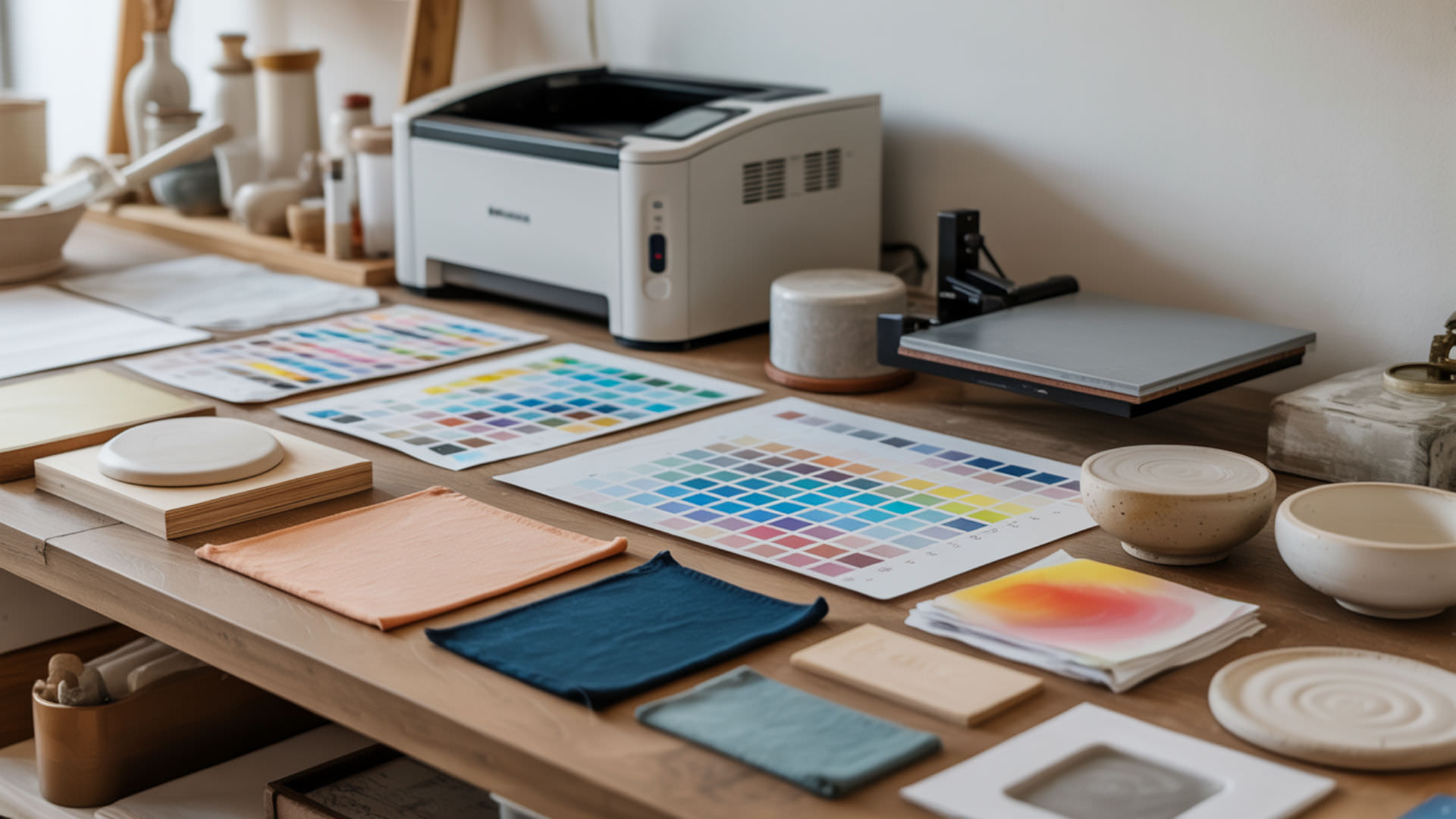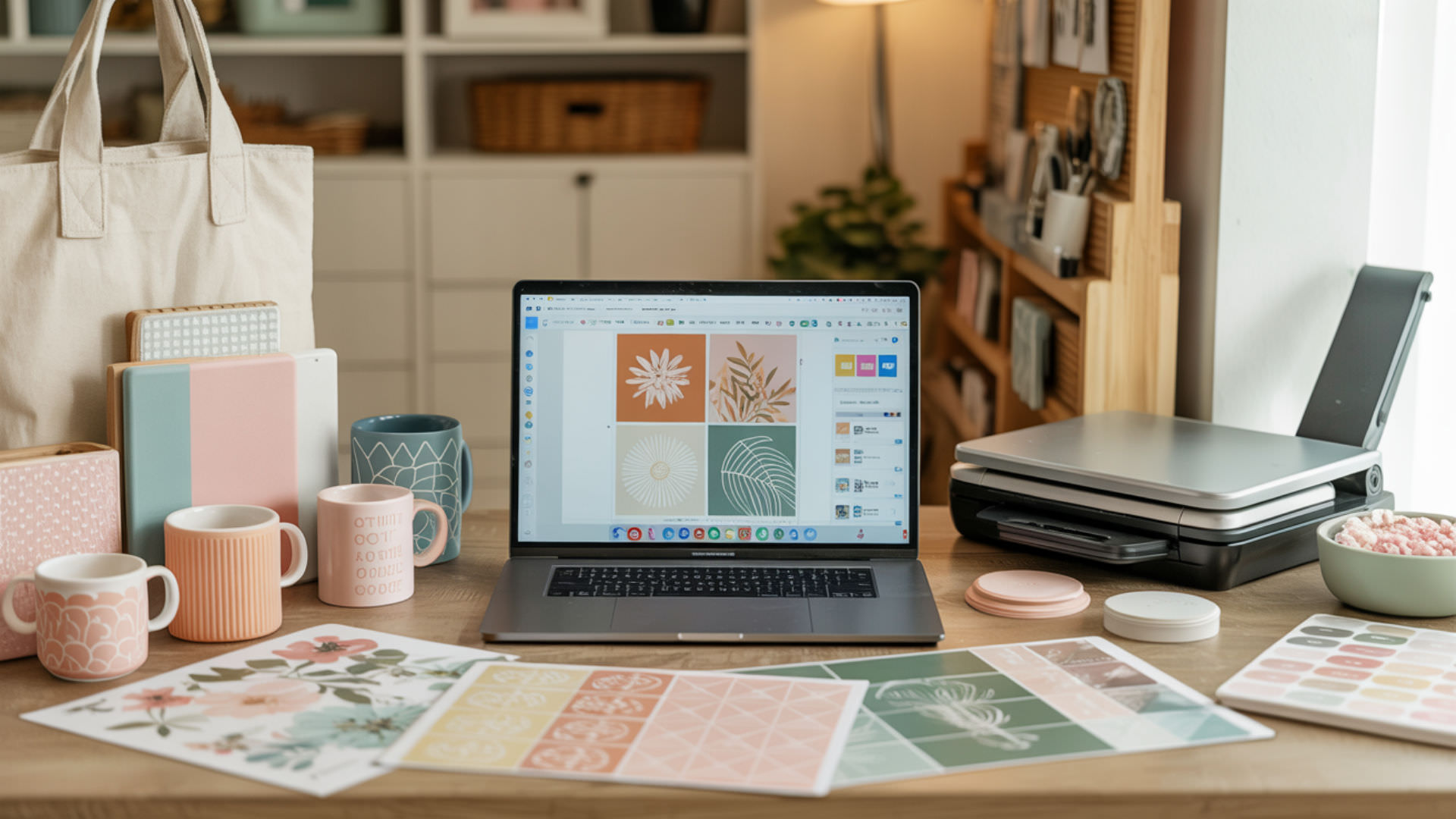
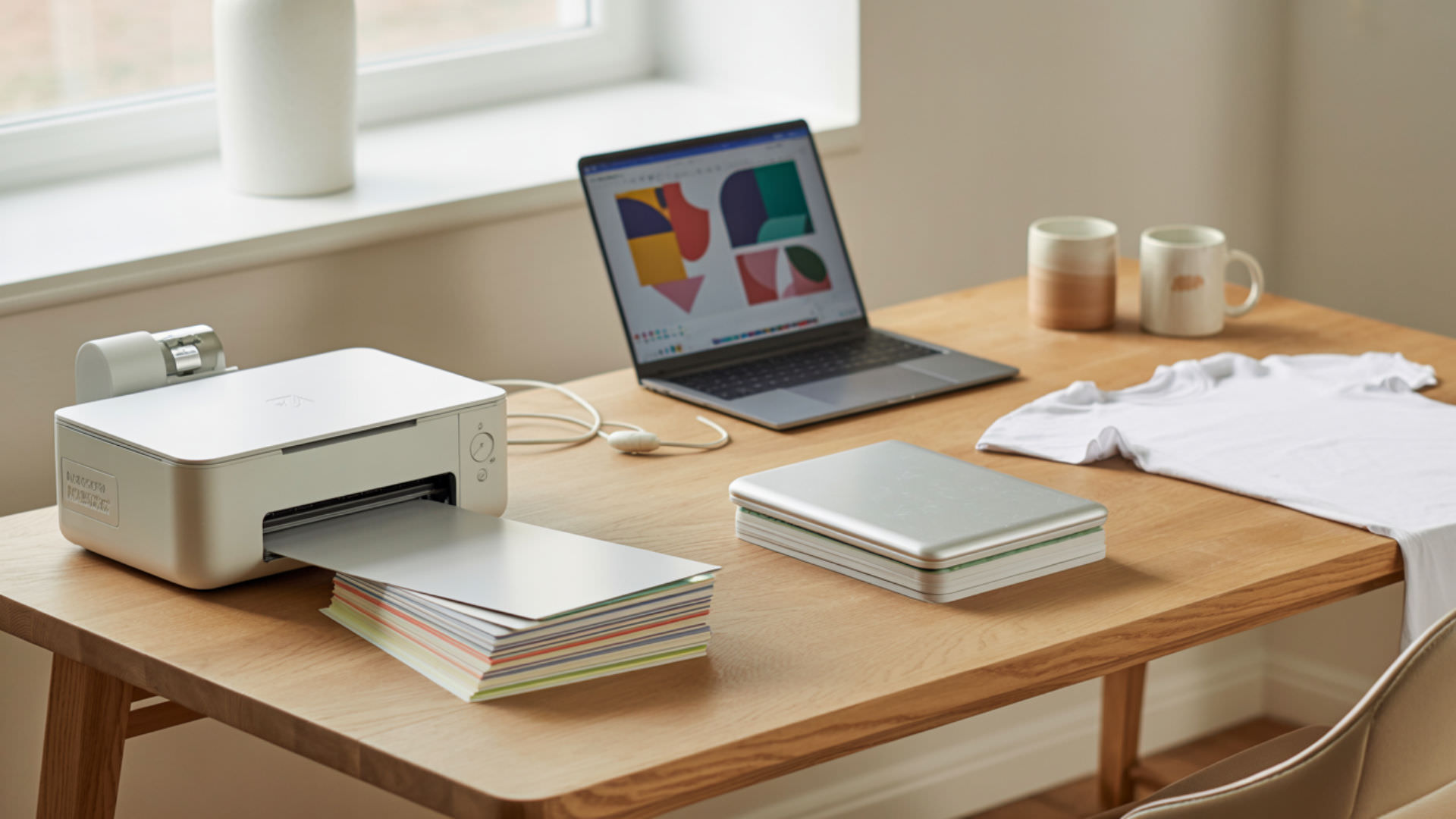
Sublimation software and settings control how your digital designs translate into vibrant, permanent prints on polymer-coated substrates. Whether you’re configuring printer drivers, managing color profiles, or preparing vector graphics for transfer, each decision affects final output quality. This guide covers everything from raster and vector graphics handling to color management across platforms and software options.
Key Takeaways
- Resolution at 300 DPI and proper color management ensure sharp, accurate sublimation prints every time.
- Vector graphics require rasterization before printing since sublimation printers only process pixel-based data.
- ICC profiles bridge the gap between screen colors and printed output for consistent results.
Can SVG Files Work for Sublimation Projects?

SVG files use mathematical paths to define shapes, making them resolution-independent and infinitely scalable. However, sublimation printers cannot process vector data directly—they require pixel-based raster graphics. Before printing, SVG files must undergo rasterization, converting paths into a fixed-resolution image format like PNG at 300 DPI. Because SVG files require conversion before printing, our complete guide on using SVG for sublimation explains the full workflow.
Converting SVG Files for Sublimation Printing
Rasterization transforms vector paths into printable pixel data by generating a bitmap at a specified DPI. Export your SVG to PNG format at 300 DPI for optimal detail sharpness. Programs like Adobe Illustrator, Inkscape, and CorelDraw handle this conversion while preserving color accuracy. Lower DPI values reduce file size but sacrifice fine detail in the final sublimated product. Printers require raster graphics made of fixed pixels, which is why SVG vector files must be converted into raster formats like PNG before printing. [2]
Benefits of Using Vector Graphics in Sublimation
Vector graphics store shapes as Bézier curves and mathematical equations rather than fixed pixels. This structure allows unlimited image scaling without quality loss—a logo designed at 2 inches prints cleanly at 24 inches. For sublimation projects requiring multiple product sizes, vectors eliminate the need for separate high-resolution source files for each application.
Common SVG Compatibility Issues and Solutions
Font embedding failures cause incorrect text rendering when SVG files move between systems lacking the original typeface. Convert all text to outlines before saving to prevent substitution errors. CSS styling embedded in SVG code may not transfer correctly during rasterization—flatten styles and effects before export to ensure accurate color and appearance in your final PNG output.
Why Do You Need to Mirror Images for Sublimation?

Mirroring applies a horizontal affine transformation to your design, flipping image orientation before printing. This reversal is required because the sublimation transfer process places the printed side face-down against the substrate—pressing transfers the mirrored image back to its correct orientation. Skip this step, and text reads backward on your finished product. Since mirroring affects every sublimation transfer, our dedicated mirroring guide covers when and how to flip your designs.
⫸ Click Here For Best Selling Sublimation Printers And Products ⫷Understanding the Transfer Process and Image Orientation
Image orientation determines how your design appears after heat pressing. During sublimation, ink on the transfer paper faces the substrate directly, creating a mirror-image contact point. When heat converts solid dye to gas, it penetrates the polymer coating in reverse. Correct orientation before printing ensures the final transferred image displays text, logos, and directional elements properly.
When to Mirror and When Not to Mirror
Standard sublimation transfers onto mugs, shirts, and tiles require mirroring because the printed surface contacts the substrate face-down. However, some specialty applications using clear substrates viewed from behind—like certain acrylics or window clings—may need normal orientation. Transformations should be applied selectively based on whether the viewing side matches the transfer contact side.
Avoiding Common Mirroring Mistakes
Pixelation appears when low-resolution images are enlarged after mirroring, as the transformation doesn’t add pixel data. Always verify your source file meets minimum image resolution requirements (300 DPI at final print size) before applying any flip. Double-mirroring—accidentally flipping twice in separate programs—returns the image to its original, incorrect orientation for transfer.
What Are the Essential Epson Printer Settings for Sublimation?

Epson printer settings for sublimation center on three elements: ICC profile selection, DPI output, and color management mode. The ICC profile tells your printer how to interpret RGB color values from your design software and convert them to ink output. Incorrect profiles produce color shifts—reds may print orange, or blues appear purple. For Epson-specific configuration, our detailed ICC profile setup guide walks through each driver setting.
Color Management and ICC Profile Setup
Color space conversion translates your design’s RGB working space into values your specific printer, ink, and paper combination can reproduce. Install the ICC profile matching your ink brand and paper type, then configure your design software to let either Photoshop or the printer driver manage colors—never both simultaneously. This prevents double-correction that muddles output accuracy. ICC profiles describe how color data is translated between device color spaces and a device-independent reference space, which is why the correct profile is essential for predictable print color. [1]
Paper Type and Quality Settings
Select “Premium Matte” or “Presentation Matte” as your paper type in Epson drivers—these settings control ink laydown suitable for sublimation paper’s coating. DPI settings of 300–600 define print crispness: 300 DPI works for most projects, while 600 DPI benefits fine text and detailed raster graphics. Higher quality modes slow print speed but improve tonal gradation.
Troubleshooting Print Quality Issues
Pixelation in prints indicates an image resolution or scaling problem—verify your source file meets 300 DPI at actual print size. Banding suggests clogged nozzles requiring head cleaning cycles. Color adjustments in the driver should remain neutral when using ICC profiles; enable noise reduction only if visible graininess appears in gradient areas of test prints.
How Do Mac Users Configure Epson Printer Settings?
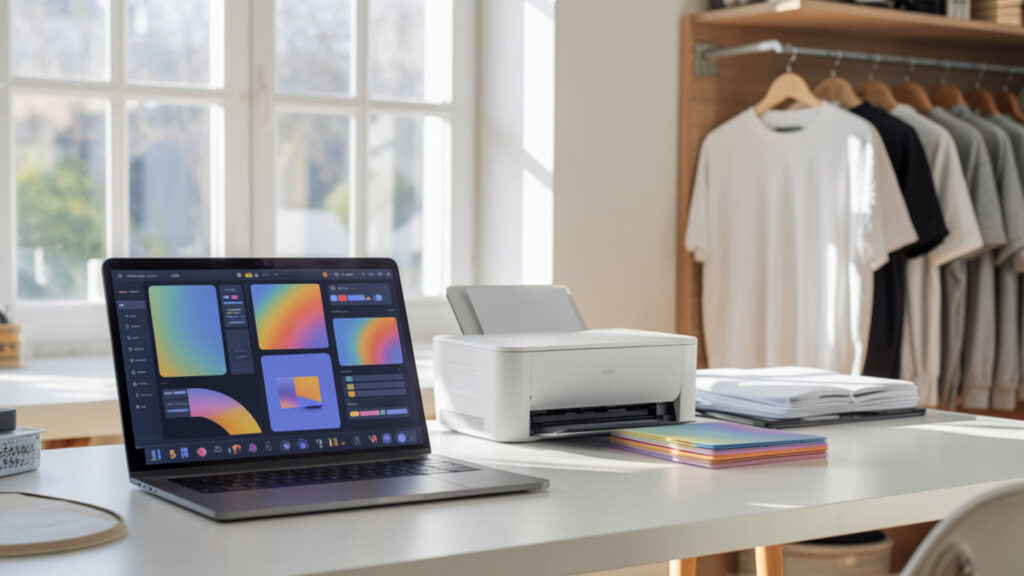
Mac users must navigate macOS-specific color pipelines that handle printer output differently than Windows systems. The device profile defines how macOS interprets and sends color data to Epson drivers. Recent macOS versions removed ColorSync profile selection from standard print dialogs, requiring workarounds through design software or system preferences. Our Mac-specific guide explains device profile configuration and driver access for current macOS versions.
Navigating Mac-Specific Printer Preferences
Device-dependent color space behavior varies across Mac applications—some programs respect system profiles while others apply their own color management. Access printer preferences through System Settings > Printers & Scanners, then select your Epson and click “Options & Supplies” for driver-level controls. Applications like Photoshop allow profile selection within print dialogs, bypassing system-level limitations.
Color Sync vs Manual Color Management
Rendering intent determines how your system handles colors outside your printer’s reproducible gamut. Perceptual intent compresses the entire color range proportionally, while Relative Colorimetric clips out-of-gamut colors to nearest reproducible values. For sublimation, Perceptual often produces smoother gradients, but test both with your specific ink and substrate combination.
Resolving Mac and Epson Compatibility Challenges
Profiling aligns actual printed output with expected color behavior defined in your ICC file. When colors appear shifted despite correct profile installation, recalibrate by printing a test target and comparing to on-screen values. Ensure macOS printer drivers are updated directly from Epson rather than relying on Apple’s generic drivers, which lack sublimation-specific controls.
Getting Started with Sawgrass Creative Studio for Sublimation

Sawgrass Creative Studio integrates design tools with Print Manager, a workflow system that applies Sawgrass ICC profiles automatically for their printer and ink ecosystem. This closed-loop color gamut control removes manual profile management, simplifying setup for users within the Sawgrass hardware family. Templates, design features, and print queue management operate from a single interface. Our complete Sawgrass walkthrough covers Print Manager setup and template customization for production workflows.
Template Libraries and Design Features
Layers organize template-based designs by separating text, graphics, and background elements for independent editing. Groups lock related objects together during repositioning. Sawgrass templates include pre-sized layouts for common blanks—mugs, shirts, mousepads—with safe zones marked. Convert text as vectors before finalizing to prevent font substitution issues when files transfer between systems.
Print Manager Setup and Workflow
Print Manager handles color management and ICC profile application automatically based on your selected Sawgrass printer and substrate. Rendering intent settings determine how saturated colors outside printable gamut translate to output. Queue multiple jobs, adjust individual print settings per item, and preview color-corrected output before committing to paper.
Advanced Features for Professional Results
Gamut mapping improves accuracy for intense or saturated colors that fall outside standard CMYK reproduction ranges. Profiling tools within Creative Studio let users fine-tune output for specific substrates. True color technology expands reproducible color range beyond conventional sublimation limits, particularly benefiting photographic images and complex gradient work.
Which Design Software Works Best for Sublimation Printing?
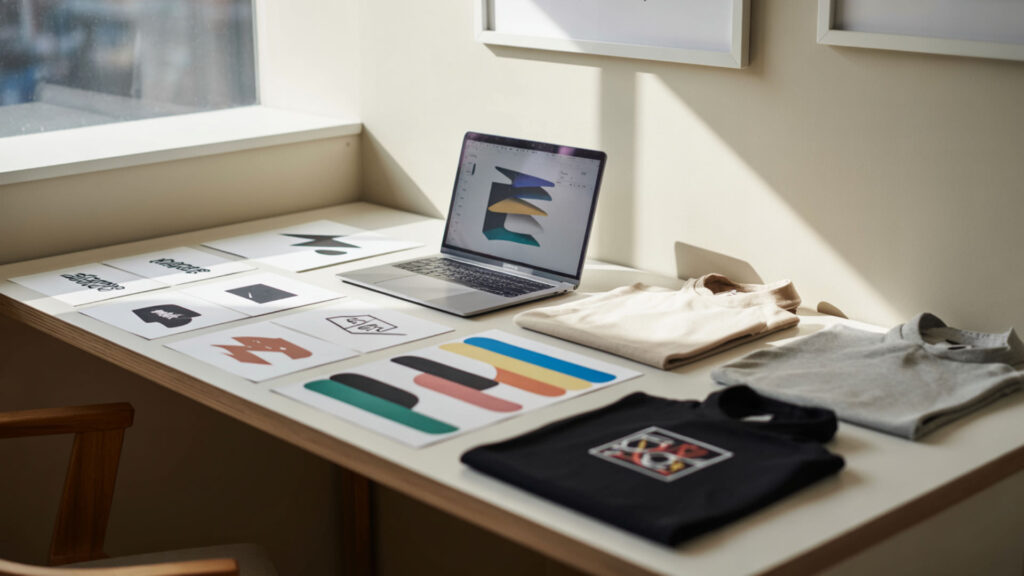
Design software selection depends on whether you work primarily with vector graphics, raster editing, or template-based layouts. All sublimation workflows require output in PNG format with transparency support, created within an RGB color space—the primary working color model for digital design tools. Each program handles layers, export options, and color management differently. Our software comparison evaluates Canva, Photoshop, and alternatives based on RGB color space handling and sublimation-specific features.
Comparing Canva, Photoshop, and CorelDraw Features
Photoshop excels at raster editing with precise working space control and layer-based compositing for photographic projects. CorelDraw combines vector image editing with layout tools suited for multi-product production runs. Canva offers accessibility through browser-based design with template libraries, though color management options remain limited compared to professional alternatives.
Free vs Paid Software Options
Free tools like Canva and Inkscape handle basic sublimation design workflows, exporting to PNG for printing. JPEG compression introduces artifacts unsuitable for quality sublimation—always export final files as PNG to preserve lossless color data and transparency. Paid software like Photoshop and CorelDraw adds advanced color management, batch processing, and ICC profile integration.
Choosing Software Based on Your Skill Level
Beginners benefit from template-driven platforms offering raster image editing with guided workflows and preset export options. Intermediate users gain control through vector image editing programs that allow scalable designs across product sizes. Advanced users require full ICC profile management, custom color spaces, and batch automation—features found in professional suites.
How Can You Master Canva for Sublimation Design?
Canva produces sublimation-ready files when configured with correct resolution and export settings. While the platform simplifies design creation through templates and drag-and-drop tools, DPI limitations affect print clarity. Free accounts export at 96 DPI; Pro accounts unlock 300 DPI exports essential for sharp sublimation output. Layers organize design elements for easy editing. Our Canva-specific tutorial explains DPI settings and workarounds for resolution limitations.
Setting Up Proper Canvas Dimensions and Resolution
PPI (pixels per inch) influences final print size and clarity—design canvas dimensions must account for your target output size at 300 PPI. Create custom dimensions in inches matching your substrate, then multiply by 300 for pixel dimensions. Canva’s viewport displays designs at screen resolution; actual export quality depends on your account tier and export settings.
Using Canva’s Tools for Sublimation-Ready Designs
Layers separate text, graphics, and backgrounds for independent adjustments without affecting other elements. Strokes and fills define shape boundaries and interior colors—thin strokes may disappear or blur when rasterized at lower resolutions. Increase stroke weights for visibility, and avoid hairline details that won’t survive the sublimation transfer process.
Exporting Files in the Right Format
PNG export preserves transparency, enabling overlaid design elements to composite correctly over substrate colors. Select “PNG” with transparent background enabled, and choose 300 DPI if available in your account settings. Verify color depth remains at 24-bit or higher—reduced depth causes banding in gradients. Download and verify file properties before printing.
Final Thoughts
Color management connects every stage of sublimation workflow—from design software through printer drivers to final heat transfer. Whether working with raster graphics for photographic prints or vector graphics for scalable logos, consistent ICC profile usage determines output accuracy. Master these software settings and printer configurations, and your sublimation results will match your creative vision.
Frequently Asked Questions
What file format gives the best quality for sublimation printing?
PNG delivers optimal quality for sublimation because it preserves lossless image resolution and supports transparent backgrounds. Export at 300 DPI minimum to maintain detail sharpness during printing and heat transfer. JPEG compression introduces artifacts that degrade print quality, while raw vector formats like SVG require conversion to PNG before sublimation printers can process them.
Can I use free design software for professional sublimation projects?
Free software like Canva, Inkscape, and GIMP produces professional results when you understand their color management limitations. Inkscape handles vector creation and PNG export effectively. Canva’s free tier restricts export resolution to 96 DPI—insufficient for detailed sublimation work—so upgrade to Pro for 300 DPI output or resize canvas dimensions as a workaround.
How do I know if my printer settings are correct before wasting transfer paper?
Print a test image on regular paper first to verify color accuracy and image orientation without consuming sublimation materials. Check that mirroring is enabled, resolution shows 300 DPI minimum, and your ICC profile matches your ink-paper combination. Examine the test print for banding, color shifts, or pixelation before committing to sublimation paper and substrate pressing.
Why do my sublimation colors look different on screen versus the final product?
Screen-to-print color differences occur because monitors display RGB light while sublimation uses CMYK-style dye combinations on physical substrates. ICC profiles bridge this gap by translating color values between devices. Calibrate your monitor, install correct profiles for your ink and paper, and press at proper temperature—under-pressing produces dull colors, especially in black areas.
Is it necessary to use manufacturer-specific software like Sawgrass Creative Studio?
Manufacturer software like Sawgrass Creative Studio streamlines color management by automatically applying matched ICC profiles for their printer and ink ecosystem. However, third-party design programs work equally well when you manually install and configure appropriate profiles. The advantage of integrated software is simplified setup; the trade-off is limited flexibility for users with multiple printer brands.
References
- Just a moment... (n.d.). Just a moment… https://www.color.org/iccprofile.xalter?utm_
- https://en.wikipedia.org/wiki/Vector_graphics#:~:text=Modern%20displays%20and%20printers%20are,is%20a%20list%20of%20descriptions.