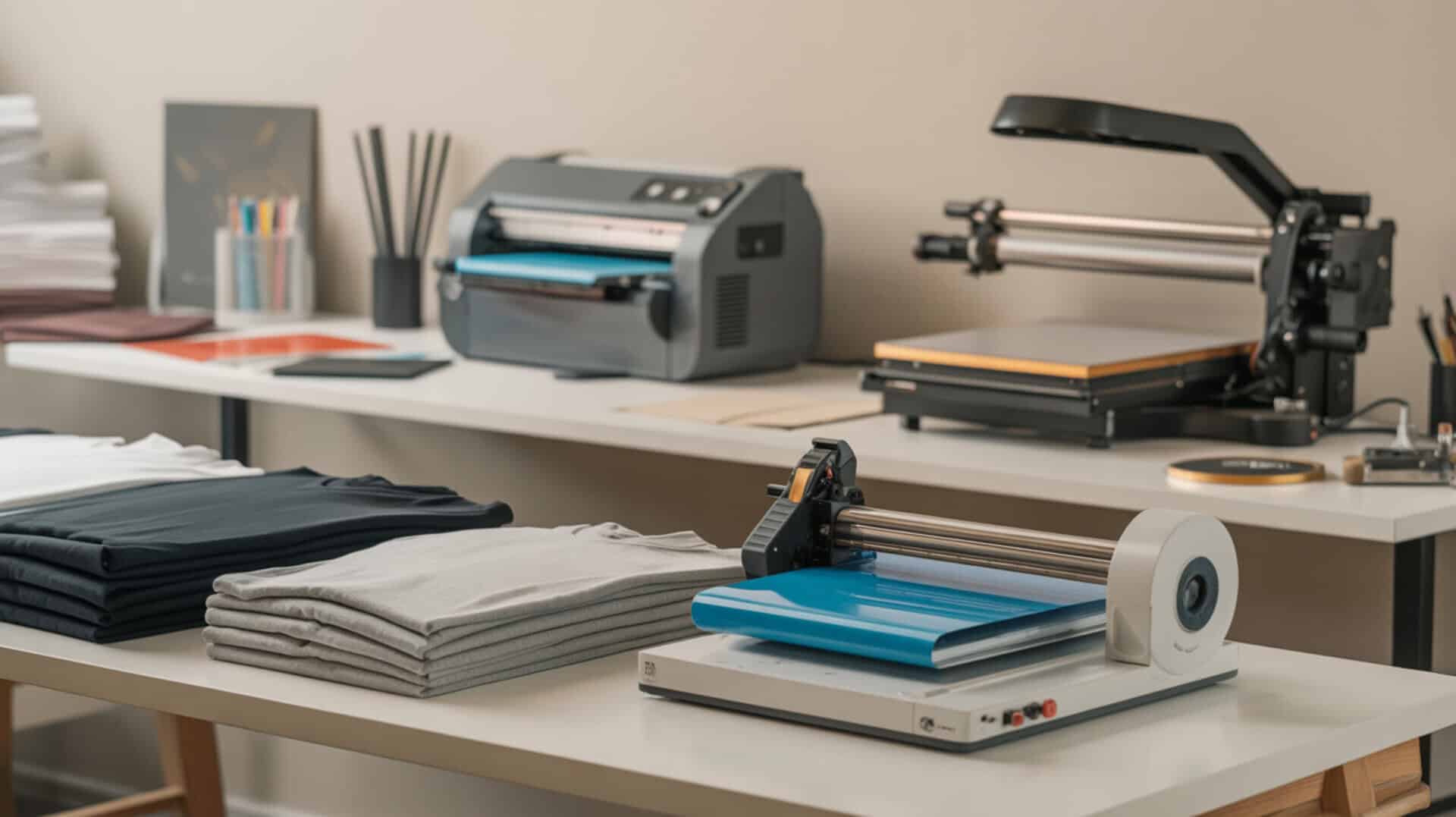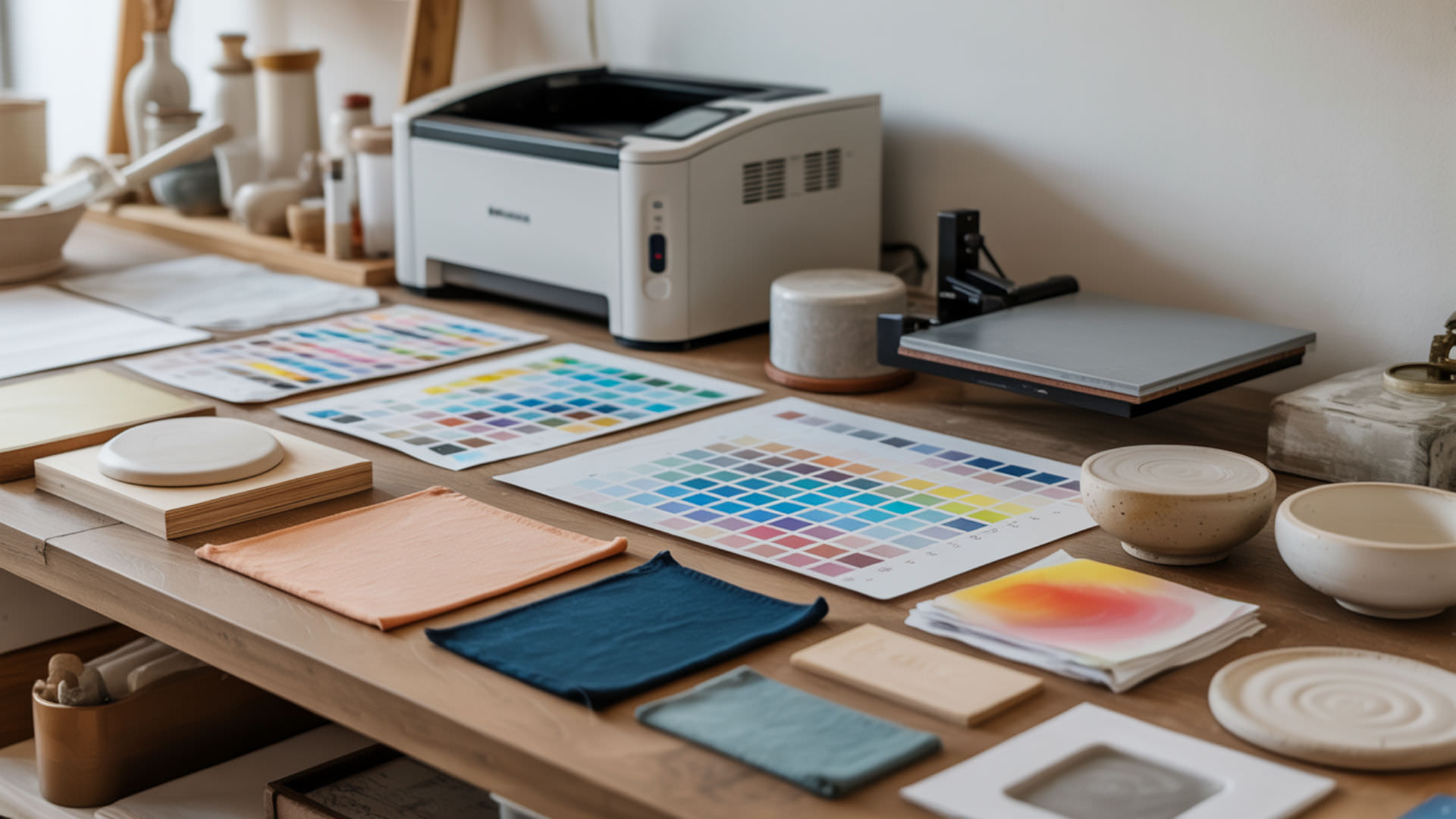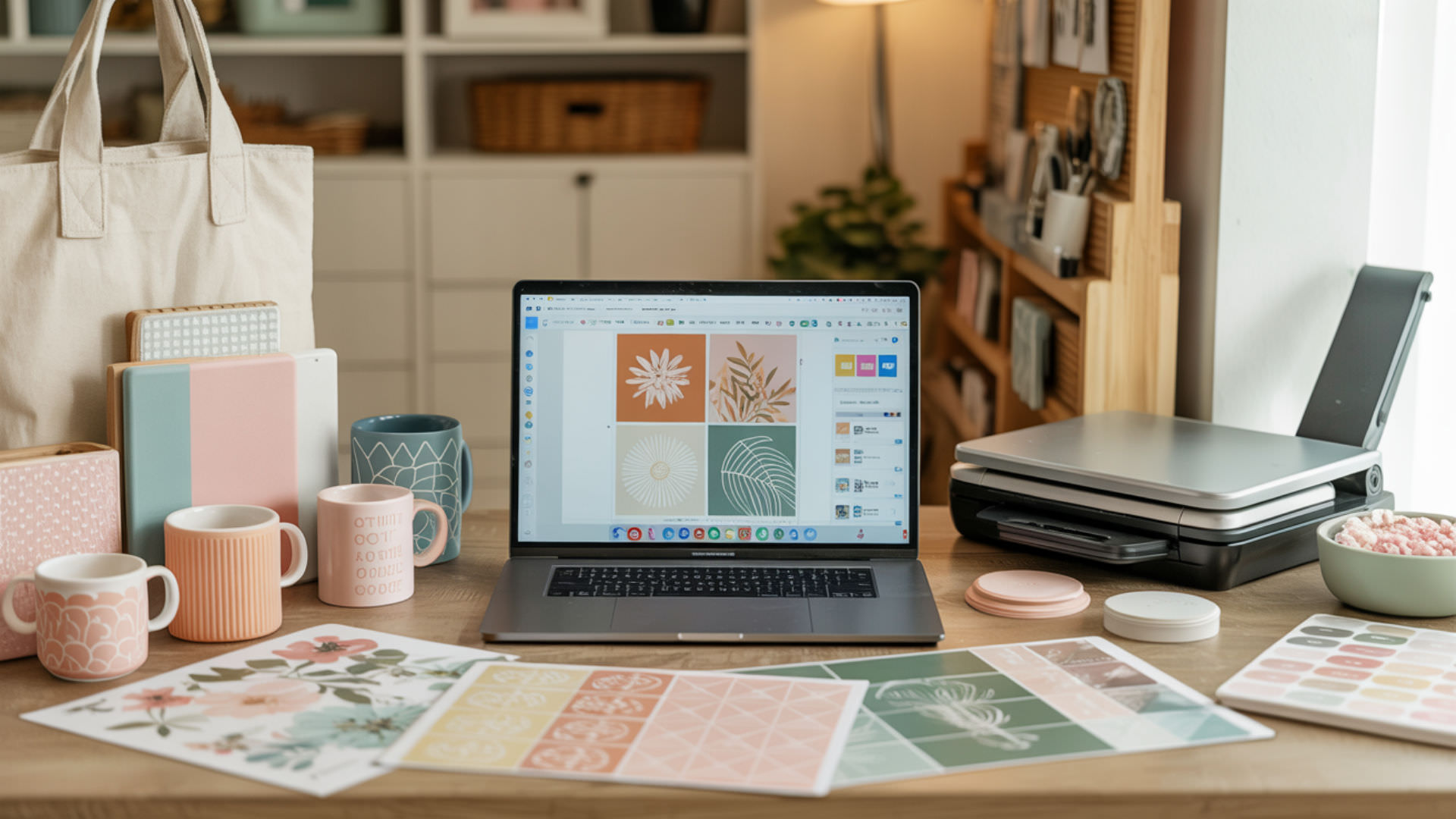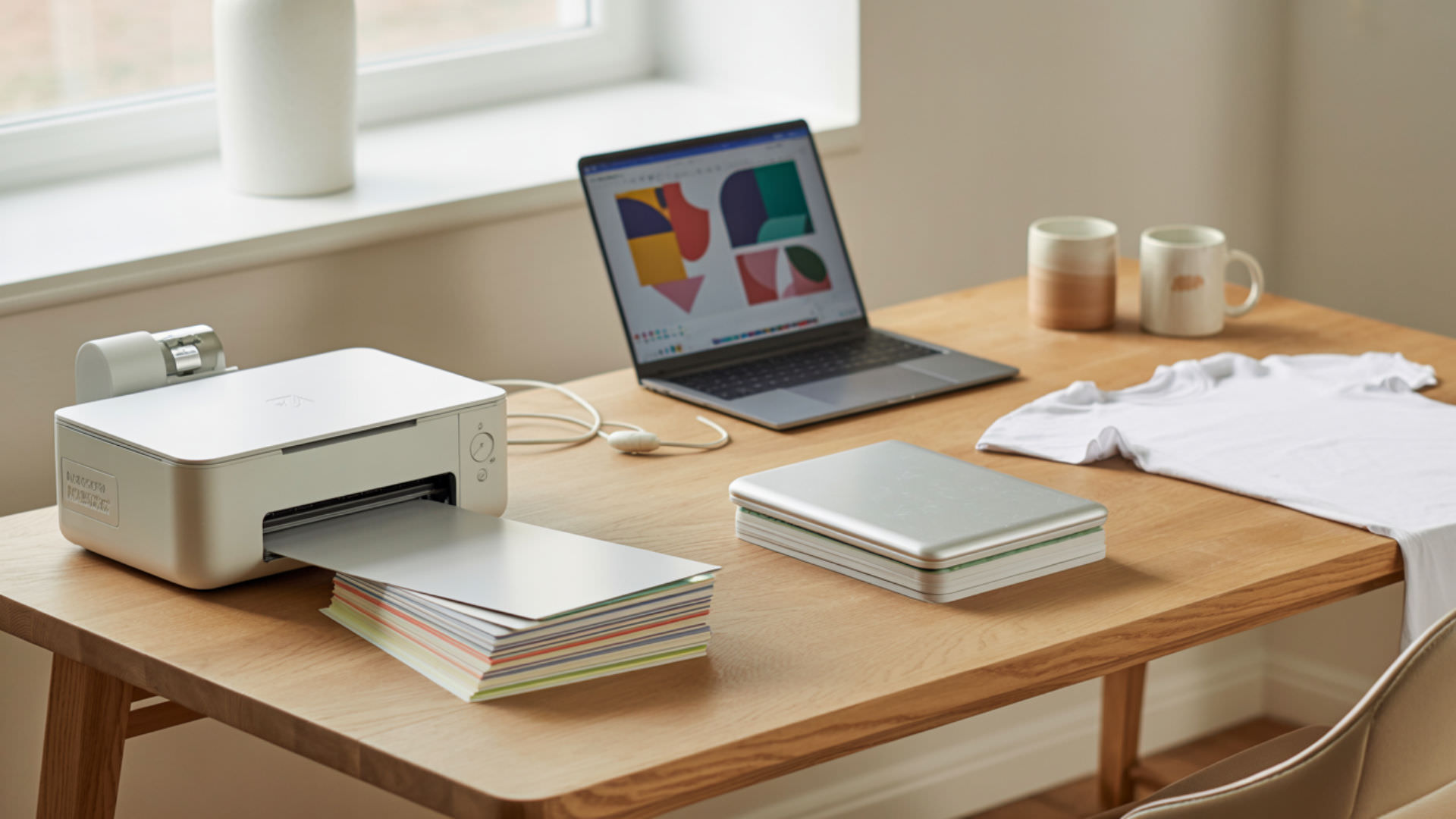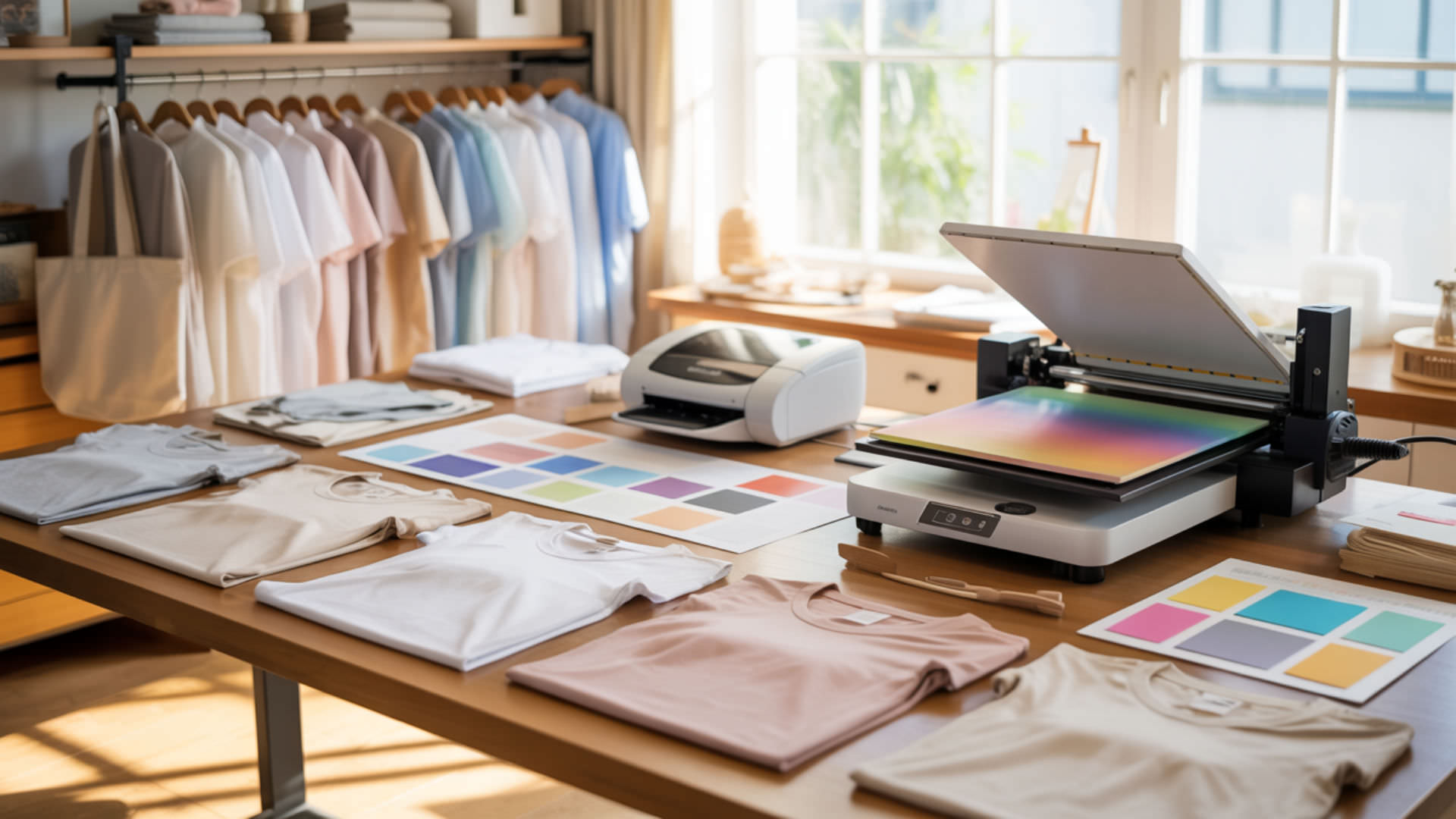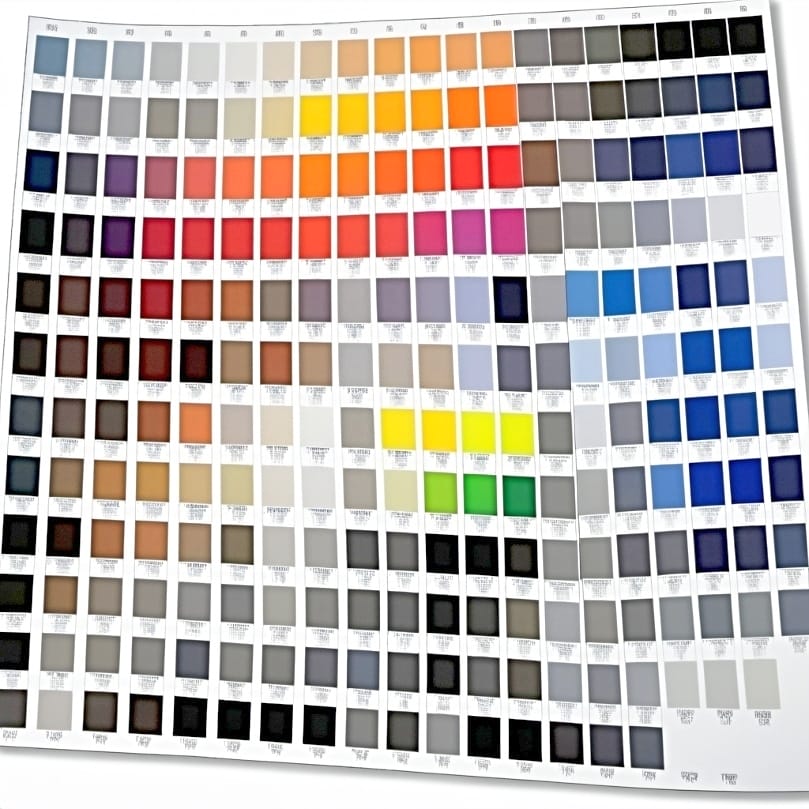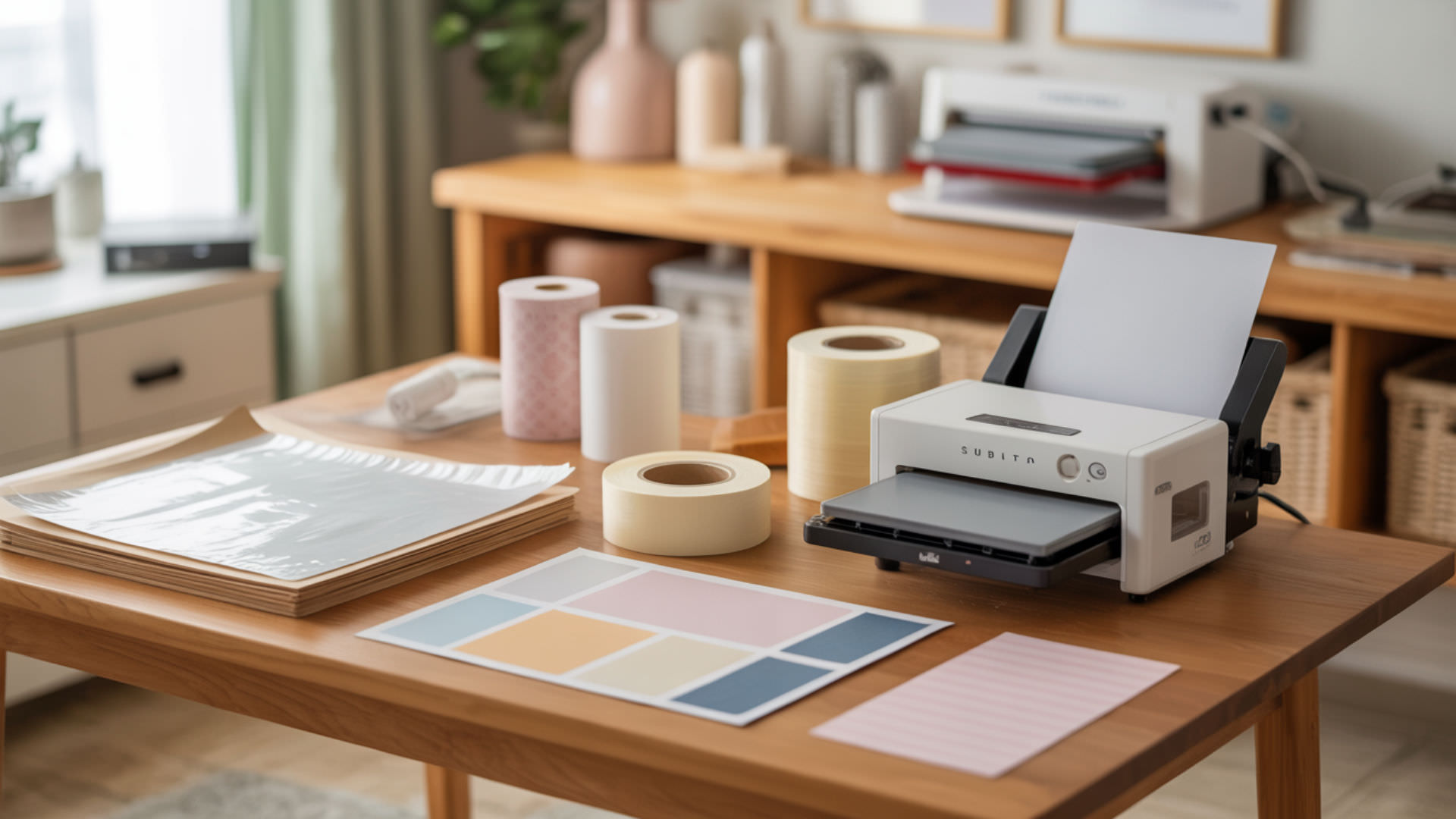
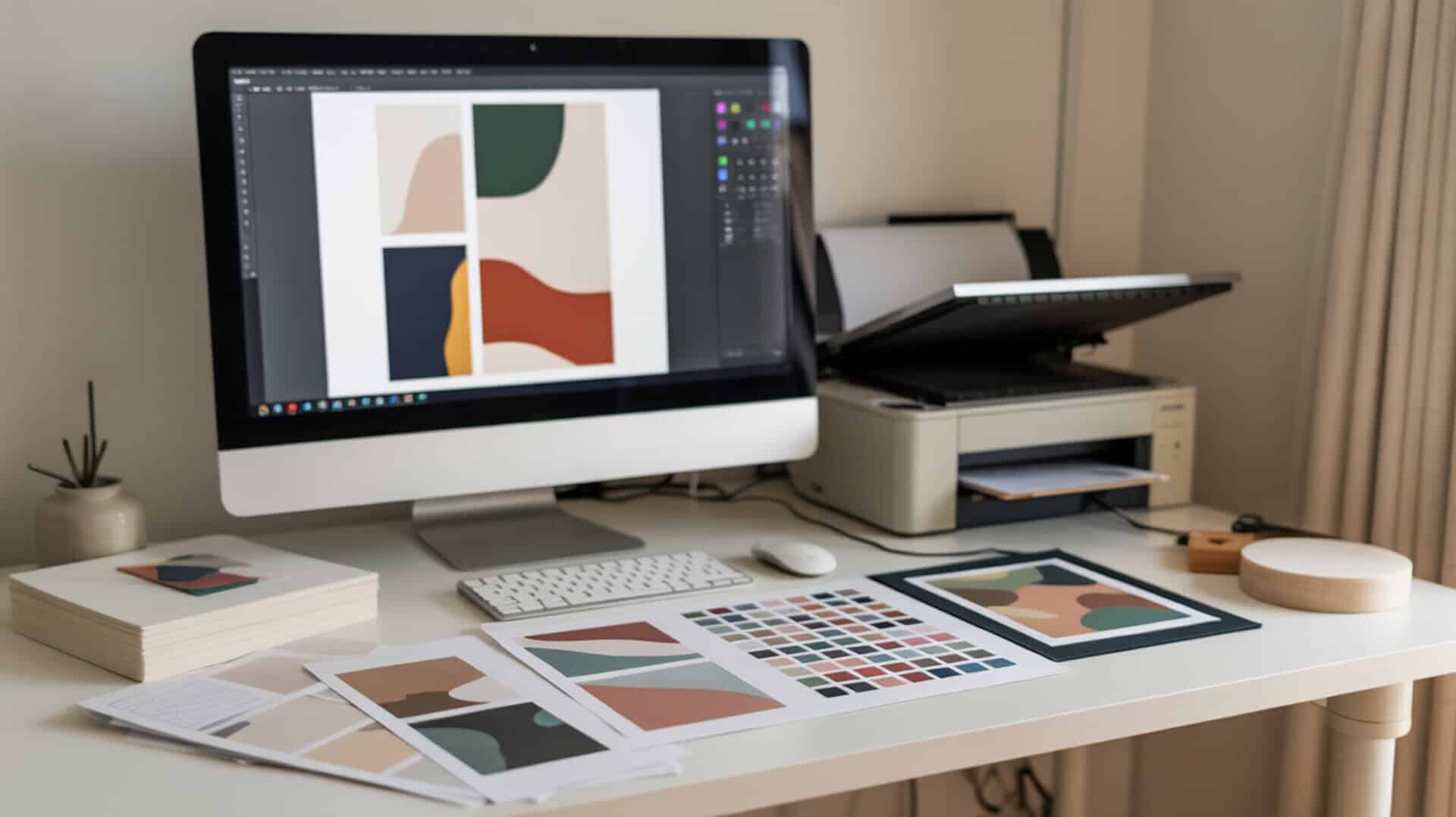
Choosing the best software for sublimation printing depends on whether you need raster graphics for photo-based designs or vector graphics for scalable artwork. Because sublimation printers process color using the RGB color model, your design software must export in RGB format to ensure accurate color reproduction.[1] Since image resolution and export settings directly affect sublimation output quality, you may also want to read our hub article on sublimation software and settings guide for a complete breakdown of optimal configurations.
Key Takeaways
- DPI (dots per inch) determines print sharpness—sublimation designs should be created and exported at 300 DPI or higher to avoid visible pixelation on pressed garments. [2]
- PPI (pixels per inch) in your source artwork must match your intended print size; a 300 PPI file at 8.5 x 11 inches produces sharp results, while lower PPI causes blurry output.
- Color management ensures accurate color output by maintaining RGB color space throughout design and export, since sublimation printers expect RGB input rather than CMYK.
Is Canva a Good Choice for Creating Sublimation Printing Designs?
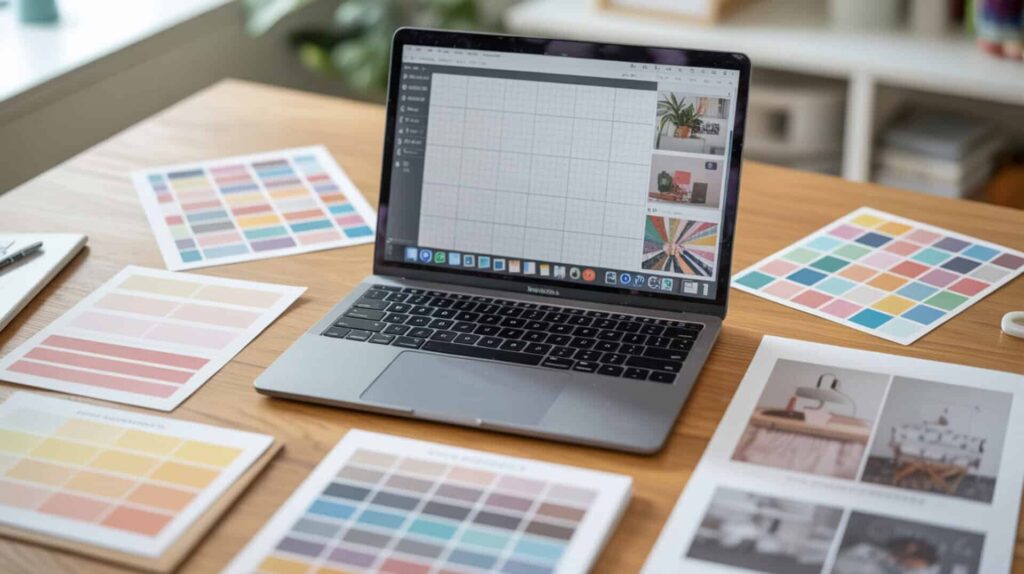
Canva is a browser-based design platform that creates raster graphics suitable for sublimation printing, with export options including PNG and PDF Print formats. According to workflow demonstrations, Canva operates in the RGB color space, which matches sublimation printer color processing requirements. The platform exports raster-based designs at resolutions appropriate for sublimation when users select PNG or PDF Print (avoiding JPG or small file size options). Since Canva operates in RGB color space, which is essential for sublimation design accuracy, you may also want to read our guide on how to use Canva for sublimation.
What kind of sublimation design results can you achieve using Canva?
Based on demonstrated workflow tests, Canva produces sharp, detailed sublimation designs when exported as PNG or PDF Print at appropriate resolution. Low resolution causes pixelation in prints—designs created at small dimensions and scaled up will show visible pixel edges after pressing. High resolution improves print clarity, so creating designs at the intended print size (such as 8.5 x 11 inches or 13 x 19 inches) avoids quality loss. Test results showed that PNG exports from Canva delivered good color vibrancy and detail when the source artwork used sufficient resolution and the design matched the final print dimensions. Raster images are composed of pixels, and sufficient pixel density is required to preserve sharp detail when artwork is printed at physical size.
What are the pros and cons of using Canva for sublimation printing?
Canva offers a beginner-friendly interface with a free account option and usable features without requiring Pro subscription. Rasterization limits scalability—once exported, Canva designs cannot be enlarged without quality loss since they are fixed-resolution pixel files. Color depth affects gradient smoothness, and Canva handles gradients adequately for most sublimation applications. The main limitation involves mirroring: Canva cannot flip typed text directly, requiring users to export the design and flip it in another application before printing. Some premium elements require Canva Pro, and commercial licensing for selling products using Canva Elements requires verification. I recommend Canva for beginners creating simple sublimation designs who do not need advanced scaling or text manipulation.
How does Canva compare to other sublimation design software options?
In comparisons described in reviewed source material, Canva was positioned against Photoshop, Adobe Illustrator, Silhouette Studio, and Cricut Design Space. Vector graphics scale without quality loss, while raster graphics like Canva exports have fixed resolution output—this means Illustrator and CorelDRAW offer advantages for designs that must resize across different product sizes. Cricut Design Space was specifically not recommended for sublimation printing due to lower print quality, registration mark issues, and design size limitations. Canva’s arrow-key positioning was praised as more precise than Cricut Design Space, which makes large jumps when repositioning elements. You can find Canva here.[3][4]
How Well Does CorelDRAW Perform for Professional Sublimation Printing Projects?
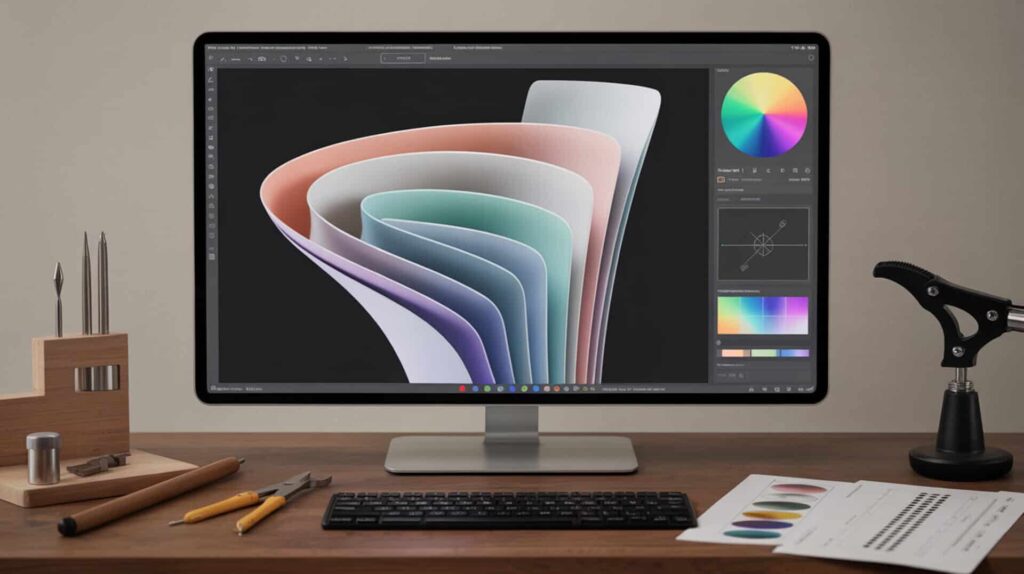
CorelDRAW is a professional vector graphics editor that creates scalable, high-quality designs for sublimation printing with precise color management and ICC profile support. According to demonstrated production workflows, CorelDRAW handles custom page sizing, design alignment, and multi-up print layouts for sublimation patches and transfers. Because vector graphics allow scalable, high-quality designs, artwork created in CorelDRAW can be resized to any dimension without losing sharpness. Since CorelDRAW relies on color management workflows discussed in the software comparison guide, you may also want to read our guide on Epson Printer Settings For Sublimation.
⫸ Click Here For Best Selling Sublimation Printers And Products ⫷What sublimation design capabilities can you expect from CorelDRAW?
Based on demonstrated production tests, CorelDRAW enables precise design control through Bézier curves for smooth contours and custom shapes. Layers improve design organization, allowing complex multi-element layouts to be managed without accidentally moving components. In one test, a sublimation patch workflow used custom page sizes (3.6 x 2.6 inches) matched to physical patch dimensions, with Print Preview rows and columns ganging 8 patches onto a single 8.5 x 11 inch sheet. Adding outline strokes rescued fine details when shrinking designs for small patches, though very small text remained difficult to read even after outlining.
What are the pros and cons of using CorelDRAW for sublimation printing?
CorelDRAW delivers strong vector editing capabilities that enable high-resolution output at any scale. Export formats affect print compatibility—CorelDRAW supports PDF, EPS, PNG, and other formats suitable for sublimation printer workflows. The Print Preview tiling feature efficiently gangs multiple designs onto one sheet, saving material costs. The main drawbacks involve fine detail limitations: very small designs still lose readability even with outline enhancements, and tiling too aggressively can shrink designs beyond intended dimensions. The multi-step workflow (design, tile, print, cut, sublimate, apply) requires attention to avoid operational mistakes like pressing on the wrong side. I recommend CorelDRAW for professional print shops producing sublimation patches, multi-up layouts, or designs requiring precise size control.
How does CorelDRAW compare to other professional sublimation software?
In the reviewed source material, CorelDRAW was compared to screen printing workflows rather than other design software directly. EPS format preserves vector quality when transferring designs between applications, and PDF maintains layout consistency across different viewing and printing systems. Compared to screen printing small, multi-color sleeve logos, sublimation patches created in CorelDRAW were described as faster and easier to produce while still looking premium. No direct head-to-head performance testing against Illustrator or Photoshop was demonstrated in the available material. You can find CorelDRAW here.[5]
Is Adobe Illustrator Worth It for Sublimation Printing and Design Work?
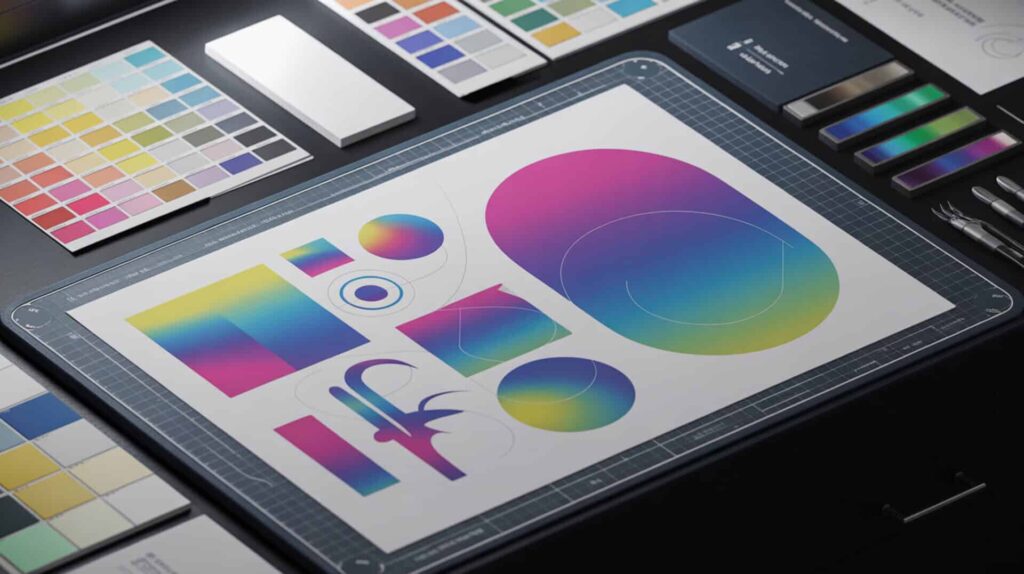
Adobe Illustrator is a professional vector graphics editor that produces clean, scalable artwork for sublimation printing with advanced color gamut control and ICC profile support. According to extensive color profile testing, assigning an sRGB color profile produced the most consistent sublimation results across different systems and printers. Because vector graphics ensure clean scaling, Illustrator designs can be resized from small patches to large all-over prints without quality degradation. Since Illustrator handles mirroring and affine transformations required for sublimation printing, you may also want to read our guide on do you mirror sublimation.
What sublimation design quality can you achieve with Adobe Illustrator?
Based on reported production workflow tests, Illustrator produces high-quality sublimation designs when exported as PNG at 300 PPI using Art Optimized settings. Paths define clean edges in vector artwork, enabling crisp outlines regardless of print size. Bézier curves enable smooth contours for complex shapes and custom typography. In demonstrated testing, the creator ran multiple export configurations and determined that Art Optimized at 300 PPI with transparent background produced better results than other settings. Artboards allowed multiple design variations to be exported as separate, correctly-named files in a single operation.
What are the pros and cons of using Illustrator for sublimation projects?
Illustrator delivers advanced color management capabilities that improve print accuracy when using proper ICC profiles and sRGB color space. The learning curve increases setup time for users unfamiliar with artboards, layers, and color profiles—manual configuration is required to avoid export mistakes. Strong text handling and font control make Illustrator faster and more intuitive than Photoshop for text-heavy sublimation work. The ability to create custom shirt templates by tracing photographed garments provides precise placement boundaries unavailable in pre-made templates. Raster effects at 300 PPI can slow performance on complex designs; temporarily reducing to 72 PPI during editing, then switching back before export, mitigates this issue. I recommend Illustrator for experienced designers producing professional sublimation work requiring precise color control and scalable vector output.
How does Adobe Illustrator compare to other sublimation design programs?
In comparisons described in reviewed source material, Illustrator was stated to feel faster and more intuitive than Photoshop for text-heavy sublimation work. Vector precision enables higher print quality than raster-based programs because designs remain sharp at any output size. File compatibility supports easier printer workflows through PNG, PDF, and other standard export formats. Artboards provide a major advantage over Photoshop-style single-canvas workflows by enabling multiple design variations and automatic file naming during batch export. No detailed side-by-side output comparisons against Canva or CorelDRAW were demonstrated beyond workflow preference statements. You can find Adobe Illustrator here.[6][7]
Which Sublimation Software Is the Right Fit for Your Design Needs?
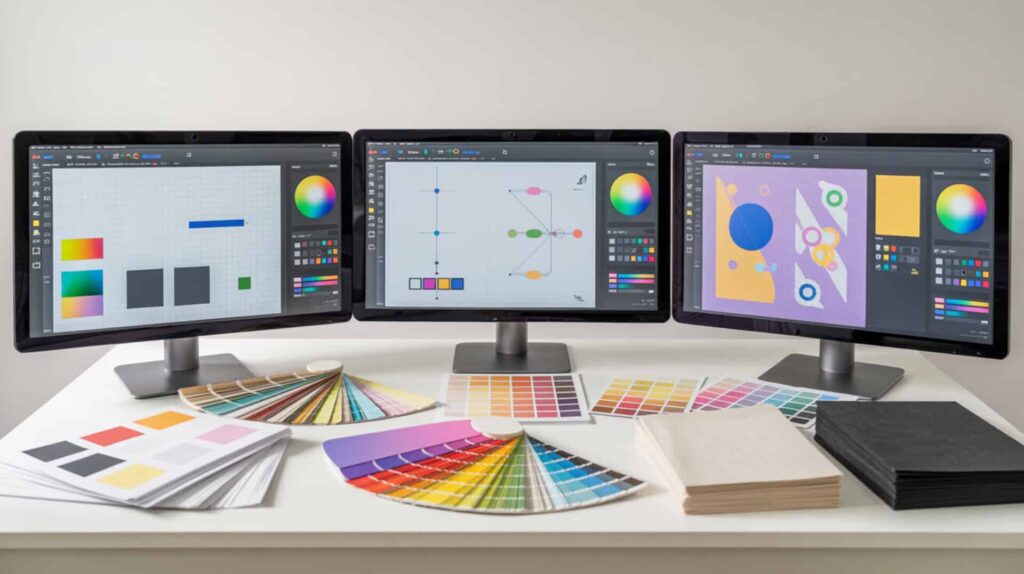
Workflow complexity and design experience level determine the best software choice for sublimation printing. Canva suits beginners who need quick, template-based designs without learning professional tools—its free tier and intuitive interface make it accessible for hobbyists. CorelDRAW serves professional print shops needing precise layout control, multi-up tiling, and custom page sizing for patches and production workflows. Adobe Illustrator delivers the highest output quality for experienced designers who understand color management, ICC profiles, and vector-based workflows. For overall best choice, I recommend Adobe Illustrator because its combination of vector precision, advanced color profile control, artboard-based multi-variation exports, and custom template creation capabilities produces the most consistent, professional-quality sublimation output—provided users invest time learning proper setup and export configurations.
Frequently Asked Questions
What is the best free software for sublimation printing?
GIMP is one of the best free options for sublimation printing, offering raster graphics editing capabilities comparable to Photoshop without subscription costs. For vector graphics, Inkscape provides free, scalable design creation similar to Illustrator. Canva’s free tier works well for beginners creating simple sublimation designs with templates, though some elements require paid Pro access. Color management in free software may be less precise than professional paid alternatives, so testing print output is recommended before production runs.
Do I need special software to print sublimation images?
Sublimation printing requires design software that can export high-resolution raster graphics (PNG or PDF) in RGB color mode at 300 DPI or higher. You do not need sublimation-specific software—general design tools like Canva, Photoshop, Illustrator, or CorelDRAW all produce suitable output when configured correctly. The printer driver handles the actual sublimation transfer; your design software simply needs to deliver properly formatted, high-resolution artwork in RGB color space.
What do I need to download to make sublimation designs on my laptop?
For beginners, Canva (browser-based, no download required) or free software like GIMP and Inkscape provide sufficient design capabilities. For professional results, Adobe Illustrator handles vector graphics while Photoshop excels at raster image editing and photo manipulation. Both require Creative Cloud subscription. CorelDRAW offers a professional alternative with one-time purchase options. Ensure your chosen software can export PNG or PDF at 300 DPI in RGB color mode for sublimation-compatible output.
Can you professionally print from Canva?
Canva produces professional-quality sublimation designs when exported as PNG or PDF Print format at appropriate resolution. The platform includes Canva Print service for ordering physical prints, though sublimation users typically export designs and print through their own sublimation printer. For professional sublimation output, export at the largest practical size, select PDF Print or PNG format, and avoid JPG or small file size options that compress image data and reduce print sharpness.
What is the best free design software overall?
The best free design software depends on your specific needs: Canva excels for beginners and template-based social media graphics, GIMP provides powerful photo editing similar to Photoshop, Inkscape handles vector graphics comparable to Illustrator, and Figma dominates UI/UX design with robust free-tier features. For sublimation printing specifically, Canva offers the easiest entry point with its RGB color space and PNG export capabilities, while GIMP and Inkscape provide more advanced control for users willing to learn professional-level tools.
References
- File preparation – Page 2 – Imaging center. (n.d.). Campus Offices – College for Creative Studies. https://campus.collegeforcreativestudies.edu/imaging-center/tag/file-preparation/page/2/?utm_
- (n.d.). National Institute of Standards and Technology. https://www.nist.gov/document/osac-2021-n-0025-standard-guide-printing-method-effects-facial-comparisons-0?utm_