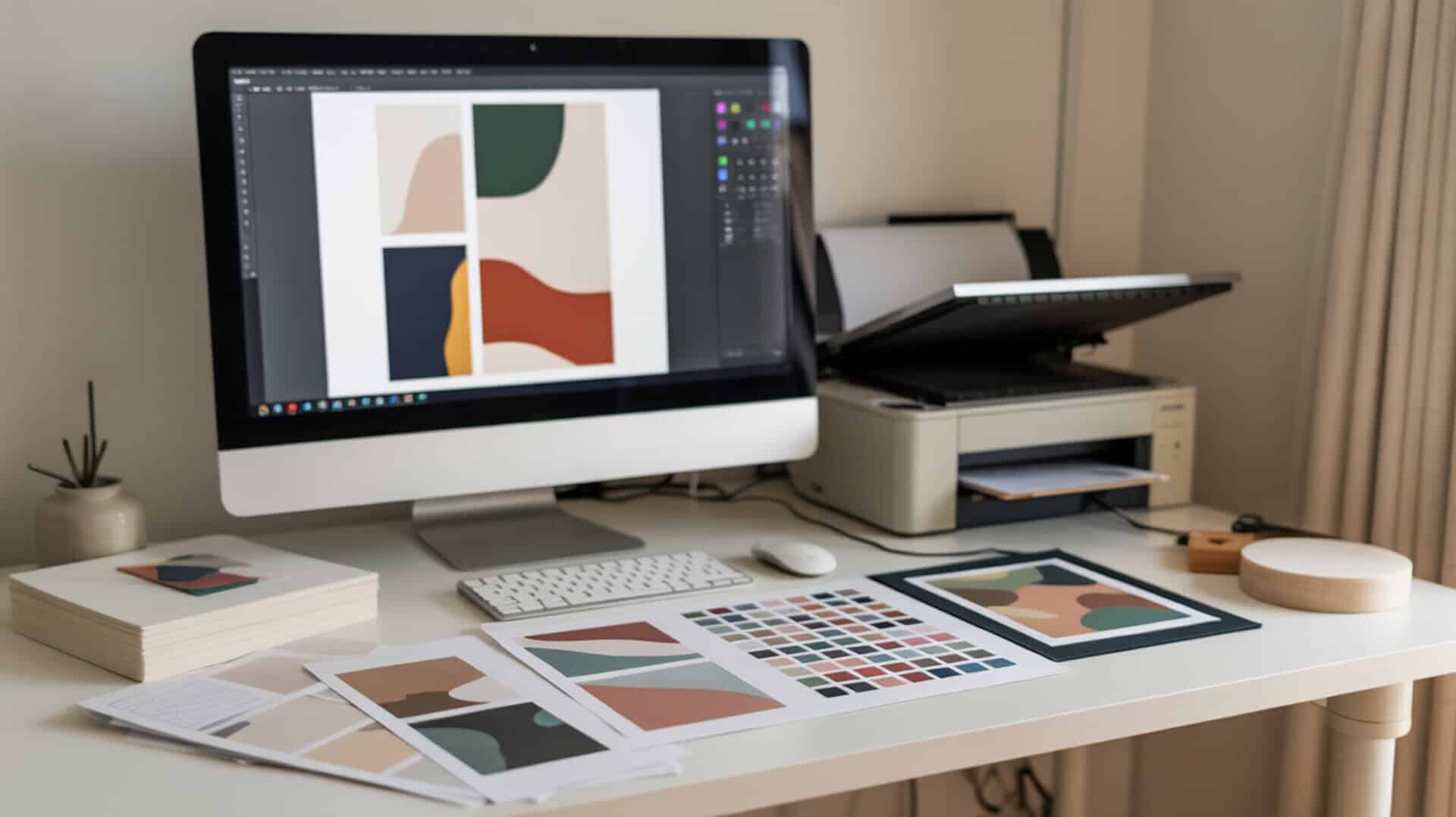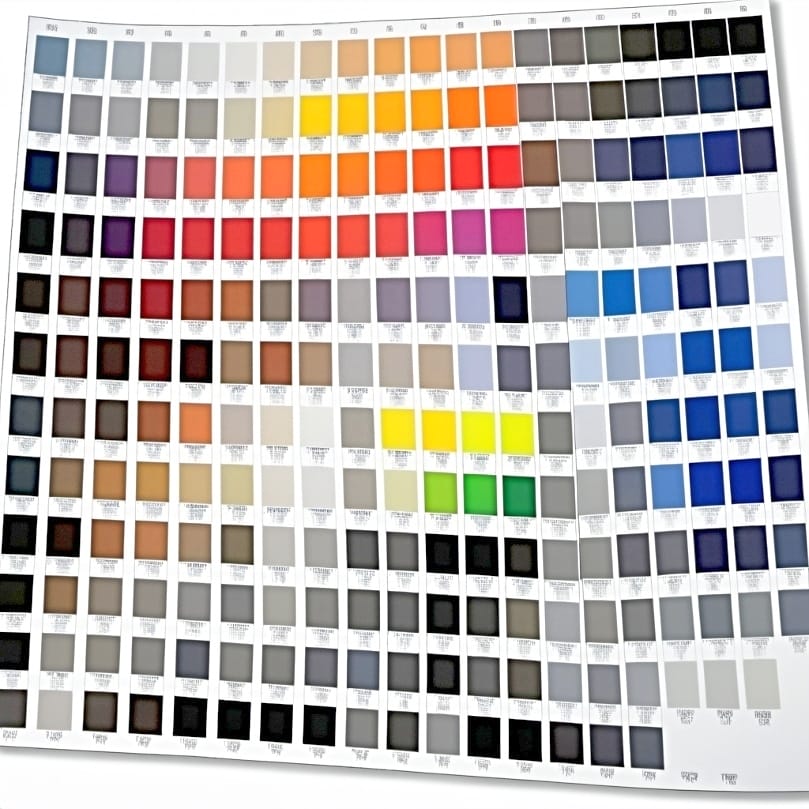
Color management coordinates how macOS and Epson drivers control the flow of color data from your design application to the printed output. The correct ICC profile must be installed and selected on your Mac for accurate sublimation output—without it, colors shift unpredictably between screen and print. Our sublimation software guide introduces universal color management workflows that lead directly into Mac-specific Epson configuration.
Key Takeaways
- Access Epson settings through System Settings > Printers & Scanners > Options & Supplies on Mac.
- Set DPI to 300 or higher and select Premium Presentation Paper Matte for sublimation printing.
- Color space conversion in macOS can override Epson color handling if set incorrectly—disable ColorSync when using ICC profiles.
Where Is the Epson Printer Utility on a Mac?
The Epson printer utility resides in your Applications folder or within the Utilities subfolder as EPSON Printer Utility. You can also access it through System Settings > Printers & Scanners by selecting your Epson printer and clicking Options & Supplies, then Utility. The device profile must be installed for the Epson utility to appear in macOS settings—if the utility is missing, download and install the full driver package from Epson’s support website to add the ICC profile and utility components.
Where Can I Find the Epson Printer Utility?
Open Finder and navigate to Applications > Utilities, then look for EPSON Printer Utility or Printer Setup Utility. Double-click to launch, select your printer from the list, and click OK to access maintenance functions like nozzle checks and head cleaning. The device profile determines which utility options macOS displays—installing the complete Epson driver package ensures all maintenance tools appear correctly for your specific printer model.
How Do I Get to Epson Printer Utility?
Access the utility through the print dialog by opening any document, pressing Command+P, selecting your Epson printer, and clicking the Utility button in the print window. Alternatively, navigate to System Settings > Printers & Scanners, select your printer, click Options & Supplies, then click the Utility tab. Image orientation settings are often adjusted within the utility or print dialog when preparing sublimation prints—verify mirroring is enabled before sending jobs to the printer.
How Do You Adjust Epson Printer Settings on Mac?
Open a document and select File > Print, then choose your Epson printer from the dropdown menu. Click the popup menu showing Copies & Pages and select Print Settings or Printer Features to access media type, quality, and color options. Color management settings determine whether macOS or the Epson driver controls color output—for sublimation, let the printer manage colors using your installed ICC profile. The working space in your design application should match ICC profile expectations, typically sRGB or Adobe RGB. Our Epson printer settings guide explains universal ICC profile configuration that applies across both Mac and Windows systems. Most design applications on macOS work in the sRGB color space, which defines how RGB color values are interpreted before being passed to the printer driver.[1]
Where Are Epson Printer Settings on Mac?
Access settings through the Apple menu > System Settings > Printers & Scanners, select your Epson printer, then click Options & Supplies > Driver or Options. For print-specific settings, open any application’s print dialog and expand the options using the Show Details button. The device profile controls available options, and color space conversion determines how macOS translates colors from your design’s working space to the printer’s color space—incorrect conversion settings cause washed-out or oversaturated sublimation prints.
⫸ Click Here For Best Selling Sublimation Printers And Products ⫷How to Access Epson Printer Settings?
From any application, press Command+P to open the print dialog, select your Epson printer, then click the dropdown menu to reveal Print Settings or Advanced options. For system-wide defaults, navigate to System Settings > Printers & Scanners and select Options & Supplies. Color management settings in the print dialog determine whether the application or the printer controls color interpretation—for sublimation with ICC profiles, select Printer Manages Colors to prevent double-correction that causes color shifts.
How Do You Change Print Quality and Paper Settings on Mac?
Open the print dialog with Command+P, select Print Settings from the dropdown menu, and choose your media type and quality level. Select Premium Presentation Paper Matte for sublimation and set quality to High or Best for maximum DPI output—higher DPI values increase detail and ink density for vibrant transfers. Avoid using Scale to Fit options because image scaling applied incorrectly can distort sublimation designs by stretching or compressing artwork beyond its intended proportions.
How to Change Print Size on Epson Printer Mac?
With a document open, select File > Print and choose your paper size from the Paper Size popup menu at the top of the print dialog. For custom sizes, select Manage Custom Sizes from the same menu and define your dimensions. Image scaling in the print dialog adjusts output dimensions, and your source file’s PPI determines how large a design prints at any given DPI—a 300 PPI image prints at its full dimensions when DPI matches, while lower PPI files require scaling that reduces sharpness.
How Do I Adjust the Color on My Epson Printer on Mac?
Select Color Matching from the print dialog popup menu, then choose between ColorSync or Epson Color Controls. For sublimation, select Color Options to access saturation, brightness, and contrast sliders. Color management through rendering intent determines how macOS handles out-of-gamut colors that exceed your printer’s capability—Perceptual intent compresses the entire color range proportionally while Relative Colorimetric clips only unprintable colors, each producing different results on vibrant sublimation designs.Modern printing relies on color management, which controls how color data is translated between software, operating systems, and output devices.[2]
Why Won’t My Epson Printer Work with My Mac?
Connection failures typically result from network configuration issues or missing driver software. Verify your Mac and printer connect to the same Wi-Fi network, the printer is powered on, and no network problems exist. The device profile may be missing or outdated, causing driver mismatches on Mac—download the latest driver package from Epson’s support website for your specific macOS version. Color space conversion errors can also prevent proper printing if the driver lacks the necessary translation tables for your printer model.
Are Epson Printers Compatible with Mac?
Most modern Epson printers including EcoTank and Expression series are fully compatible with Mac computers running current macOS versions. Compatibility requires downloading the correct device profile from Epson’s support website—select your specific printer model and macOS version to ensure proper driver installation. The device profile ensures macOS recognizes the printer correctly and displays all available features including quality settings, paper options, and maintenance utilities.
Do Epson Printers Work with MacBook Pro?
Epson provides compatible printers for all Apple devices including MacBook Pro, MacBook Air, iMac, and Mac mini. The device profile is required regardless of which Mac model you use—download and install the Epson driver from their support site, then add the printer through System Settings > Printers & Scanners. Both USB and wireless connections work with MacBook Pro, though newer models may require USB-C adapters for direct cable connections.
How Do You Reset Epson Printer Settings on Mac?
Navigate to Apple menu > System Settings > Printers & Scanners, then Control-click your Epson printer in the list and select Reset Printing System. This removes all printer configurations and requires reinstalling printers afterward. Resetting clears color management conflicts that may have accumulated between your application’s working space and the driver’s expectations—after reset, reinstall the Epson driver and reconfigure your ICC profile settings for accurate sublimation output.
How Do I Reset Epson Printer Settings on Mac?
Open System Settings > Printers & Scanners, locate your Epson printer in the list, then Control-click and select Reset Printing System from the context menu. Confirm the reset when prompted—this action removes all installed printers from your Mac. Resetting removes conflicting color management overrides that may have been applied by different applications or previous driver installations, giving you a clean starting point for proper sublimation printer configuration.
How to Change Epson Printer Default Settings on Mac?
Access defaults through Apple menu > System Settings > Printers & Scanners, select your Epson printer, and click Options & Supplies > Driver or Options. Adjust available printing preferences and click OK to save. Default settings rely on the active device profile installed for your printer—if options appear limited, download the complete driver package from Epson’s website to unlock all configurable preferences including quality presets and color management options.
How Do You Connect an Epson Printer to Different Mac Devices?
Each Mac device connecting to your Epson printer requires its own driver installation and printer setup. Connect via Wi-Fi by ensuring both devices are on the same network, then navigate to System Settings > Printers & Scanners > Add Printer. The device profile must be installed on each Mac device that connects to the printer for proper functionality and access to all settings. After installation, verify image orientation and mirroring settings on each device since print preferences do not synchronize between Macs.
How to Install Epson Printer Software on Mac?
Visit the Epson support website, search for your specific printer model, and download the driver and utilities combo package for your macOS version. Run the downloaded installer, follow on-screen prompts, and enter your Mac password when requested. Installing the device profile software adds profiles used by macOS for color management, print quality settings, and access to maintenance utilities like nozzle checks and head cleaning functions.
How to Find the MAC Address on an Epson Printer?
Check the sticker on the back or bottom of your Epson printer, which typically displays the MAC address alongside model and serial numbers. Alternatively, print a network status sheet from the printer’s control panel by navigating to Network Settings > Print Network Status. The device profile and networked installations rely on accurate device identification through the MAC address for proper network printer discovery and connection on your Mac.
How Do You Set Up an Epson Printer on a Mac Step-by-Step?
- Connect your Epson printer to the same Wi-Fi network as your Mac using the printer’s control panel setup wizard.
- Download the complete driver package from Epson’s support website for your specific printer model and macOS version.
- Run the installer and follow on-screen prompts, entering your Mac password when requested to complete installation.
- Navigate to System Settings > Printers & Scanners and click Add Printer, Scanner, or Fax to detect your Epson.
- Select your printer from the list, verify the correct driver is selected in the Use dropdown, and click Add.
- Configure image orientation settings including mirroring for sublimation, then print a test page to verify output.
PNG files are a common file type printed via Mac Preview or design software for sublimation projects because they preserve transparency and color accuracy. Our Canva sublimation guide explains how to export PNG files properly for Mac-based sublimation printing workflows.
Ready to Master Your Epson Printer Settings on Mac?
Proper Mac configuration transforms your Epson EcoTank into a reliable sublimation production tool with consistent color output. Set up color management correctly by installing your ink manufacturer’s ICC profile and letting the printer manage colors rather than macOS. The correct ICC profile ensures accurate sublimation color by providing the translation table between your screen’s RGB values and the printer’s ink output—without it, vibrant designs appear muted or shifted on the final pressed product.
Frequently Asked Questions
How do I change the default print settings on my Epson printer?
Navigate to your printer’s control panel and select Settings > Printer Settings to access paper source options and quality defaults. On Mac, open System Settings > Printers & Scanners, select your Epson, and click Options & Supplies > Driver. The device profile determines which default options are available—install the complete Epson driver package to access all configurable settings.
How to save Epson printer settings?
Configure your desired print settings in the print dialog, then click the Presets dropdown menu and select Save Current Settings as Preset. Name your preset and click OK to save. This creates a reusable configuration for sublimation that includes your DPI, paper type, color management settings, and mirroring preferences—select it from the Presets menu for future print jobs.
Why is my Epson printer not printing correctly?
Incorrect output typically indicates clogged nozzles, wrong paper type selection, or color management conflicts. Run a nozzle check from the Epson utility, then clean the print head if lines appear incomplete. Verify your device profile is current and that DPI settings match your source file resolution. For color issues, ensure only one color management system is active—either the application or the printer, not both.
How do I change the copy settings on my Epson printer?
Access copy settings through the printer’s control panel by pressing the Copy button and adjusting density, paper size, and quality options before copying. On Mac, you cannot adjust copy settings through the computer—these functions are controlled exclusively through the printer’s physical interface. For sublimation, copying is not used since you print mirrored designs from your computer rather than duplicating existing documents.
What are the downsides of Epson printers?
Common Epson limitations include potential ink clogs if the printer sits unused for extended periods, slower printing speeds compared to laser models, and possible color shifts when using third-party sublimation inks. Regular maintenance including weekly nozzle checks and head cleaning cycles minimizes clogging issues. The device profile and color management must be configured correctly when using non-OEM inks to maintain accurate color output.
References
- A standard default color space for the internet – sRGB. (n.d.). W3C. https://www.w3.org/Graphics/Color/sRGB
- https://en.wikipedia.org/wiki/Color_management?utm_