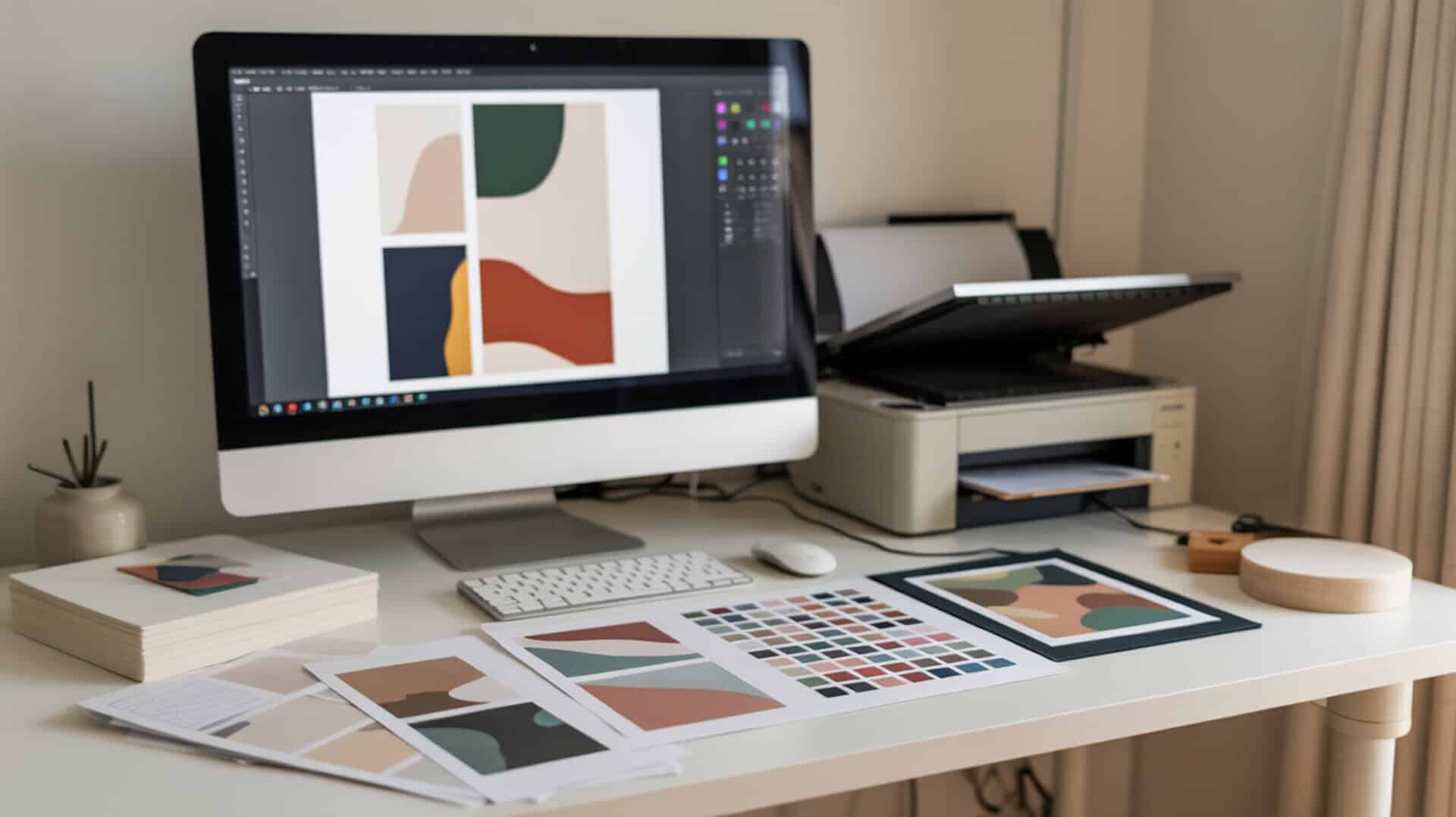
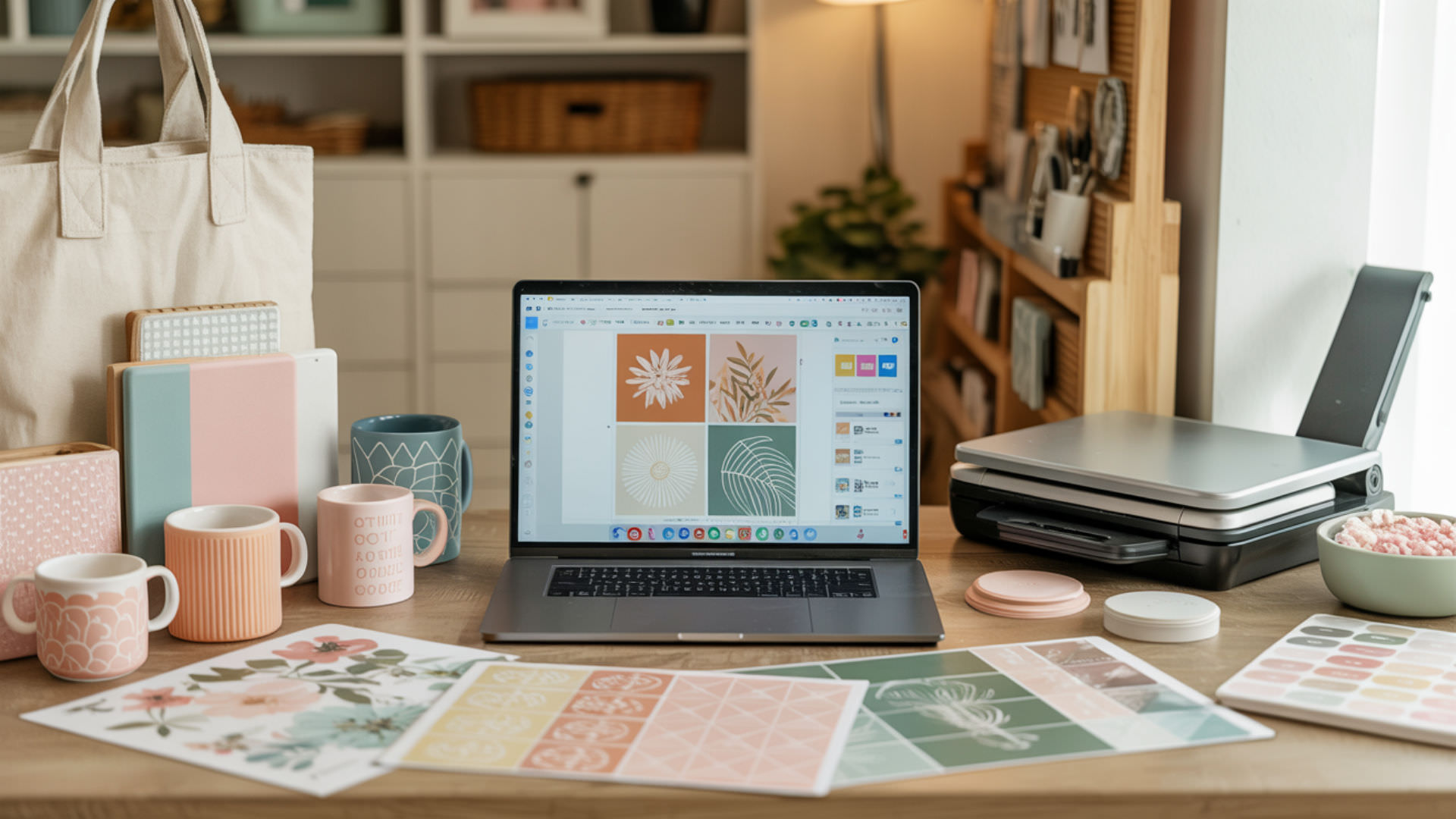
Canva provides an accessible platform for creating sublimation designs without advanced graphic design experience. The software exports designs as raster graphics—pixel-based images that transfer effectively onto sublimation blanks when properly formatted. PNG files preserve image quality and transparency, making them the preferred Canva export format for sublimation printing workflows. Understanding how raster graphics function within design software establishes the foundation for successful sublimation output.
Key Takeaways
- Canva exports PNG and JPG files at 96 DPI by default—use PDF Print format for 300 DPI image resolution suitable for professional sublimation printing.
- Mirror designs horizontally within Canva before downloading when text or directional elements appear—this ensures correct orientation after heat transfer.
- Create custom canvas dimensions matching your blank measurements (in inches or centimeters) to maintain proper image resolution at the intended print size.
How can Canva be used effectively for sublimation printing designs?
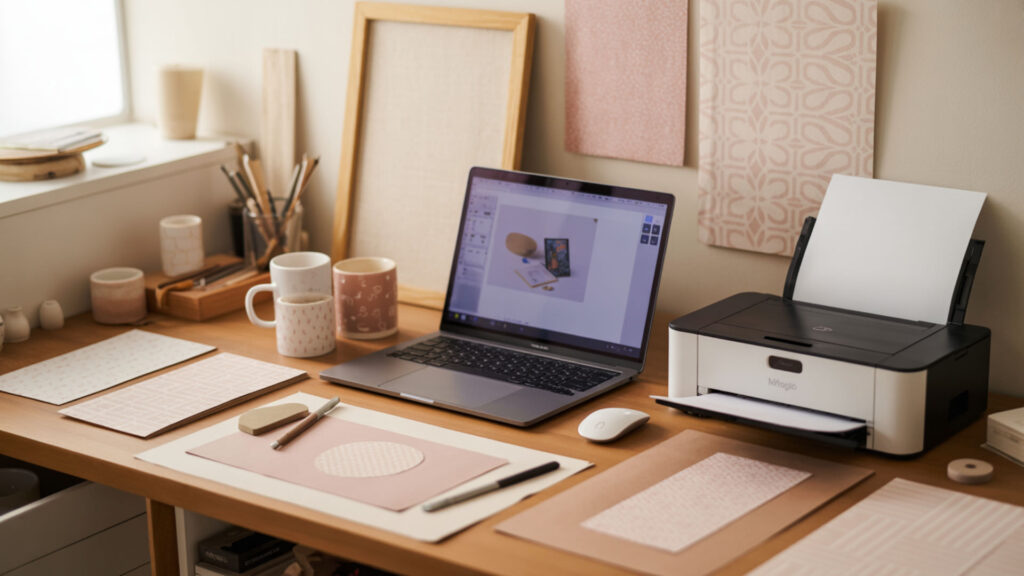
Canva serves as an effective image editing platform for sublimation designs through its drag-and-drop interface and extensive element library. The software organizes design components using layers that prevent accidental overlap or scaling errors during creation. Custom canvas sizes match specific blank dimensions for mugs, tumblers, shirts, and other substrates. Canva’s templates provide starting points that crafters modify with personal text, uploaded images, and graphic elements.
Do you need Canva Pro for sublimation printing?
Canva’s free version creates functional sublimation designs without requiring a paid subscription. Limited export options in the free tier restrict maximum image resolution and may impact print clarity for detailed work. Canva Pro adds the Resize feature for quick dimension adjustments, access to premium elements, and additional export options. Most beginners produce quality sublimation prints using free Canva features before upgrading.
Can I use free design tools for sublimation printing projects?
Free design tools including Canva produce professional sublimation results when users understand export requirements. Rasterization flattens vector and text elements into pixels, locking final print quality at the exported resolution. Larger canvas dimensions compensate for lower default DPI settings in free software. Free tools require manual workarounds that paid professional software handles automatically, but results remain comparable for small-scale production.
How should you export designs from Canva for sublimation printing?
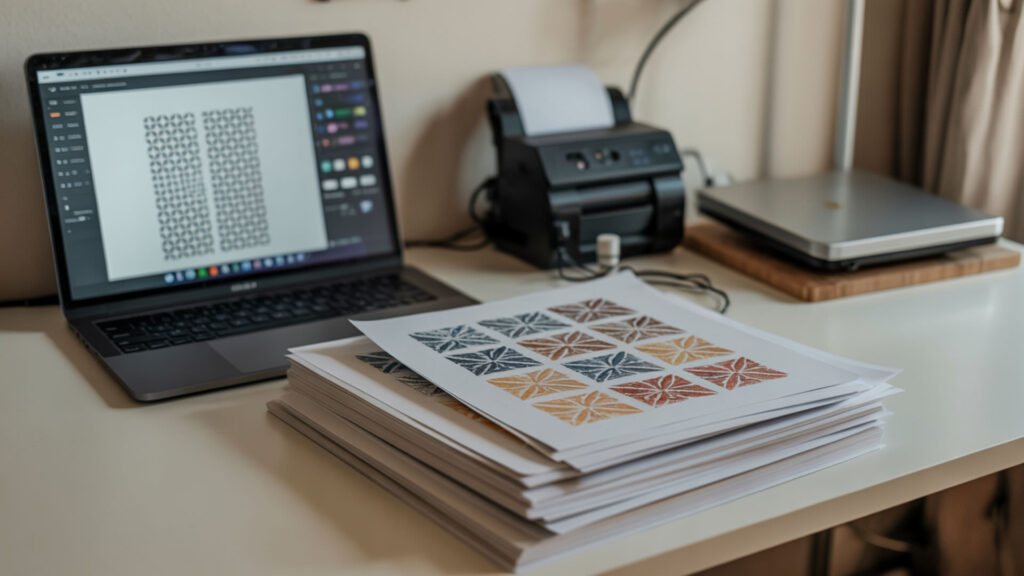
Export sublimation designs from Canva using PNG format for transparent backgrounds or PDF Print format for maximum resolution. PNG provides lossless export that maintains color accuracy and edge quality throughout the printing process. JPEG uses compression that can degrade fine details in complex designs—avoid this format for detailed sublimation work. Professional sublimation software offers advanced PNG export controls and color management features beyond Canva’s capabilities. Raster image files are made of pixels, and maintaining sufficient pixel density is essential for preserving sharpness in printed designs.[1]
How to export files correctly for sublimation printing from Canva?
Click Share in the upper-right corner, select Download, and choose PNG or PDF Print as the file type. Pixel dimensions translate to DPI at print size—a design measuring 2400×3000 pixels produces 300 DPI output at 8×10 inches. Increase the Size slider to 2x or 3x for additional clarity when exporting PNG files. Verify actual DPI using image properties on your computer before printing.
⫸ Click Here For Best Selling Sublimation Printers And Products ⫷How to convert a Canva design into a sublimation-ready image?
Rasterization converts editable text and vector elements into fixed pixels, making the file print-ready. Export as PDF Print (300 DPI) then use free online converters to transform the PDF into PNG or JPG format while preserving resolution. This workaround bypasses Canva’s 96 DPI limitation for standard PNG exports. The converted file maintains professional print quality suitable for detailed sublimation transfers.
What size and resolution settings work best in Canva for sublimation?
Set custom dimensions in inches or centimeters matching your blank’s printable area for optimal image resolution. PPI (pixels per inch) controls pixel density—higher PPI yields sharper sublimation prints with crisp text and detailed graphics. Standard web resolution (96 PPI) appears pixelated when printed; aim for 300 PPI equivalent by sizing canvas dimensions appropriately. Calculate pixel requirements by multiplying print inches by 300.
How large can you print from Canva?
Canva supports custom canvas sizes up to specific maximum dimensions that accommodate most sublimation projects. Image scaling enlarges designs beyond their original pixel count, but excessive scaling reduces sharpness and introduces visible pixelation. Start with dimensions that match or exceed your final print size to avoid quality loss. Large format sublimation projects may require professional design software with higher resolution capabilities.
What size and resolution settings should I use in Canva for sublimation?
Create canvas dimensions at 300 pixels per inch of your final print size—an 8×10 inch design requires 2400×3000 pixels. Correct image resolution maintains DPI at print size, preventing pixelation on the finished product. Enter dimensions in Custom Size before starting your design rather than resizing afterward. This approach ensures Canva generates sufficient pixel density from the beginning of your project.
How do you create sublimation designs in Canva step-by-step?
- Click Create a Design and select Custom Size, entering dimensions based on your sublimation blank measurements in pixels or inches.
- Add background colors or patterns from the Elements menu, then layer text and graphics using the left sidebar tools.
- Upload personal images through the Uploads section and position them within your canvas boundaries using drag-and-drop.
- Apply cropping to fit artwork precisely to your blank dimensions—proper image orientation prevents edge cutoff during transfer.
- Mirror the design horizontally if text or directional elements appear, using the Flip function under Edit options.
- Download as PNG with transparent background or PDF Print for maximum resolution, then print using your sublimation printer.
Why is mirroring important when designing in Canva for sublimation?
Mirroring reverses the design horizontally before printing, ensuring correct orientation after heat press transfer. Sublimation transfers ink face-down onto blanks, which flips the image—unmirrored text appears backward on finished products. Abstract designs without directional elements may skip mirroring, but any text, logos, or asymmetrical graphics require horizontal flipping. Understanding when mirroring applies across different sublimation substrates prevents costly printing mistakes.
How to flip text in Canva for sublimation printing?
Select the element or group all design components, click the Edit icon (wrench symbol) in the toolbar, then choose Flip Horizontal. Horizontal flipping produces the mirrored layout required for heat-transfer processes. Some sublimation printers include automatic mirror settings—check printer preferences before manually flipping in Canva. Apply mirroring as the final step before downloading to avoid confusion during the design process.
Do sublimation colors look accurate when designed in Canva?
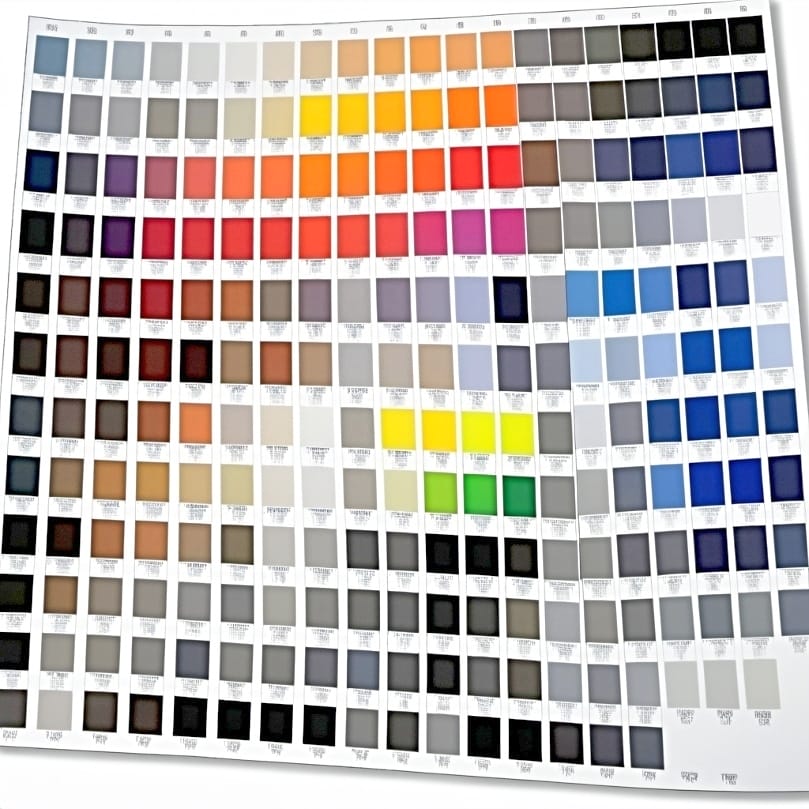
Canva displays colors using the RGB color model optimized for screens, which differs from printed sublimation output and causes color shifts after pressing. Color management between design software and printer settings affects final results significantly. Sublimation prints typically appear lighter on paper before heat activation intensifies the colors. Test prints on sample blanks reveal actual color reproduction before committing to full production runs. Colors displayed on screens use RGB color spaces, which differ from how color is reproduced in physical printing processes.[2]
How to use Canva to create consistent sublimation designs for mugs and shirts?
Create saved templates with correct dimensions for each blank type to maintain consistency across production batches. Image scaling must account for different surface areas—mug wraps require different proportions than shirt chest prints. Transparency in PNG exports allows clean overlays without background artifacts appearing on white blanks. Save working files to folders organized by blank type for efficient reuse and brand consistency.
Can I sell sublimation designs created using Canva?
Canva’s license permits selling physical products featuring designs created with their raster graphics and elements. Free elements include commercial use rights when incorporated into original designs on physical merchandise. Pro elements carry similar permissions but require an active subscription. Review Canva’s current content license terms before commercial production, as restrictions apply to selling digital files or standalone artwork.
Ready to Create Sublimation Designs with Canva?
Canva streamlines sublimation design creation for crafters at every skill level through intuitive tools and extensive libraries. PNG export preserves quality and transparency, producing reliable sublimation results when resolution requirements are met. Starting with properly sized custom dimensions eliminates resolution problems before they affect your printed products. Combine Canva’s accessibility with proper export techniques to produce professional sublimation merchandise efficiently.
Frequently Asked Questions
Can Canva designs be used for sublimation printing?
Canva designs transfer effectively onto sublimation blanks when exported at appropriate resolution and file format. The platform produces PNG files suitable for sublimation printing on polyester fabrics, ceramics, metals, and coated hard surfaces. Export settings determine print quality more than the design tool itself. Follow proper dimension and resolution guidelines to achieve professional sublimation results from Canva.
Do Canva colors change after sublimation pressing?
Color shifts occur between screen display and sublimation output due to RGB-to-print conversion and ink behavior during heat activation. Printed designs appear lighter and duller on sublimation paper before pressing—colors intensify during heat transfer. Color management settings in printer software help minimize unexpected shifts. Test prints establish baseline expectations for how specific Canva colors reproduce on your blanks.
Does Canva support high-resolution sublimation exports?
Canva exports PNG and JPG at 96 DPI by default, which falls below the 300 DPI standard for professional printing. PDF Print format exports at 300 DPI and can be converted to PNG using free online tools. Alternatively, increase canvas dimensions to 2x or 3x normal size before exporting PNG files. Either workaround achieves image resolution suitable for sharp sublimation output.
Do sublimation designs from Canva need to be mirrored?
Designs containing text, logos, or directional elements require mirroring before sublimation printing. The heat transfer process flips images during pressing—mirroring beforehand produces correct final orientation. Abstract patterns without text may skip mirroring without visible issues. Some sublimation printers include automatic mirror settings that eliminate manual flipping in design software.
Are Canva-made sublimation designs allowed for commercial use?
Canva permits commercial use of designs printed on physical products including sublimation merchandise for sale. Free and Pro elements both allow commercial application when incorporated into original product designs. Restrictions apply to selling designs as standalone digital downloads or print-on-demand templates. Verify current Canva licensing terms as policies may update over time.
References
- Digital imaging workflow for treatment documentation. (n.d.). Library of Congress. https://www.loc.gov/preservation/resources/ImageDoc/index.html
- CIE fundamentals for color measurements. (2024, July 19). NIST. https://www.nist.gov/publications/cie-fundamentals-color-measurements-0