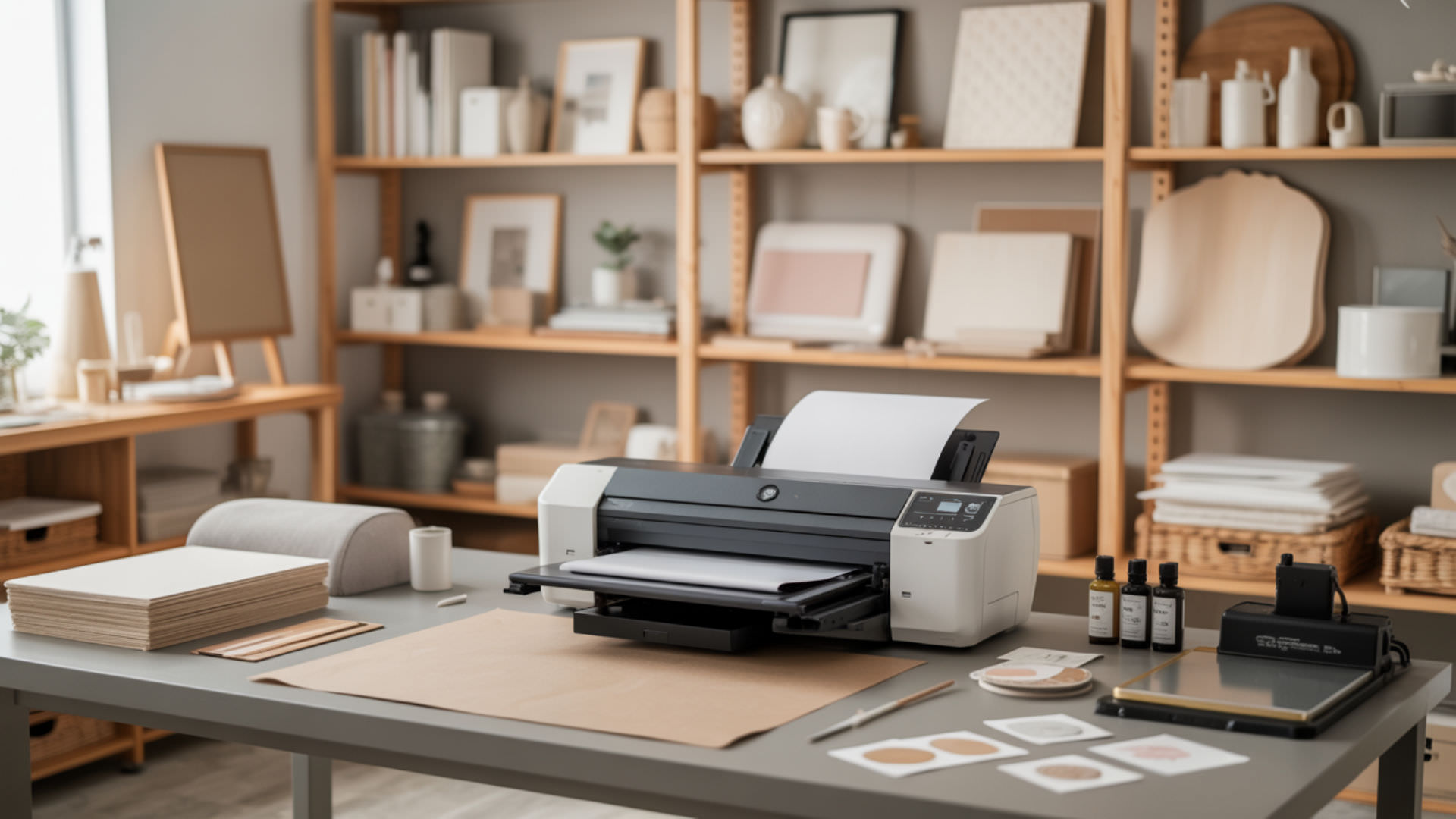
The Epson Artisan 1430 remains a popular wide-format option for sublimation despite its model retirement from Epson’s production line. This 13×19-inch printer features MicroPiezo technology that safely handles sublimation ink (CMYK) plus light cyan and light magenta without heat damage. For universal conversion principles covering how sublimation ink (CMYK) chemistry works with piezoelectric printheads, see our complete printer conversion guide.
Key Takeaways
- The MicroPiezo printhead uses piezoelectric actuator technology that fires ink without heat, making it safe for sublimation.
- Stock Claria dye ink cartridges must be replaced with sublimation-compatible refillable cartridges before printing.
- Discontinued status means users rely on third-party suppliers for ink cartridge replacements and ICC profiles.
Can the Epson 1430 be used for sublimation?
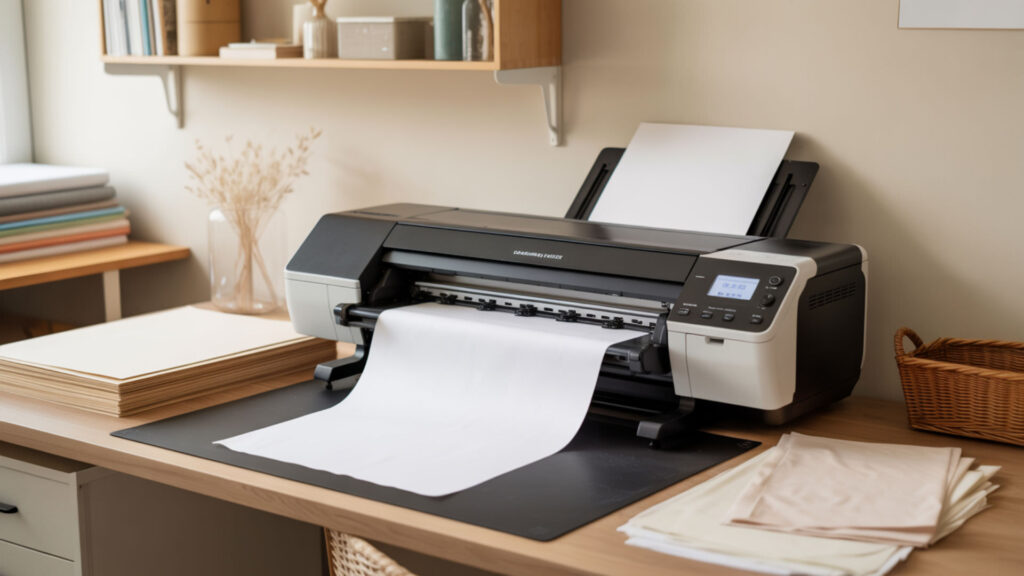
The Epson Artisan 1430 supports sublimation after conversion because its MicroPiezo printhead ejects ink through crystal vibration rather than thermal heating, preserving disperse dye chemistry. The printer’s OEM dye ink must be completely purged before installing sublimation ink. Understanding why MicroPiezo printhead technology enables safe conversion is covered in our inkjet-to-sublimation conversion guide.
What kind of ink does an Epson 1430 use?
The Epson 1430 ships with six-color Claria Hi-Definition OEM dye ink in individual ink cartridges—black, cyan, magenta, yellow, light cyan, and light magenta. This water-based dye ink produces photo-quality prints but lacks disperse dye chemistry required for heat-activated sublimation. Replace all six cartridges with sublimation ink formulated for Epson piezo heads.
Can the Epson 1430 use pigment ink?
The Epson 1430 accepts pigment ink through compatible refillable ink cartridges, though it ships with dye-based OEM dye ink. Pigment particles sit on paper surfaces rather than penetrating fibers like disperse dyes, offering superior fade resistance for archival prints. Pigment ink cannot sublimate into polyester at 380–400°F—only disperse dye formulations work for sublimation transfers. Sublimation relies on disperse dyes that chemically diffuse into polyester fibers under heat, whereas pigment inks remain on the surface and cannot sublimate. [1]
What is the best setting for Epson 1430 for sublimation?
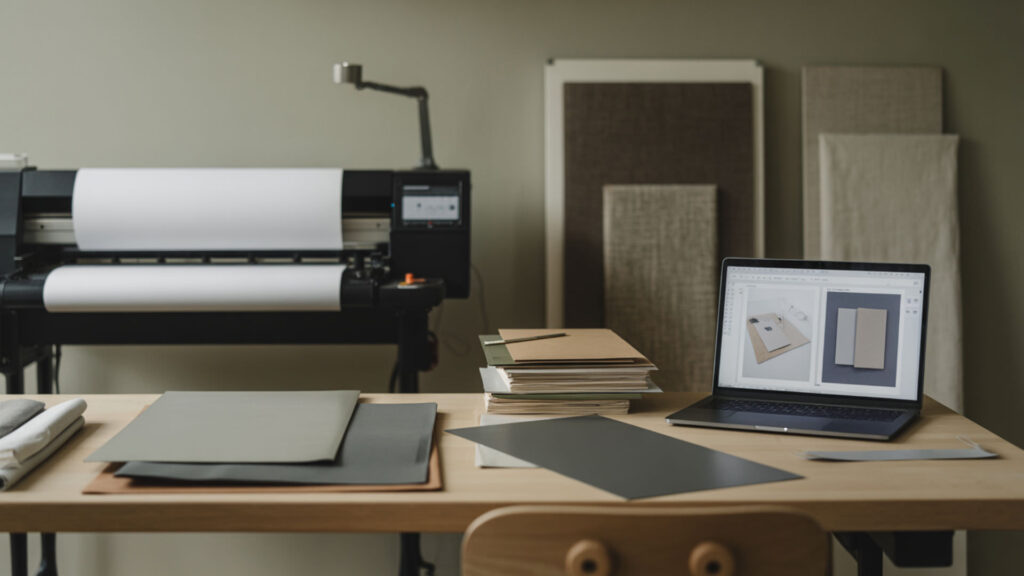
Optimal driver and print settings include selecting “Premium Presentation Paper Matte” as media type, “High Quality” print mode, and enabling mirror output. Install the ICC profile for Epson 1430 sublimation from your ink manufacturer to correct disperse dye color behavior. Set print resolution (DPI) to maximum 5760×1440 for sharpest transfer detail on the 1430’s wide-format output.
What paper should I use with Epson 1430?
Use dedicated sublimation transfer paper with polymer coating designed to hold and release disperse dyes during heat pressing. The coated side (bright white) faces the printhead. Standard photo or plain paper cannot release sublimation ink properly during transfer. Quality sublimation paper at 100+ gsm weight produces sharper 13×19-inch transfers with reduced ink bleed.
Can you use an Epson 1430 for heat transfer paper?
The Epson 1430 prints on standard heat transfer paper using original dye ink for cotton and dark fabrics. Heat transfer deposits ink on surfaces using adhesive backing, while sublimation transfer paper enables dye diffusion into polyester via heat press at 380–400°F. Sublimation produces more durable, wash-resistant results—the dye bonds molecularly rather than sitting atop fabric.
How do you convert an Epson 1430 step-by-step?
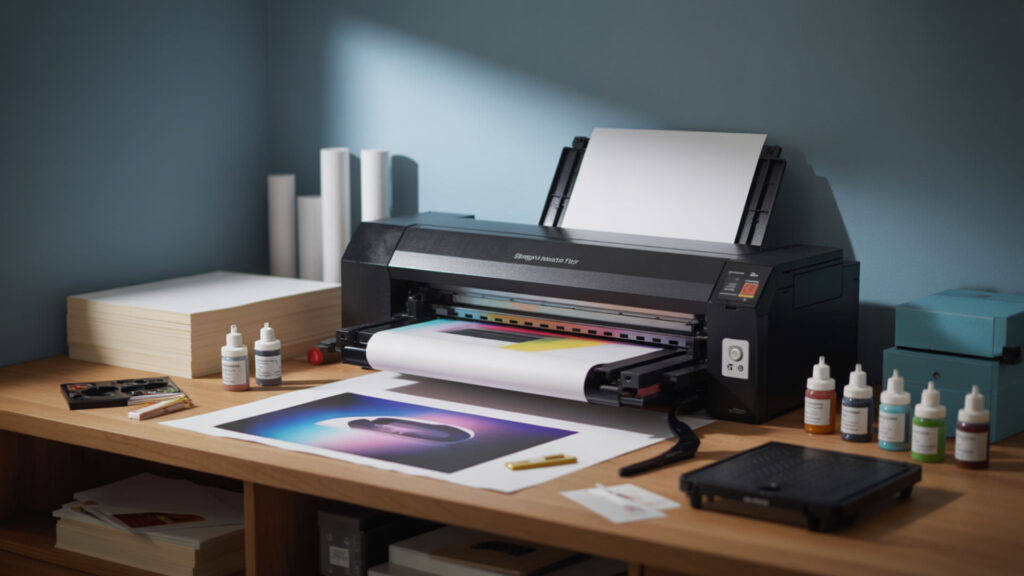
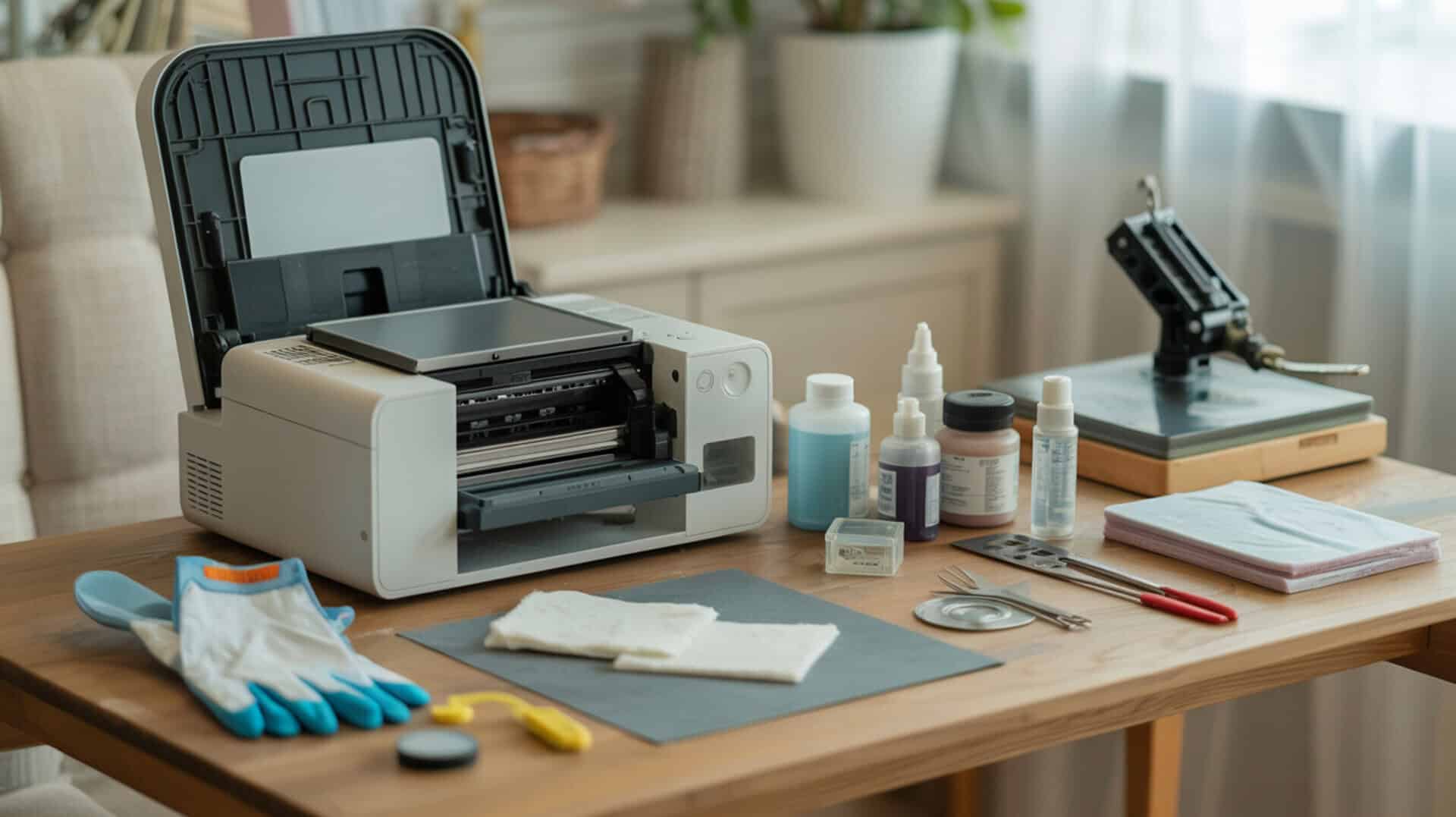
Converting requires complete ink flushing to remove OEM dye ink, installation of refillable sublimation cartridges with auto-reset chips, and running the initial ink charge cycle to prime all six channels with sublimation ink.
- Perform ink flushing by running 3–5 cleaning cycles or using cleaning cartridges to purge all Claria dye ink from lines and printhead.
- Install refillable sublimation cartridges, filling each with the corresponding sublimation ink color.
- Run the initial ink charge through the maintenance menu to prime sublimation ink from cartridges to printhead.
- Print nozzle check patterns until all six colors fire cleanly without gaps or banding.
- Install the ICC profile from your ink supplier and configure driver settings for sublimation output.
What other Epson printers can be converted to sublimation?
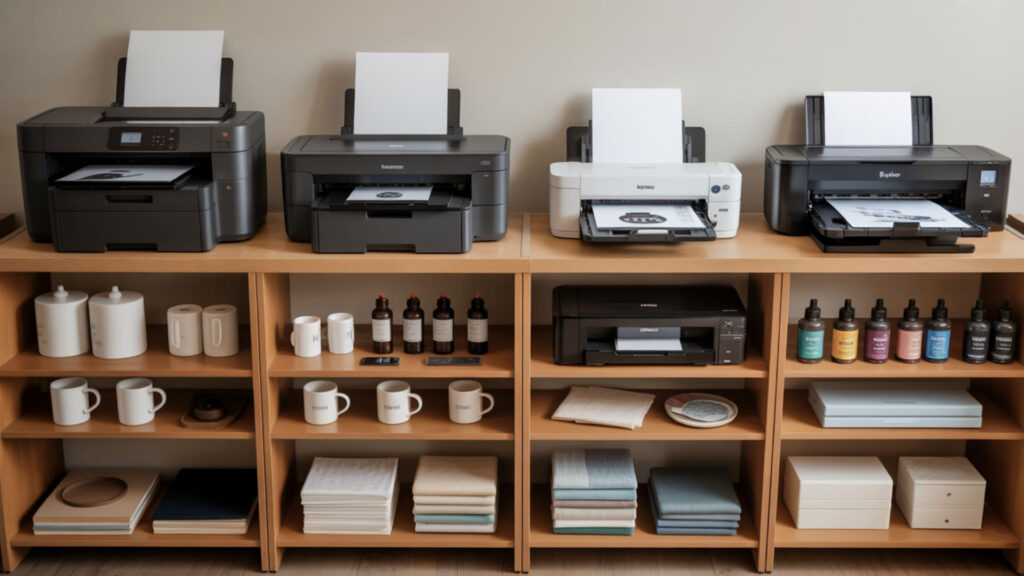
All Epson printers with MicroPiezo printhead technology support sublimation conversion using compatible sublimation ink (CMYK) formulations. Model retirement affects older printers with limited aftermarket cartridge availability. Since EcoTank and Artisan printers share MicroPiezo printhead architecture, our EcoTank sublimation conversion guide covers the same piezo-based principles with updated tank-fill procedures. The Epson 1430 uses piezoelectric actuation to eject ink droplets without heat, which is why its printhead can safely handle sublimation ink during conversion. [2]
Can you use Epson Expression Home XP-4205 for sublimation?
The Epson Expression Home XP-4205 uses MicroPiezo printhead technology and accepts refillable cartridges with auto-reset chips, making sublimation conversion possible. Perform model compatibility research before purchasing—confirm piezo architecture through Epson’s specifications. Conversion kits with 232XL-compatible sublimation cartridges exist specifically for this printer series.
Can you sublimate with Epson 1400 printer?
The Epson 1400 converts to sublimation using the same process as the 1430—both share MicroPiezo technology and six-color ink systems. Complete OEM dye ink removal through ink flushing remains critical before introducing sublimation ink. The 1400 supports 13×19-inch output like its successor, though parts availability declines as both models age.
What’s the best printer to use for sublimation?
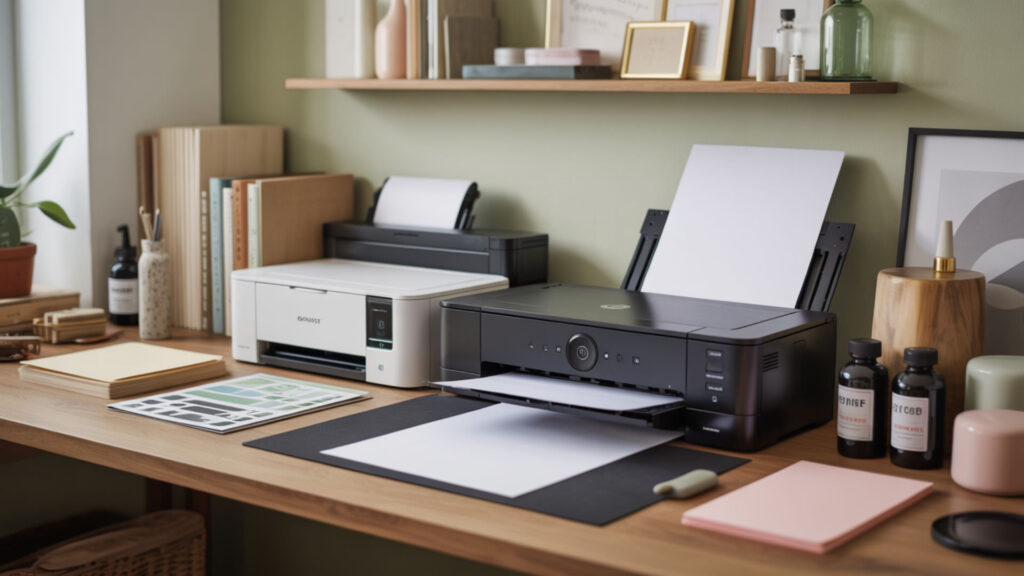
The best sublimation printer depends on format needs and running cost comparison between converted and dedicated machines. Entry-level EcoTanks cost $180–$250 for 8.5×14-inch output; the ET-15000 handles 13×19 inches. The 1430 remains competitive at 5760×1440 print resolution (DPI) when acquired affordably. For detailed running cost comparison data, see our guide on the best Epson printers to convert.
Do you print backwards for sublimation?
Enable the mirror print option in driver settings for all standard sublimation transfers. The printed design faces down against the substrate during heat pressing, so mirroring ensures correct orientation on the final product. Exception: transparent items viewed from behind require non-mirrored prints. Forgetting to mirror produces reversed text and backwards images.
Does sublimation paper have a shelf life?
Sublimation transfer paper expires in approximately one year when stored in cool, dry conditions. The polymer coating that holds and releases disperse dyes degrades over time, causing incomplete transfers and faded colors. Signs of expiration include poor dye release and visible coating deterioration. Store paper in original sealed packaging to maximize usable lifespan.
Ready to Convert Your Epson 1430?
Converting the Epson 1430 delivers 13×19-inch sublimation capability when proper ink flushing removes all OEM ink and quality refillable sublimation cartridges maintain consistent flow. The model retirement status requires building relationships with aftermarket suppliers for ongoing cartridge support. With correct conversion and regular printhead maintenance, the 1430 produces professional wide-format transfers.
Frequently Asked Questions
How do you set up an Epson printer for general printing?
Download the Epson Connect Printer Setup Utility and run the installer. Select your Artisan 1430 from detected printers and follow driver and print settings prompts. For sublimation, install the ICC profile from your ink supplier after setup. Configure print resolution (DPI) to 5760×1440 for maximum detail on transfers requiring sharp edges and fine gradients.
How can you make sublimation colors appear darker?
Increase print density through driver and print settings by selecting “High Quality” mode and adjusting saturation upward 10–15%. Verify your ICC profile matches your ink and sublimation transfer paper combination. Ensure adequate heat press time—45–60 seconds at 385–400°F—for complete dye transfer into polyester fibers.
How do you add a custom paper size to an Epson printer?
Access Menu > General Settings > Printer Settings > Custom Paper Setting on the control panel. Select an available slot, enter width and height dimensions, and save. The 1430 supports custom sizes up to 13×44 inches for panoramic sublimation transfer paper. Reference this custom size in your design software’s print dialog.
How do you fix paper size mismatch errors?
Match the paper size in your print driver to the size configured on the printer’s control panel via Setup > Paper Setup. Ensure loaded sublimation transfer paper matches your selected size exactly. Clear errors by pressing the confirmation button, then verify alignment before reprinting. Consistent driver and hardware settings prevent recurring warnings.
How do you adjust paper thickness settings?
For thicker sublimation transfer paper (120+ gsm), open Printer Properties, navigate to Paper Settings, and select “Matte” or “Cardstock” media type. This increases printhead-to-paper gap, preventing head strikes on heavy stock. The 1430’s rear feed slot bypasses the standard path’s curves for rigid or thick media up to 1.3mm.