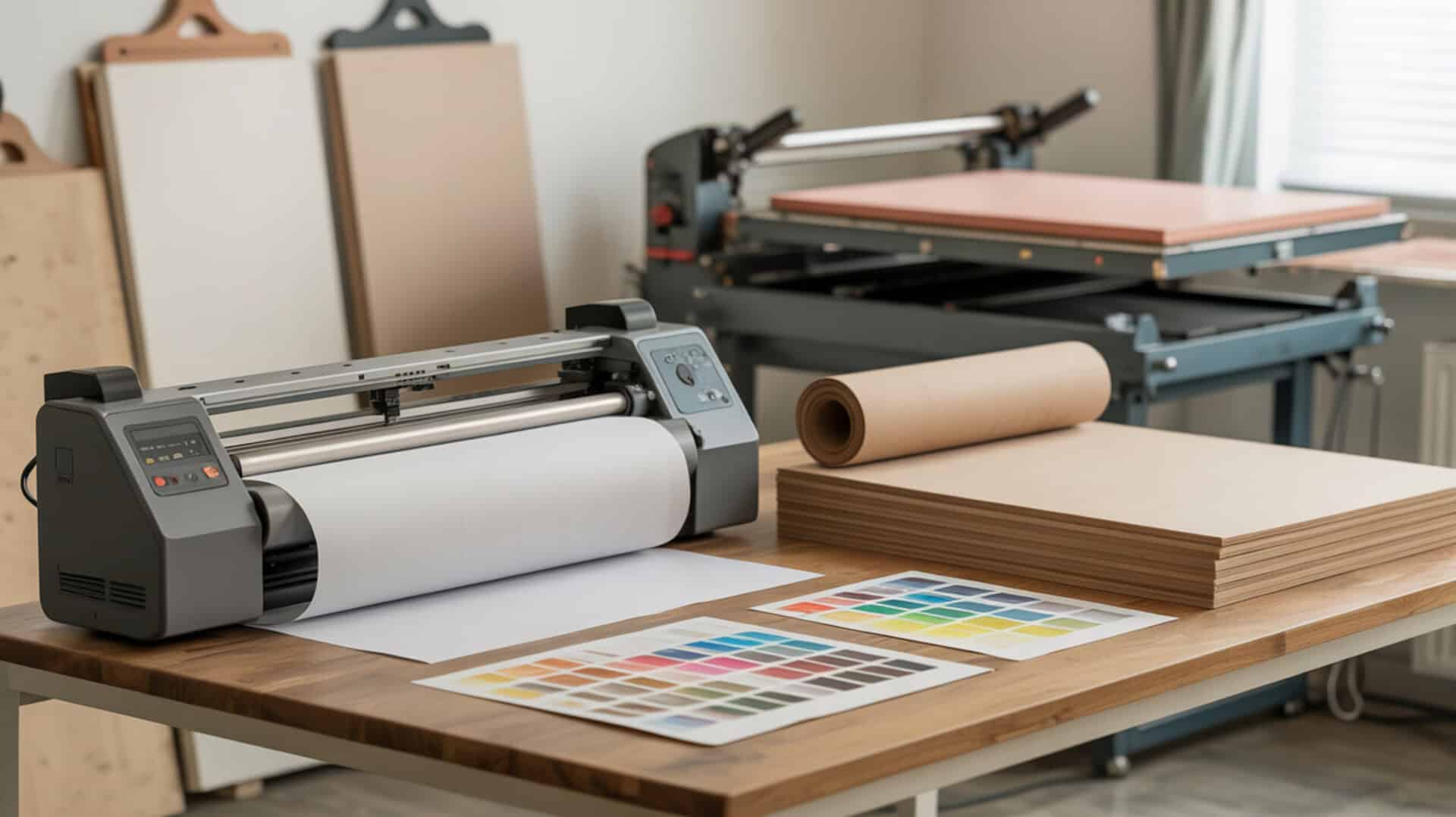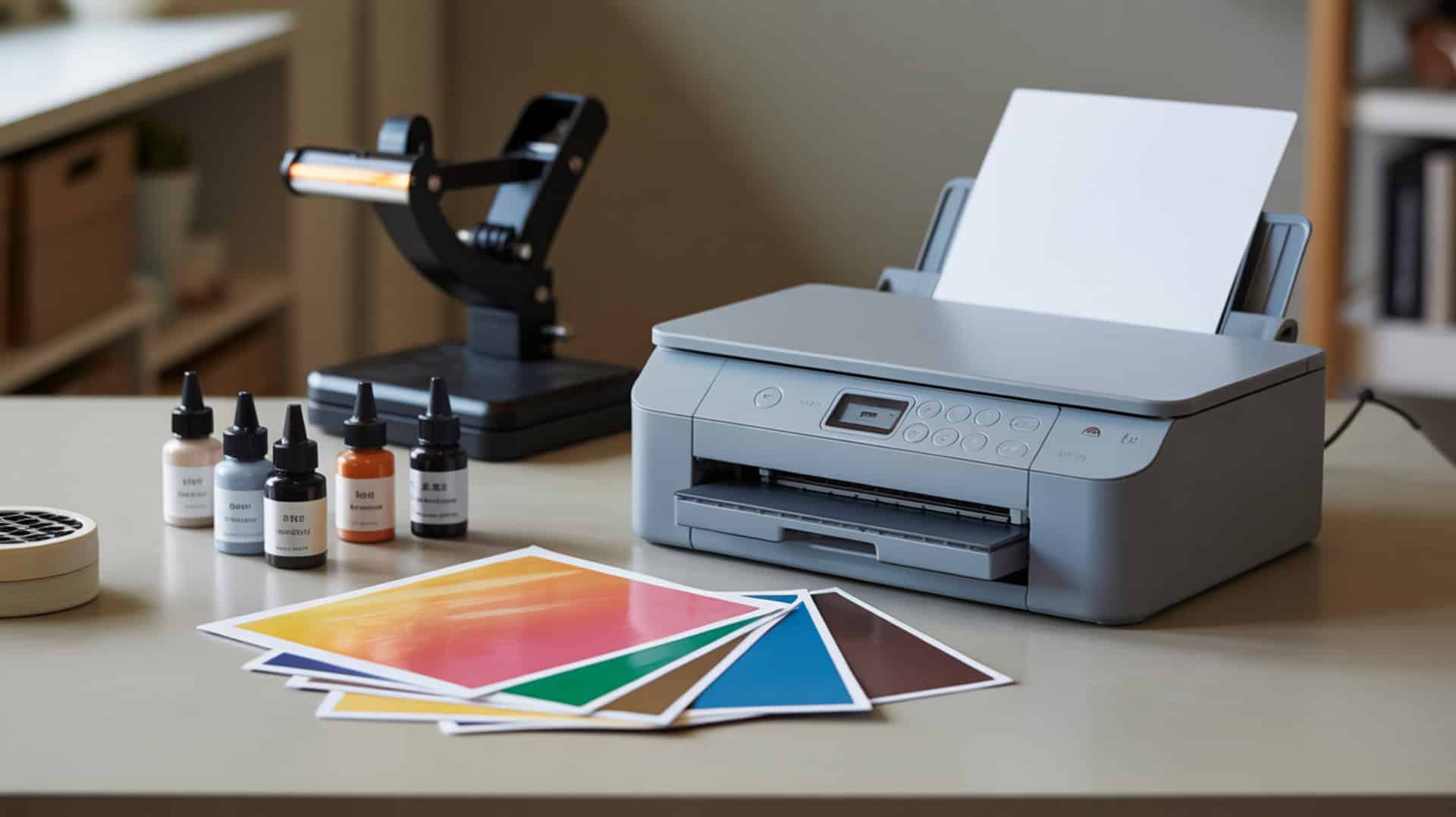
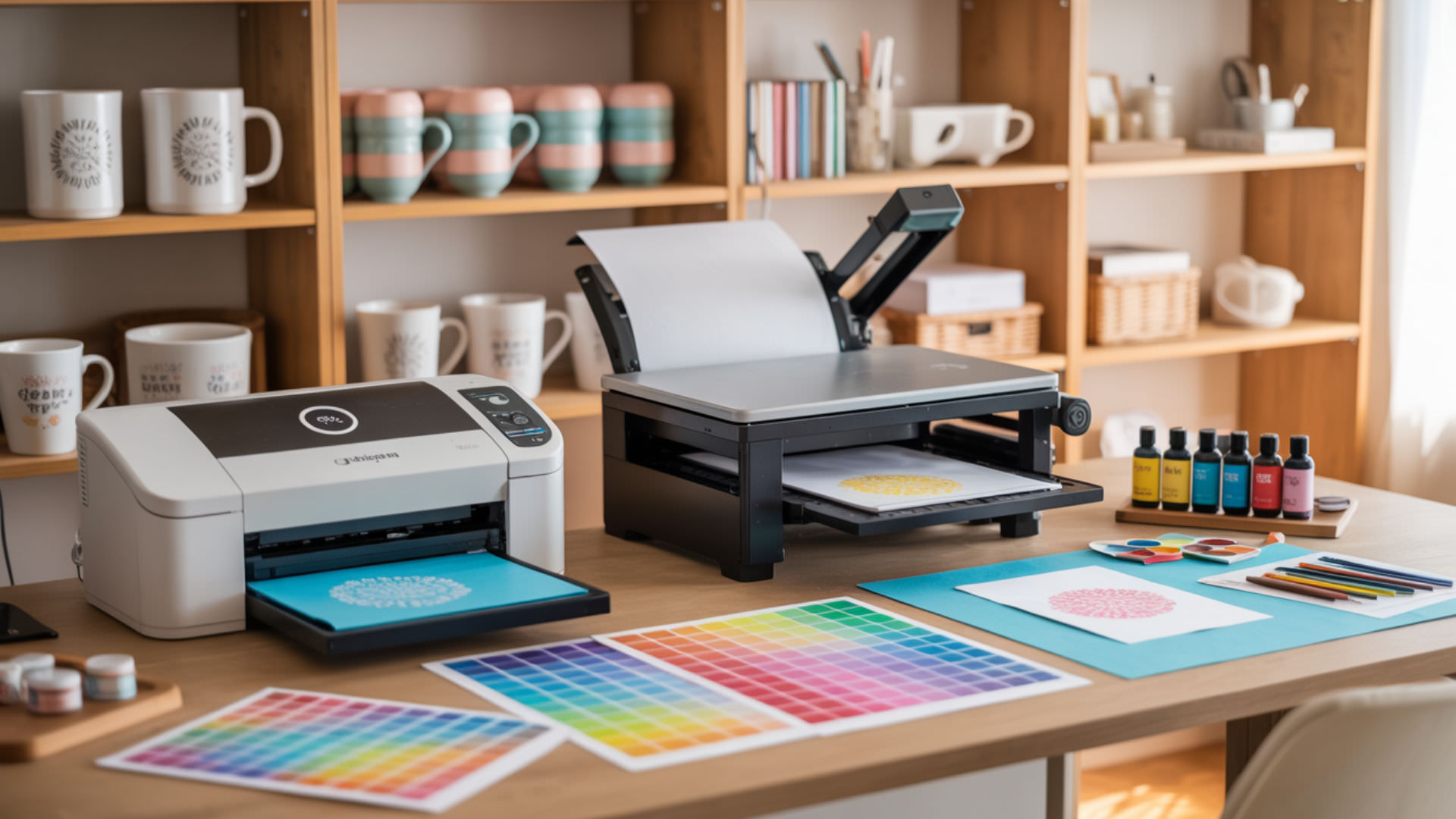
Dye-sublimation printing requires accurate color management to reproduce correct color output, but mismatches between design color space and print workflow cause unexpected shifts in final results. ICC profiles translate color data between devices—without correct profiles matched to your ink and paper, printed colors will not align with screen expectations. Because dye-sublimation printing depends on precise color conversion at every step, understanding foundational printing behavior from our guide on how to use a sublimation printer provides essential context for diagnosing color problems.
Key Takeaways
- CMYK is the printer’s native color model—incorrect CMYK mapping during conversion produces wrong hues in final output.
- RGB is the screen color model used for design—mismatched RGB source files create inaccurate transfers when converted.
- Gamut limitations cause out-of-gamut colors to clip or distort during sublimation because printers cannot reproduce all RGB colors.
Why is my sublimation printer not printing correct colors?
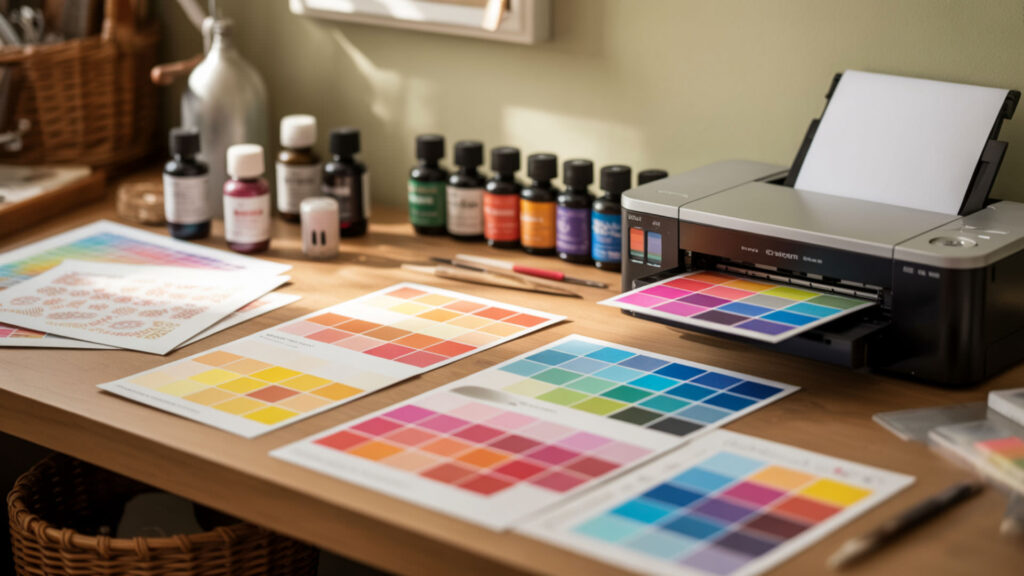
Color management controls how colors convert between monitor, software, and printer—incorrect settings cause global color errors affecting every print. A wrong or missing ICC profile leads to systematic color inaccuracies because the printer interprets color data using incorrect conversion tables. Rendering intent determines how out-of-gamut colors are handled during conversion, with different intents producing varied results for saturated tones. Because color management errors often present as missing output or wrong colors, see our guide on sublimation printer not printing for related troubleshooting.
Why is the printer not printing all the colors?
Nozzles with partial clogs create missing color channels that eliminate specific hues from output entirely. Dye aggregation occurs when dried ink particles clump together inside individual channels, blocking one or more CMYK colors while others print normally. Missing nozzles appear as gaps in nozzle check patterns and cause sudden loss of cyan, magenta, yellow, or black depending on which channels are affected.
How can you fix color output issues in sublimation printing?
ICC profiles must match your specific printer, ink brand, and substrate combination—generic profiles produce inconsistent results across different material types. Color matching through soft-proofing helps align on-screen appearance with printed output before committing to final prints. Raster image processor (RIP) settings control color conversion at the driver level—incorrect RIP configuration causes severe color distortion that ICC profiles alone cannot correct.
Why do sublimation prints sometimes look dull or show color defects?
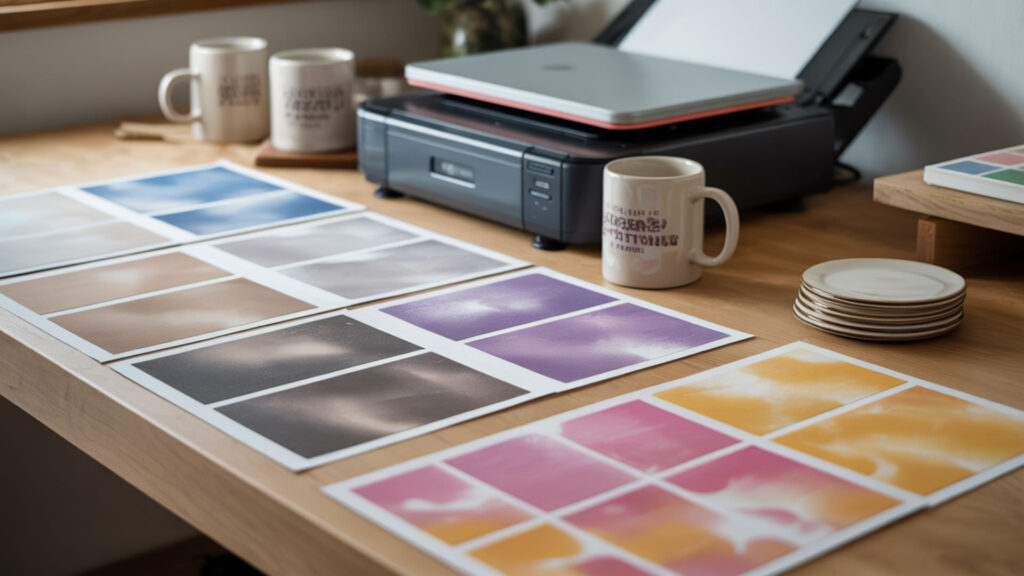
Disperse dye that is under-activated due to insufficient heat or time produces dull, washed-out tones instead of vibrant saturated colors. Polyester fabric with content below 65% causes faded results because sublimation ink cannot bond effectively with natural fibers like cotton. Humidity above 60% introduces excess moisture that prevents proper color development during heat transfer, creating steam interference that dulls final output.
Why does black sublimation ink print brown instead of true black?
CMYK black channel issues force the printer to create composite black from cyan, magenta, and yellow, producing muddy brown instead of true black output. This color shift indicates either a clogged K channel or over-pressing that burns the ink—reduce temperature by 5–10°F or time by 5–10 seconds if pressing is the cause. Clean the black nozzles specifically if nozzle check patterns show gaps or weak output in the black row.
Why do sublimation prints show white spots or blank gaps?
Dust particles trapped between transfer paper and substrate block ink transfer at contact points, leaving white dots scattered across the design. Polymer-coated substrates with uneven or damaged coating create spot defects where ink cannot bond properly to the surface. Poor dithering algorithms in print settings exaggerate white gaps in gradients and solid color areas, making subtle defects more visible in smooth tonal transitions.
Does sublimation printing depend on CMYK or RGB color modes?
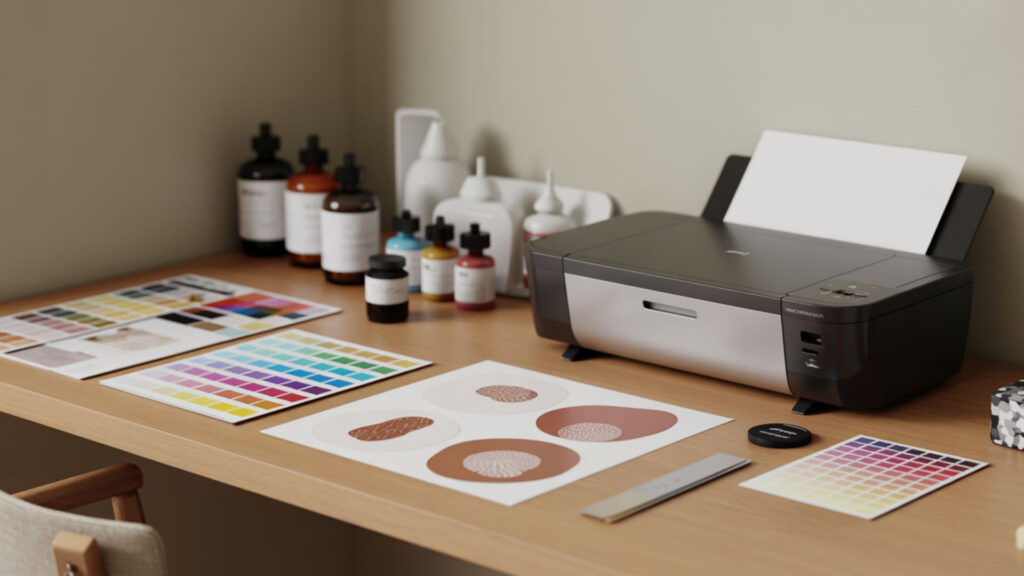
RGB color model is used for design because it offers a wider color gamut and matches how computer monitors display colors, enabling more accurate on-screen previews. CMYK color model is the printer’s native output format—all RGB designs must convert to CMYK during printing, and mis-mapping during conversion causes incorrect colors. Working space consistency matters—using different RGB working spaces between design software and print driver creates unintentional color shifts. Color values rely on defined color spaces, meaning the same numerical values can produce different results when converted between screen-based RGB and printer-based CMYK systems. [1]
How should colors be adjusted for sublimation in design files?
Color gamut comparison helps identify which design colors fall outside the printer’s reproducible range before printing begins. Rendering intent selection determines how those out-of-gamut colors are handled—perceptual, relative colorimetric, saturation, and absolute each produce different results. Perceptual rendering smoothly compresses out-of-gamut tones to fit within printable range while maintaining overall color relationships and smooth gradients.
Can monitor or display calibration affect sublimation colors?
Chromatic adaptation causes perceived color shifts when the monitor white point differs from viewing conditions—a screen calibrated to 6500K appears different under warm indoor lighting. Device-dependent color spaces mean monitor RGB values don’t directly correspond to printer CMYK output, requiring ICC profile conversion to bridge the gap. Calibrate monitors to sRGB or Adobe RGB standards and use consistent ambient lighting when evaluating colors for sublimation. Because human color vision interprets light differently depending on visual conditions and adaptation, colors that look correct on a monitor may appear noticeably different when viewed in print. [2]
How do you calibrate a sublimation printer step-by-step?
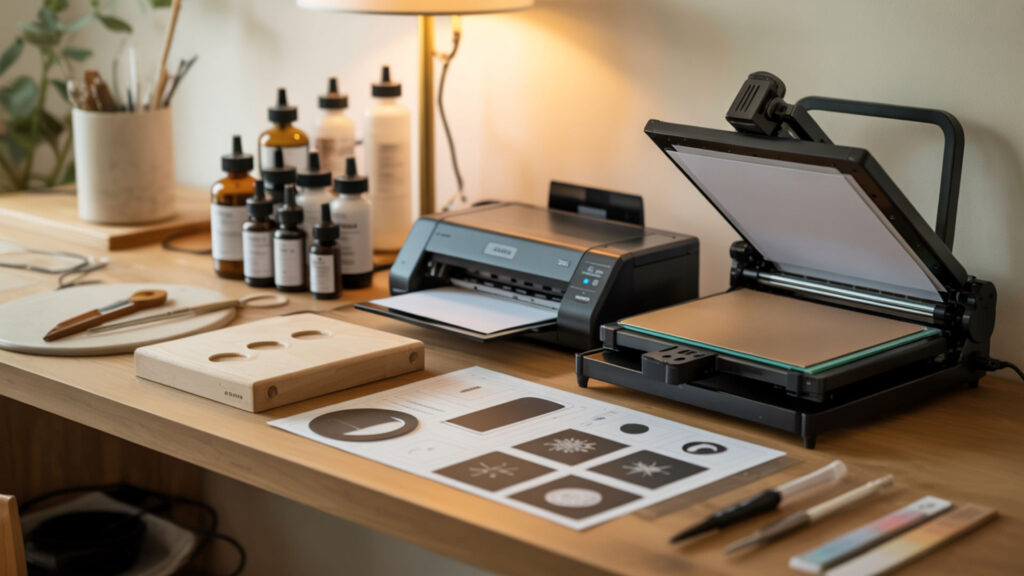
ICC profile creation establishes accurate output by printing standardized color charts and measuring results with a spectrophotometer to build device-specific conversion tables. Color management settings must remain consistent across all software to ensure calibration holds from design application through print driver. CIELAB provides a device-neutral comparison space for printer profiling, allowing objective measurement of color accuracy independent of monitor or printer characteristics. Cleaning the print head before calibration ensures accurate results—blocked nozzles produce unreliable ICC profile data, so see our guide on how to clean sublimation printer head first.
What printer and heat settings influence sublimation color accuracy?
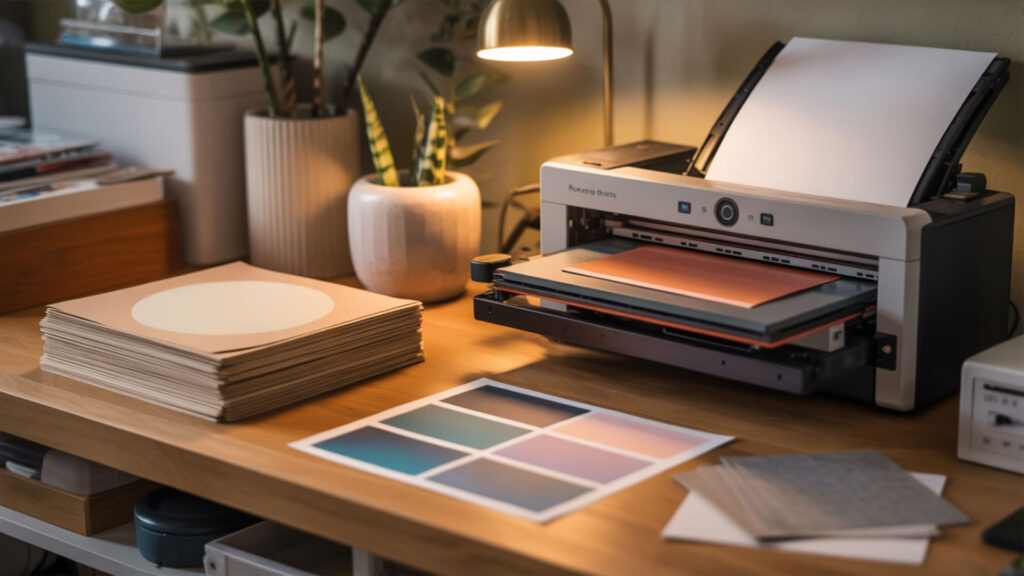
Temperature dependence is critical—incorrect heat causes under-activation (dull colors) or over-activation (burned, shifted tones) of disperse dye during transfer. Dots per inch (DPI) affects color smoothness and tonal accuracy, with 300 DPI recommended for detailed designs and 150 DPI sufficient for simple graphics. Disperse dye develops full color saturation only under correct heat conditions, typically 375–400°F for most substrates. Maintaining consistent color management requires properly functioning equipment—see our best sublimation printer maintenance kit guide for tools that ensure reliable color performance.
What printer settings affect color accuracy during sublimation?
Halftone pattern selection determines how tonal transitions are rendered, affecting perceived smoothness and color gradation in mid-tones. Rasterisation controls how vector graphics and gradients convert to printable pixels—aggressive rasterisation can introduce banding or posterization artifacts. Dithering algorithm choice impacts how colors blend at the pixel level; improper dithering leads to visible color artifacts, especially in smooth gradient areas.
Does incorrect heat affect sublimation colors during transfer?
Disperse dye must fully vaporize at temperatures between 350–420°F (175–215°C) to achieve correct color saturation and proper polymer penetration. Temperature dependence means too-low heat produces pale, under-saturated colors while too-high heat causes burning, yellowing, or hue shifts toward brown and orange tones. Press fabrics at 375–400°F for 45–60 seconds; hard substrates like aluminum require 350°F for 45 seconds with adjusted pressure.
Ready to Fix Sublimation Color Problems?
Color management through proper ICC profiles, consistent software settings, and correct rendering intent selection ensures screen-to-print consistency across all sublimation projects. Accurate ICC profiles matched to your specific ink, paper, and substrate combination are critical for restoring and maintaining correct color output. Regular nozzle checks, proper heat settings, and environmental controls work together to deliver the vibrant, accurate colors sublimation printing is known for.
Frequently Asked Questions
Can sublimation colors shift when printheads are partially clogged?
Partial clogs in specific CMYK channels cause color shifts by reducing output from affected colors while others print at full intensity. A 50% blocked magenta channel shifts colors toward green; blocked cyan shifts toward red-orange. Nozzle check patterns reveal partial clogs as faint or broken lines in specific color rows, indicating which channels need cleaning before color accuracy can be restored.
Why does sublimation ink sometimes dry lighter than expected?
Sublimation ink appears dull on paper before pressing because disperse dye only achieves full color saturation during heat-activated gasification and polymer bonding. Under-pressing with insufficient temperature (below 350°F) or time (under 45 seconds) leaves dye incompletely activated, resulting in permanently lighter output. Moisture trapped in substrates also dilutes color intensity—pre-press items for 3–5 seconds to remove water vapor before final transfer.
Can recalibration improve faded or inaccurate sublimation colors?
Recalibration can restore accurate colors when ICC profiles have become mismatched due to ink changes, paper switches, or printer drift over time. Print standardized color charts, measure with a spectrophotometer, and rebuild profiles to establish new baseline accuracy. Clean all nozzles before recalibrating—blocked channels produce unreliable calibration data that won’t improve actual print quality.
How does overheating impact sublimation color results?
Overheating above 420°F or pressing longer than 60 seconds causes disperse dye to burn, shifting colors toward brown, yellow, or orange tones and reducing overall vibrancy. Black ink is particularly susceptible—over-pressed black appears brown rather than true black due to chemical degradation at excessive temperatures. Reduce temperature by 10–30°F or time by 10–15 seconds if output shows burned or shifted colors.
How long can sublimation ink sit before affecting color output?
Idle time beyond 5–7 days allows sublimation ink to begin drying and separating inside print head channels, causing partial clogs that affect specific colors. Extended idle periods of 2–3 weeks can cause severe color shifts from completely blocked channels that eliminate individual CMYK components from output. Print weekly test patterns to keep ink flowing and maintain consistent color accuracy across all channels.
References
- FF video Codec 1, version 0, 1 and 3. (2023, October 10). Library of Congress. https://www.loc.gov/preservation/digital/formats/fdd/fdd000341.shtml
- Simple anatomy of the retina – Webvision – NCBI bookshelf. (2012, January 31). National Center for Biotechnology Information. https://www.ncbi.nlm.nih.gov/books/NBK11533/